REVIEW 004 // LOGITECH M190 // SIMPLE WIRELESS MOUSE FOR EVERYDAY USE
SEPTEMBER 2026
A simple full-size wireless mouse for around €15. But is there really anything more you need?
01 // WHY I BOUGHT IT
I’ve recently been putting several older laptops back into use for OpenBootLab, and that created a very simple problem: I needed a wireless mouse.
I wasn’t looking for RGB lighting, gaming features or software with twenty different settings. I wanted something inexpensive, reliable and comfortable enough to throw into a laptop bag and use without thinking about it. That led me to the Logitech M190.
Logitech has been making inexpensive mice like this for years, and the M190 is about as straightforward as they come: a full-size wireless mouse, a tiny USB receiver and not much else. So I bought one to see whether a basic mouse like this is really all you need for an everyday laptop.
02 // UNBOXING
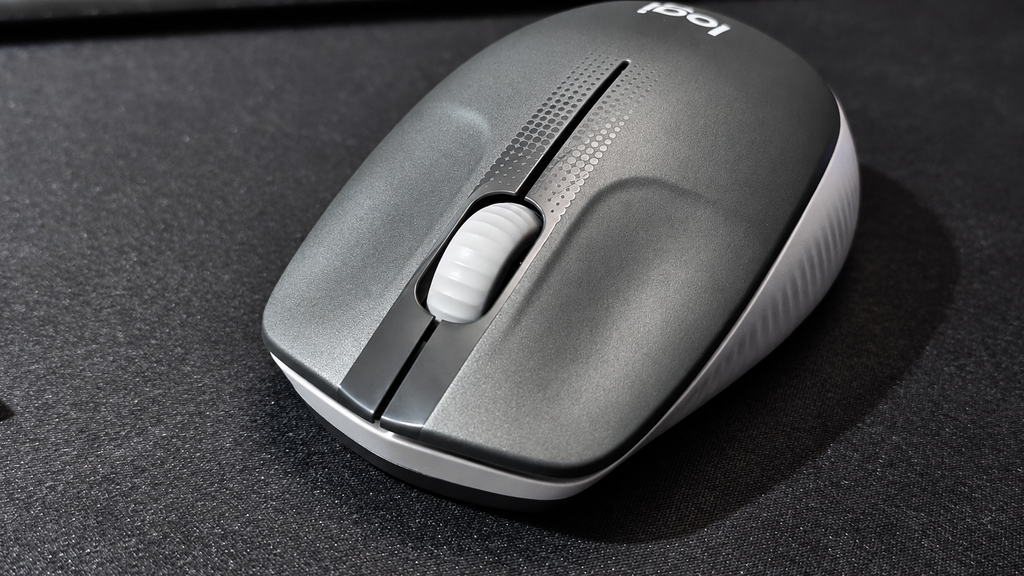
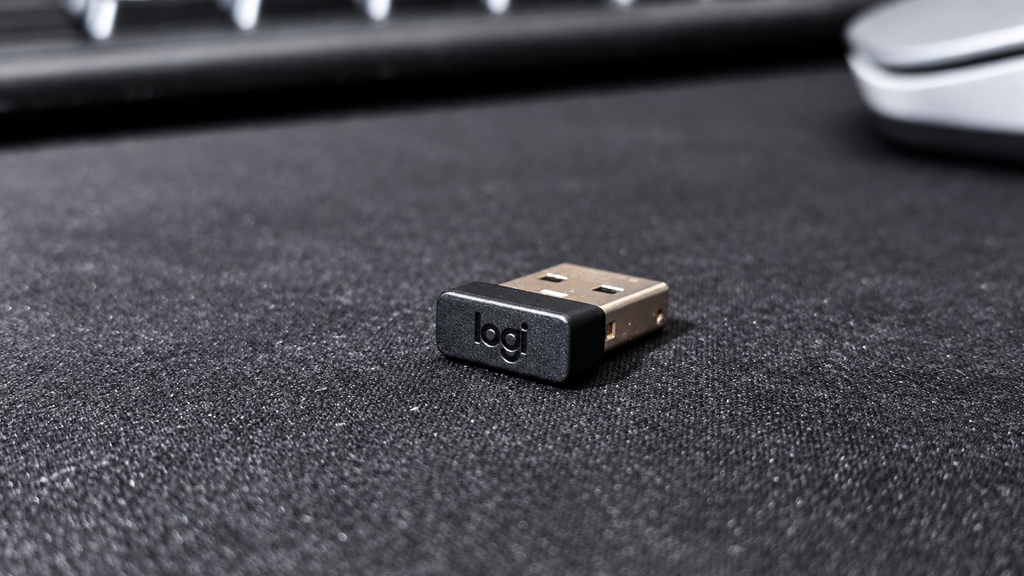
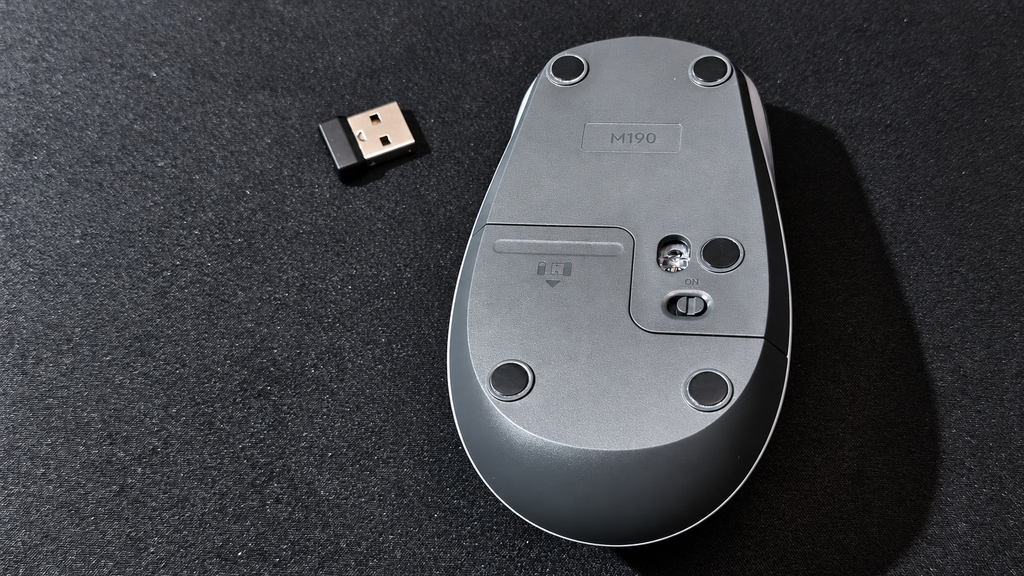
There really isn’t much ceremony here. Inside the packaging you get the Logitech M190, its small USB receiver and the included AA battery. The receiver can be stored inside the mouse when you’re not using it, which is particularly useful if the M190 spends most of its time travelling inside a laptop bag.
Setup is exactly what you’d expect. Plug the receiver into a free USB port, switch on the mouse and start using it. No account. No pairing process. No additional software required for basic operation.
03 // DESIGN AND BUILD QUALITY
The M190 is a full-size mouse, which is one of the main reasons I chose it over some of Logitech’s smaller portable models.
The shape is simple and fairly conventional, with a curved body and textured sides that provide some additional grip.
Build quality feels appropriate for an inexpensive Logitech mouse. It’s almost entirely plastic and doesn’t pretend to be a premium peripheral, but nothing immediately feels particularly fragile either. There are only the essentials: left and right buttons, a clickable scroll wheel and an on/off switch underneath.
And honestly, that’s part of the appeal.
04 // USING IT
I’ve been using the M190 with both my ThinkPad SL510 and the HP Mini 110 that I recently brought back to life with antiX Linux.
The ThinkPad has recently become my main writing laptop for OpenBootLab, while the HP Mini is more of a lightweight Linux and home-lab machine. The M190 worked without any problems with both. Plug in the USB receiver and it is ready to go, including under antiX on the Mini.
For writing articles, browsing WordPress, working with files, using the terminal and normal desktop work, the M190 does exactly what I wanted it to do. Tracking feels perfectly adequate, the wireless connection has been trouble-free so far, and I haven’t found myself thinking about the mouse while using it.
That’s probably one of the better compliments you can give a basic peripheral.
For gaming, however, the M190 wouldn’t be my first choice. It is perfectly fine for an occasional casual game, but this isn’t a gaming mouse. There are no additional buttons, adjustable DPI settings or other gaming-focused features, and the overall feel is clearly designed around everyday productivity rather than fast or competitive gameplay. That’s not really a criticism of the M190, it simply isn’t what this mouse was designed for.
For web browsing, writing, office work, terminal use and general laptop use, however, I haven’t felt like I’m missing anything.
05 // THE USB RECEIVER
One disadvantage compared with Bluetooth mice is that the M190 requires its dedicated USB receiver. On an older laptop like my ThinkPad, that’s not much of a problem. There are traditional USB-A ports available, so I can simply leave the receiver connected.
The receiver itself is also tiny enough that it barely protrudes from the laptop. For newer ultrabooks with very few USB ports, or machines equipped only with USB-C, this approach is obviously less convenient. For the old hardware I’m using it with, however, it’s almost ideal.
06 // COMFORT AND EVERYDAY USE
After using the Logitech M190 regularly for about five days, I’ve had enough time to get a good feel for how comfortable it is during everyday use.
The first thing worth mentioning is the size. The M190 is a full-size mouse and seems better suited to larger hands. For me, that works well and I find it comfortable even during longer sessions. If you have smaller hands, however, the M190 might feel a little too large, especially compared with more compact laptop mice.
The main buttons feel good and have a satisfying click without being excessively loud. The sound is restrained enough that I would have no problem using the M190 in an office or other quiet environment.
The scroll wheel is similarly straightforward. It doesn’t feel particularly premium, but for web browsing, scrolling through documents and working in WordPress, it does exactly what I need it to do. After several days of using it with both the ThinkPad SL510 and HP Mini 110, comfort hasn’t been an issue. It’s not trying to reinvent the mouse—it simply provides a comfortable, predictable experience for normal everyday work.
For the kind of inexpensive everyday mouse the M190 is supposed to be, that’s more than adequate.
07 // A BORING MOUSE — IN A GOOD WAY
The Logitech M190 isn’t an exciting mouse, and after using it for several days, I think that’s actually one of its strengths.
There is no RGB lighting, no software to configure, no adjustable DPI and no collection of extra buttons. You plug the tiny USB receiver into your computer, switch the mouse on and start using it. For gaming, I would definitely look elsewhere. But for the job I bought it for—writing, browsing, working on OpenBootLab and general everyday computer use—I don’t really need anything more.
I’ve used it with both my ThinkPad SL510 and HP Mini 110, and it has worked exactly as expected with both machines. The full-size body fits my hands well, the buttons feel good, the clicks are quiet enough for office use and the scroll wheel is perfectly adequate for browsing and documents.
It’s also exactly the kind of peripheral that makes sense with older hardware. There’s no software dependency or complicated setup to worry about. Just a USB receiver and a mouse. The M190 isn’t going to make an old laptop more exciting. It just makes it easier to use.
And for a simple everyday wireless mouse, that’s really all I wanted.
LAB NOTE 004 // HP MINI 110 // ANTIX // 32-BIT LINUX
SEPTEMBER 2026
The HP Mini 110 comes from an era when netbooks were everywhere. These tiny and inexpensive computers were designed for basic browsing, writing and accessing the internet while travelling.
Today, their limited memory and ageing Intel Atom processors make them difficult to use with modern software. My particular HP Mini is powered by the 32-bit Intel Atom N270, which restricts the choice of supported operating systems even further.
With the right lightweight Linux distribution, could this little netbook still serve a useful purpose in 2026?
I recently acquired this white HP Mini 110 Special Edition as part of a €95 bundle containing four older laptops. It turned out to be one of the most interesting machines in the entire collection.
01 // THE LAPTOP HAUL
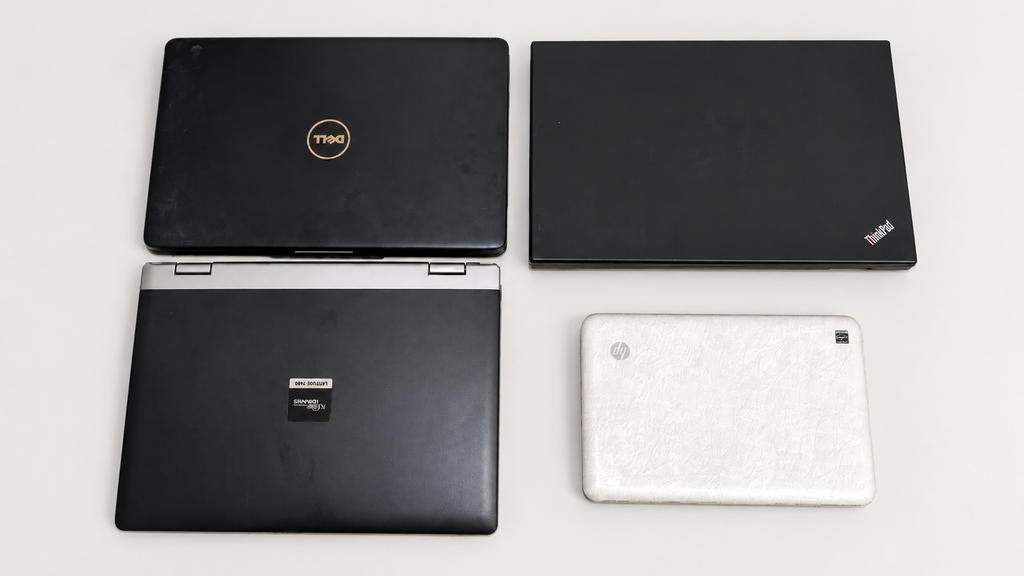
The HP Mini 110 arrived together with three other laptops:
Lenovo ThinkPad SL510
Dell Inspiron 1545
Fujitsu Siemens Amilo Pro V3545
HP Mini 110 Special Edition
All four computers were working, which already made the €95 bundle a surprisingly good purchase.
The batteries in the three larger Core 2 Duo laptops were effectively dead. Surprisingly, the little HP Mini was the only machine in the collection that could still run from its original battery.
That immediately made it more interesting as a genuinely portable retro computer.
The HP Mini 110 was the smallest of the four laptops, and interestingly, the only one that arrived with a working battery. You can read more about the full €90 laptop haul here.
02 // THE TORD BOONTJE SPECIAL EDITION
This is not an ordinary black netbook like the Asus EeePC.
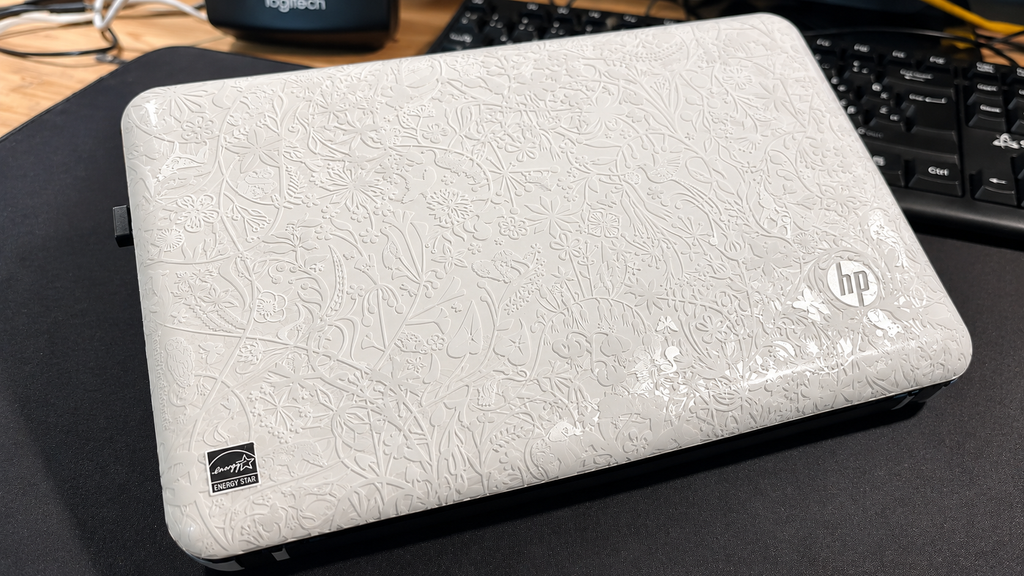
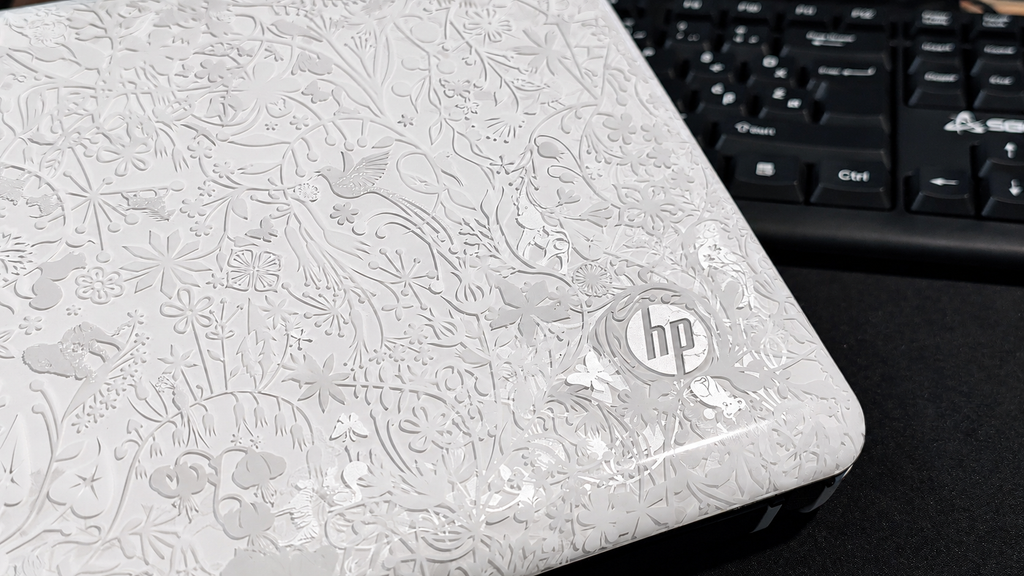
The model number printed on my machine is VT867EA#BED, but what makes it particularly interesting is its design. This is the HP Mini 110 by Studio Tord Boontje, a special edition created in collaboration with Dutch designer Tord Boontje.
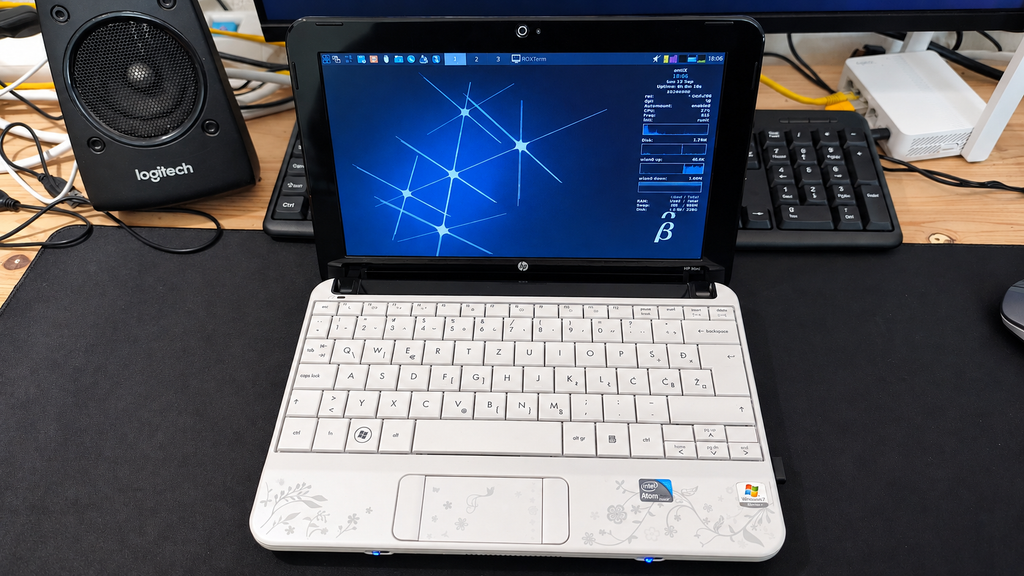
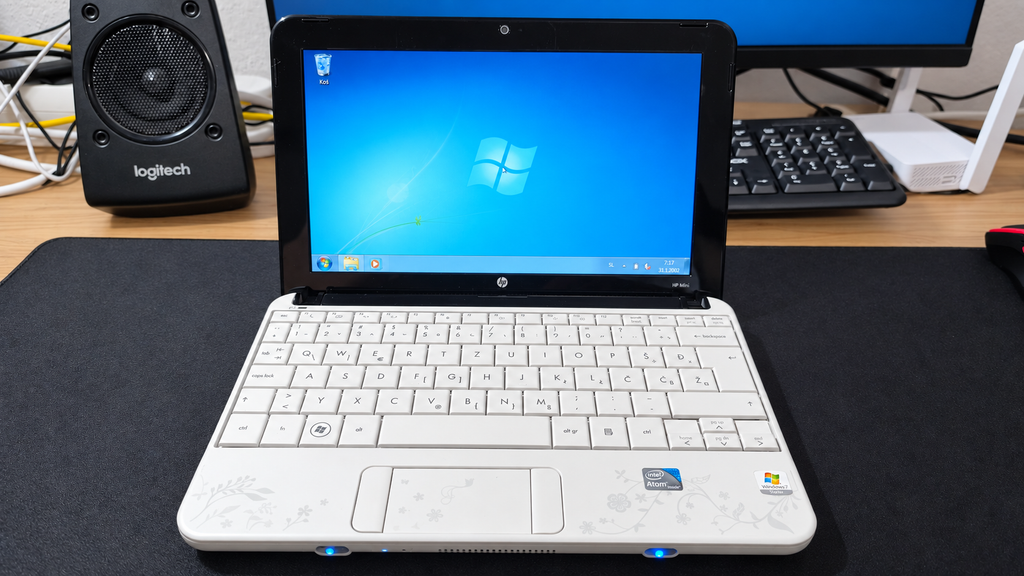
Its white exterior is covered with an intricate floral pattern extending across the lid and palm rest. The layered design includes flowers, branches and small animals hidden among the details. It gives the netbook an appearance unlike almost any modern laptop.
The design is unmistakably connected to the late 2000s and early 2010s—a period when computer manufacturers were much more willing to experiment with colours, patterns and unusual limited editions.
The distinctive floral artwork makes this much more interesting than an ordinary old netbook.
The finish has collected some marks over the years, but the netbook remains in good overall condition. I initially considered covering parts of it with black vinyl, although I am now hesitant to hide such a distinctive part of the machine’s identity.
Its small display and compact keyboard make it considerably smaller than a conventional laptop. Combined with the unusual Tord Boontje artwork, it feels more like a preserved piece of netbook history than an ordinary old computer.
03 // THE ORIGINAL WINDOWS 7 STARTER INSTALLATION
When I received the HP Mini 110, it still had its original Windows 7 Starter installation.
Windows 7 Starter was a simplified edition of Windows created primarily for inexpensive netbooks. It offered fewer features than the other Windows 7 editions, but its lower hardware requirements made it a logical choice for machines such as the HP Mini 110.
Booting into the original installation felt like opening a small time capsule from the netbook era. Alongside Windows 7, HP had installed a considerable amount of additional software and bloatware.
One of the most noticeable additions was a game centre containing a collection of casual games. The selection included familiar titles such as Mahjong and Bejeweled, together with several other games divided across different categories and levels.
The original Windows 7 Starter installation was still present when I received the netbook.
The game centre was one of several additional programs preinstalled on the machine.
It is the kind of software package that was commonly installed on consumer laptops during this period. It adds to the authentic late-2000s experience, although it also consumes valuable storage and resources on a machine with very limited hardware.
The original installation was interesting to explore, but Windows 7 is no longer a suitable choice for a computer that will regularly connect to the internet. Instead of trying to turn it back into a practical everyday Windows machine, I decided to see whether lightweight Linux could give it a more useful second life.
04 // THE 32-BIT ATOM PROBLEM
The HP Mini 110 is powered by an Intel Atom N270, a single-core processor with two threads running at up to 1.60 GHz. It is paired with just 1 GB of RAM and, in my machine, a conventional 5400 RPM hard drive.
Even by modern low-end standards, that is an extremely limited combination. The 1 GB of memory leaves very little room for multitasking, while the mechanical hard drive makes loading applications and starting the operating system noticeably slower than what we are used to with SSDs today.
More importantly, the Atom N270 uses a 32-bit architecture. This significantly restricts the choice of modern operating systems because many Linux distributions no longer provide versions for 32-bit computers.
Atom processors were originally designed to consume little power and keep netbooks inexpensive. Even when these machines were new, performance was never their strongest feature. More than a decade later, modern websites and applications can easily overwhelm them.
Installing a conventional modern operating system would leave very few resources available for actual programs. Windows 10 or a feature-heavy Linux desktop would therefore make little sense on this hardware.
The challenge was not to make the HP Mini fast by modern standards. That would be impossible.
The goal was to find a lightweight 32-bit operating system capable of making its limited hardware useful again.
05 // INSTALLING ANTIX LINUX
For this experiment, I installed the 32-bit version of antiX Linux.
antiX is designed to work on older and resource-constrained computers. It avoids many of the heavy components found in mainstream desktop Linux distributions and provides a lightweight environment that remains practical on limited hardware.
Just as importantly, its availability for 32-bit hardware makes it suitable for systems powered by processors such as the Atom N270.
This made antiX a much more appropriate choice for the HP Mini 110 than the heavier Linux installations I use on my more powerful computers.
The result is not instant or especially fast, but the system is responsive enough to navigate, open lightweight applications and use the machine without constantly fighting the operating system.
Simply getting a usable Linux system running on hardware of this age already feels like a small victory. Here is what a full antiX boot looks like on the HP Mini 110 with its Atom N270, 1 GB of RAM and original 5400 RPM hard drive:
It is certainly not instant, but considering the age and limitations of the hardware, the result is surprisingly usable.
06 // FIXING THE WI-FI
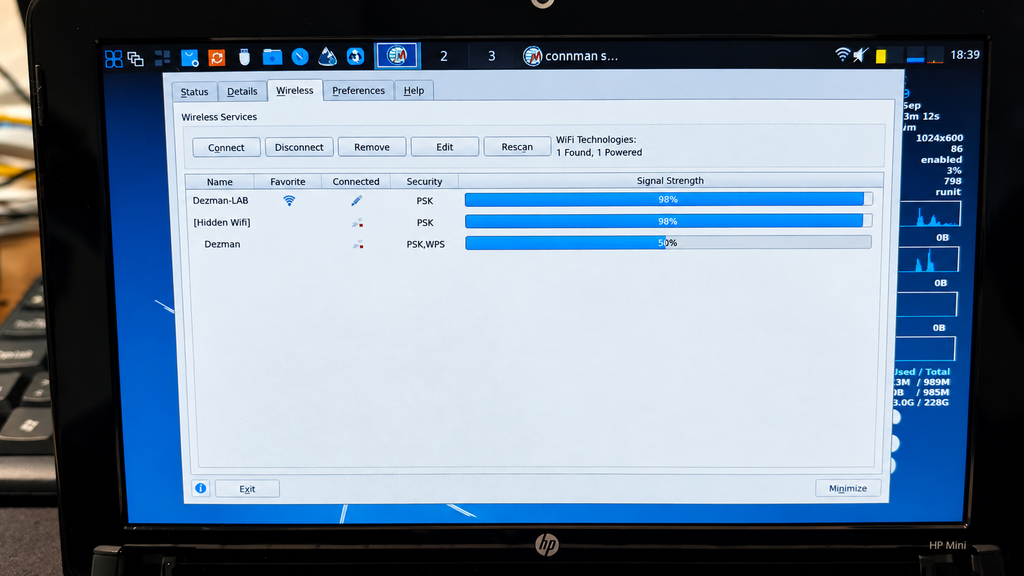
The first issue appeared shortly after installing antiX: the internal Wi-Fi was not working correctly.
That was an important problem because a small portable computer loses much of its usefulness if it must remain connected through an Ethernet cable.
After some troubleshooting, I managed to get the wireless connection working. The HP Mini could finally connect to the network without needing an additional external adapter.
This is exactly the sort of small obstacle I expect when bringing old hardware back into service. The components may still work, but modern operating systems do not always support every old device immediately.
Once Wi-Fi was working, I could begin testing what the netbook was actually capable of doing.
With the internal Wi-Fi working, the HP Mini became a genuinely portable Linux machine again.
07 // WHAT CAN IT STILL DO?
The modern web is probably the worst possible workload for an old Atom netbook.
Many websites now contain heavy scripts, advertisements, animations and background processes. Even a simple page can require considerably more processing power and memory than an entire desktop environment from the HP Mini’s original era.
Lightweight browsing is still possible, but expectations need to remain realistic. Simple pages work much better than large modern websites, and opening multiple browser tabs quickly becomes impractical.
The machine is much more convincing when used for focused, lightweight tasks:
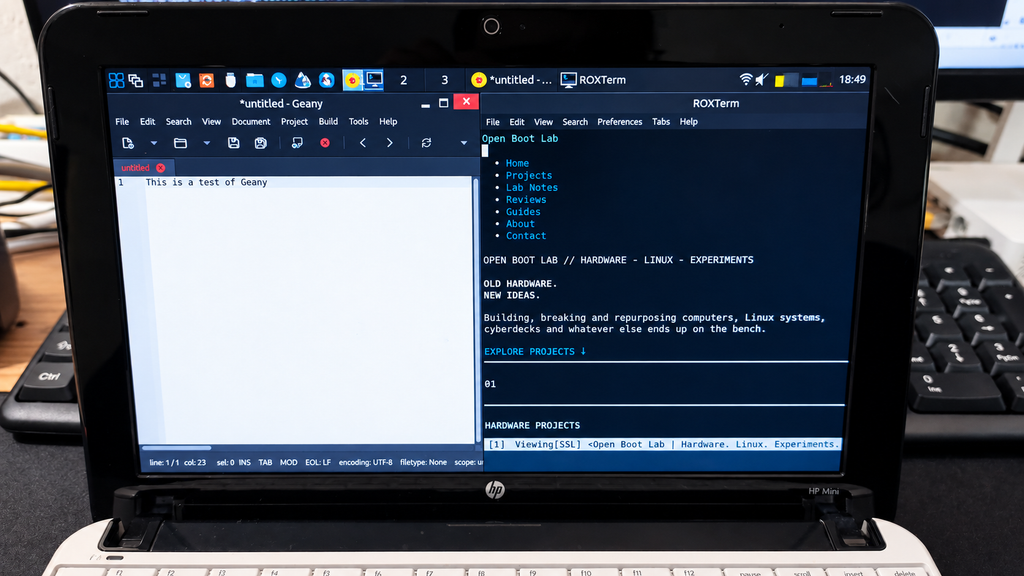
Writing text and notes
Basic file management
Using the Linux terminal
Connecting to IRC
Running terminal-based applications
Managing files on other computers
Lightweight network administration
Experimenting with older software
Learning more about Linux without distractions
These tasks suit the hardware much better than trying to use it like a modern multimedia laptop.
Of course, knowing that this is an old Atom-powered netbook did not stop me from trying a game or two.
The HP Mini is clearly not a gaming machine, but lightweight and older games are still worth experimenting with. Simple puzzle games, classic PC titles, DOS games and other less-demanding releases are a much better match for its limited hardware than anything modern. Testing games on computers that were never designed for gaming is also part of the fun. I do not expect impressive performance, but finding a few titles that run well could give the HP Mini another entertaining purpose.
I plan to cover my gaming results in a separate OpenBootLab lab note. Here’s Freedoom running on the HP Mini 110:
08 // A PORTABLE TERMINAL MACHINE
The most interesting role for the HP Mini may be as a small portable terminal.
Terminal applications require far fewer resources than modern graphical software. An IRC client, text editor, file manager or remote connection can run without placing the same load on the Atom processor as a modern browser. The small screen also makes more sense in this context. It is restrictive for complicated websites, but perfectly suitable for displaying a terminal, writing a document or monitoring another computer.
I have also been exploring terminal-based browsers and music clients. Not every modern service will work perfectly on hardware this old, but experimenting with these tools is part of the fun.
Rather than asking the HP Mini to do everything, I can give it a small number of specific jobs that match its capabilities.
09 // DISTRACTION-FREE WRITING
Another possible use is as a dedicated writing machine for OpenBootLab.
A modern computer makes it incredibly easy to become distracted by videos, social media, notifications and dozens of open browser tabs. The HP Mini does not encourage that kind of multitasking because it simply does not have the performance for it. That limitation could actually be useful.
With a lightweight text editor, the netbook could provide a simple environment for drafting articles and taking project notes. The keyboard is small, so I would not choose it for writing an entire book, but it could work well for preparing short drafts away from my main computer.
Sometimes a machine becomes more useful when it cannot do everything.
10 // THE LIMITATIONS
Installing antiX does not magically turn the HP Mini 110 into a fast computer.
Its limitations remain obvious:
The Atom N270 is extremely slow by current standards.
Its 32-bit architecture limits software and operating-system compatibility.
This is not a replacement for a modern laptop or Chromebook.
However, that is also not the point of the experiment. The HP Mini is interesting because it shows how much usefulness can still be recovered from hardware that most people would now consider obsolete.
11 // GIVING THE HP MINI A SECOND LIFE
The experiment with antiX proved that the HP Mini 110 can still be useful, but I am not quite finished with the hardware yet.
The first upgrade I would like to make is increasing the memory from 1 GB to 2 GB of RAM, assuming I can find a compatible module. Two gigabytes is still tiny by modern standards, but on a lightweight 32-bit Linux installation it should provide noticeably more breathing room.
The other obvious upgrade is storage. My HP Mini currently has its original-style 250 GB 5400 RPM mechanical hard drive, and replacing it with an SSD should make the system feel much more responsive when booting, launching applications and working with files. It will not make the Atom N270 any faster, of course, but it should remove one of the biggest remaining bottlenecks.
My original idea was to take this a little further and start using the HP Mini as an everyday-carry computer — a tiny machine that I could throw into a bag and use for writing, terminal work and other lightweight tasks.
There is just one problem with that plan. Since picking up the HP Mini, I have also started using an old ThinkPad SL510. With considerably more processing power, a much larger keyboard and a new replacement battery, the ThinkPad has unexpectedly become my main OpenBootLab writing machine.
That doesn’t mean the HP Mini is going back onto a shelf, though. Its tiny size, working battery and lightweight antiX installation give it a completely different character. I still want to upgrade it, experiment with it and find out exactly how useful a little Atom-powered netbook can be in 2026.
As for the ThinkPad? That is a story for another post.
12 // FINAL THOUGHTS
The HP Mini 110 is clearly obsolete as a conventional modern laptop. Its Atom N270 struggles with the modern web, 1 GB of RAM leaves very little room for multitasking, and its 32-bit architecture makes finding compatible modern software increasingly difficult.
But after spending some time with antiX, I don’t think this little netbook needs to be a conventional laptop anymore.
I can see it becoming a small home-lab terminal that I can keep nearby for connecting to servers and other machines over SSH, using IRC, running terminal applications and handling other lightweight tasks. For that kind of work, raw performance matters far less than having a small computer with a physical keyboard and a working battery. It could also become my truly portable writing machine.
The ThinkPad SL510 has already taken over as my main OpenBootLab writing laptop. It is considerably more powerful, has a much larger and more comfortable keyboard, and with the replacement battery I recently bought, it has become surprisingly practical for everyday use. I’ll have much more to say about that machine in another post.
But the ThinkPad is also big and heavy.
If I’m going for a walk in the woods, spending some time outdoors or going camping with my family, carrying a full-size old ThinkPad around doesn’t make much sense. The HP Mini does. It is small enough to throw into a bag and forget about until I want to sit down somewhere and write a few paragraphs, capture an idea or access something remotely.
There are still a couple of upgrades I would like to make. If I can find compatible memory, I want to increase it to 2 GB of RAM, and replacing the current 250 GB 5400 RPM hard drive with an SSD should make everyday use considerably more pleasant. Those upgrades won’t suddenly make an Atom N270 fast. They don’t need to.
For €90, I didn’t just get four working old laptops. I also found a tiny, unusual netbook that may end up having a surprisingly specific place in my setup: part home-lab terminal, part portable writing machine, and part Linux experimentation platform.
The HP Mini 110 may no longer be fast, but I think I’ve found a reason to keep using it.
I was only looking for one cheap laptop, but somehow I ended up buying a bundle of four older machines for €95.
The haul included a Lenovo ThinkPad SL510, Dell Inspiron 1545, Fujitsu Siemens Amilo Pro V3545, and a tiny HP Mini 110. Even better, all four turned out to be working.
01 // HOW I ENDED UP WITH FOUR LAPTOPS
I originally started looking for a cheap laptop that I could use mainly for writing OpenBootLab posts, browsing, and some light Linux testing.
My budget was around €100, and at first I was looking at inexpensive refurbished Chromebooks and other low-cost used laptops. One of the options I was seriously considering was a refurbished Dell Chromebook.
Instead, I contacted a seller I had bought hardware from before and asked if he had any older laptops available. You may already recognize the seller from the Mainframe project, where I previously bought a €30 bundle of old PC hardware from him. He usually has quite a bit of interesting older hardware around, so I have a feeling this probably will not be the last time something from him ends up in OpenBootLab.
He had several laptops available, and after going through the options I ended up choosing four of them: a Lenovo ThinkPad SL510, Dell Inspiron 1545, Fujitsu Siemens Amilo Pro V3545, and a tiny HP Mini 110.
The total price for all four was €90.
What made the deal especially interesting was that I paid less for these four machines combined than I would have paid for the single refurbished Dell Chromebook I had been considering. At that price, I expected at least one of them to be completely dead or to need quite a bit of work.
Instead, all four powered on and worked.
So what started as a search for one inexpensive writing laptop somehow turned into four different machines, four potential OpenBootLab projects, and plenty more content for both me to make and you to enjoy.
02 // WHAT I ACTUALLY GOT
Now that the story behind the haul is out of the way, it is time to look at the four machines themselves.
The four laptops are all from slightly different parts of the same era, but they are also very different from each other. There is a business-oriented ThinkPad, a mainstream Dell, an older Fujitsu Siemens machine, and a tiny HP netbook.
The lineup looks like this:
Lenovo ThinkPad SL510
Dell Inspiron 1545
Fujitsu Siemens Amilo Pro V3545
HP Mini 110
All four came with their power adapters, and all four were able to power on. Some of them also already had useful upgrades such as SSDs or additional RAM, which made the deal even more interesting.
Of course, they are far from perfect. The cases show their age, there are scratches and signs of use, and the batteries on the larger machines are basically finished. But that is also part of the reason I wanted them.
These are not collector pieces or restored machines. They are old laptops that have clearly been used, and now they get another chance to do something useful.
From here, I will take a closer look at each one individually.
03 // LENOVO THINKPAD SL510
The Lenovo ThinkPad SL510 was probably the machine I was most interested in when choosing the four laptops.
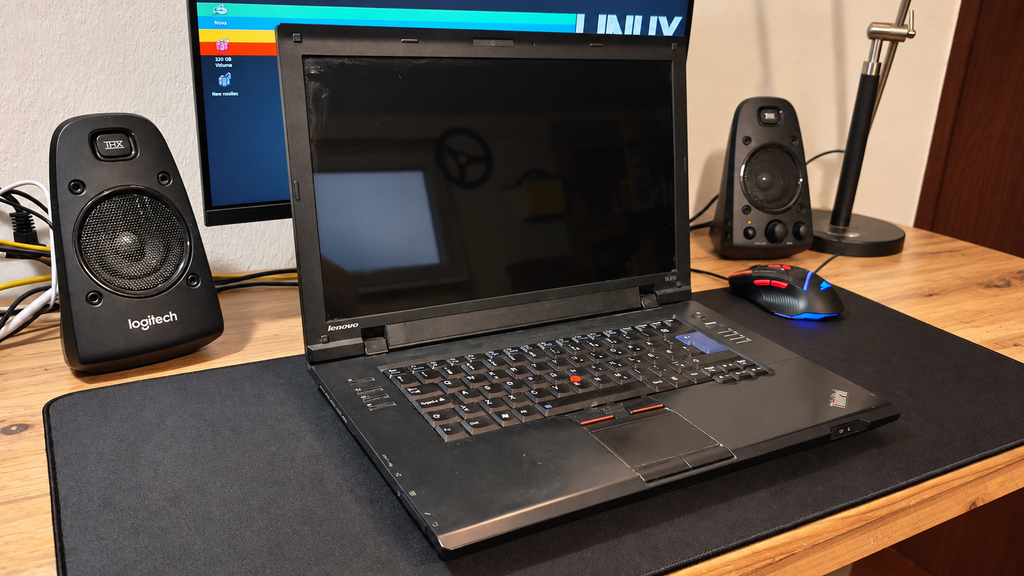
I have always liked the more practical design of older ThinkPads, and this one still has a lot of the features people usually associate with them: a solid keyboard, the red TrackPoint in the middle, a fairly simple black chassis, and a design that is more functional than flashy.
Cosmetically, it definitely shows its age. The lid has plenty of scratches and marks from years of use, but I actually prefer leaving that visible instead of trying to make it look brand new. This is a used machine, and the wear is part of its history.
The good news is that the laptop itself works. The main downside is the battery, which is basically dead, so for now it needs to stay connected to the charger.
My current plan is to turn the SL510 into a simple Linux laptop that I can use for writing OpenBootLab posts, browsing, terminal work, and some light testing. I am also considering replacing the battery later if I can find one at a reasonable price.
Out of the four laptops, this is probably the one with the best chance of becoming an actual everyday-use machine rather than just another experiment.
04 // DELL INSPIRON 1545
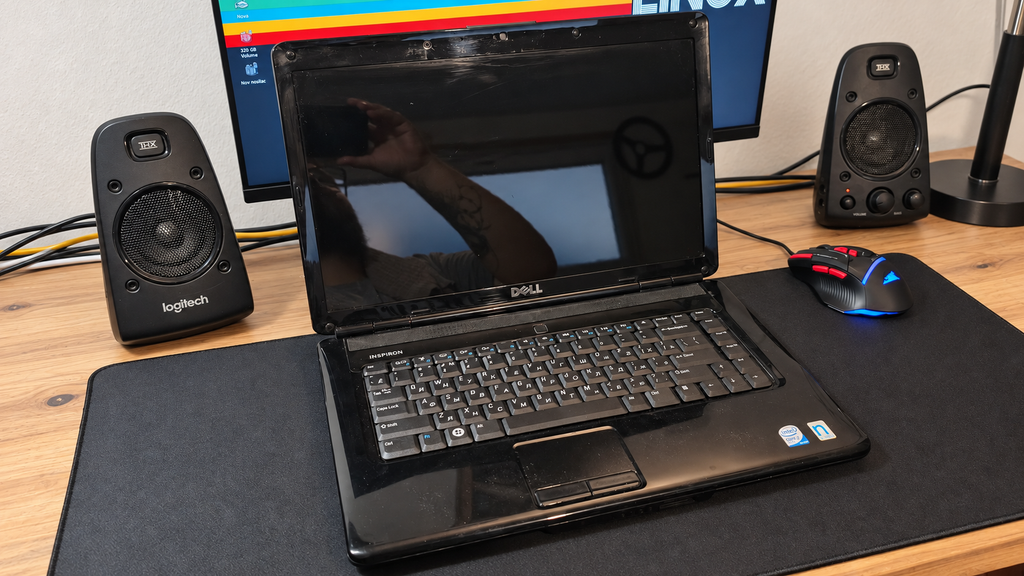
The Dell Inspiron 1545 feels quite different from the ThinkPad. It is more of a mainstream consumer laptop from its era, with a simpler design and a glossy finish that definitely shows fingerprints, scratches, and years of use.
Like the SL510, the important part is that it works.
One thing I noticed immediately during the first boot was the charger situation. The seller had already mentioned that if I wanted the battery to charge properly, I would probably need to get an original Dell charger. He did not have one available, so he included a compatible HP power adapter instead. It powers the laptop without a problem, but the Inspiron does not recognize it as a proper Dell charger because it is missing Dell’s identification chip. Because of that, the laptop can run from the adapter, but battery charging is limited or unavailable.
The battery itself is already in poor condition anyway, so this is not a major problem for what I currently want to do with the machine. If I eventually decide to replace the battery, I will probably also look for a proper Dell charger.
Unlike the ThinkPad, I already have a fairly clear idea for the Inspiron. This will probably become one of my main Linux distribution testing machines, especially for lightweight distributions designed for older hardware. Instead of only testing them inside a virtual machine, I want to see how they actually behave on real hardware from this era.
That should make the Inspiron useful for future OpenBootLab posts where I can compare different lightweight Linux distributions, installation experiences, hardware support, performance, and how usable they still are on an older laptop.
So while it may not become my everyday writing machine, it could end up being one of the most frequently experimented-on laptops from the entire haul.
05 // FUJITSU SIEMENS AMILO PRO V3545
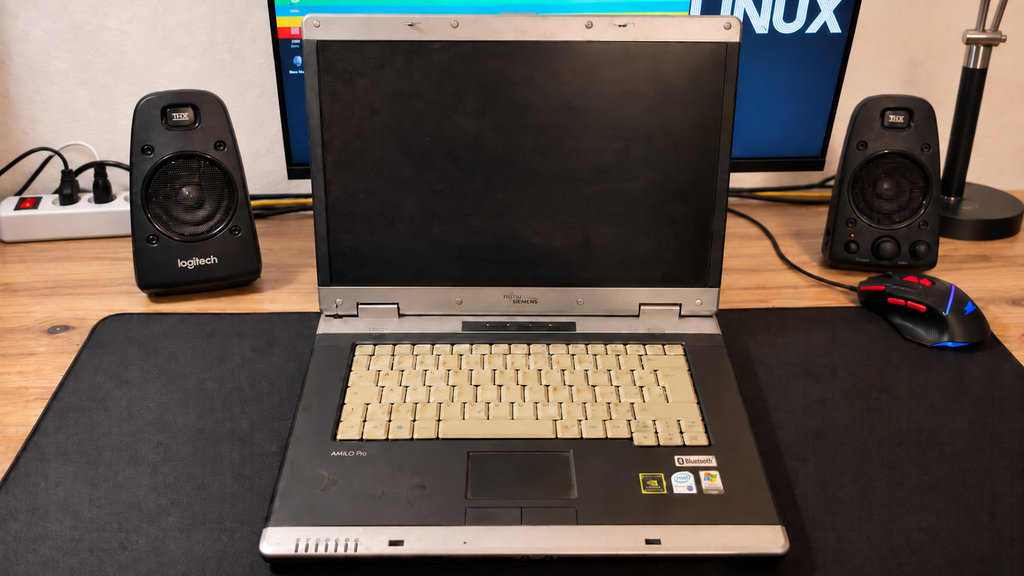
The Fujitsu Siemens Amilo Pro V3545 is probably the most unusual laptop in the group, at least compared with the Dell and ThinkPad. Its design feels noticeably older, with a chunkier chassis, silver trim, and a much more early-2000s business-laptop look. It also stands out visually because of the light-colored keyboard and the large silver hinge area.
Like the others, it is far from perfect cosmetically. There are scratches, marks, and signs of long-term use, but the machine itself still works, which is what matters most here.
This one also came with Windows XP already installed, and I have decided to keep it that way.
Because the laptop has a dedicated NVIDIA graphics card, my plan is to turn the Amilo Pro into an XP gaming laptop for older PC games and software from that era. Instead of trying to modernize it too much, I think it makes more sense to keep it close to the period it originally came from. That should make it useful for testing older games, software, drivers, and other Windows XP-era experiments without needing to set up a virtual machine every time.
So unlike the Dell, which will mainly become a Linux testing machine, the Amilo already has a much clearer role in the lab: a dedicated Windows XP gaming and retro software machine.
06 // HP MINI 110
The HP Mini 110 is easily the most different machine in the whole haul.
Compared with the other three laptops, it is tiny. The small screen, compact keyboard, and lightweight chassis make it feel more like a little portable experiment than a normal laptop, which is exactly why I like it. This particular one is also a special edition model, which makes it even more interesting. Instead of the usual plain finish, it has the distinctive white floral-patterned lid, giving it a very different look from the typical black and silver laptops from the same era.
It also surprised me in another way: the battery still works.
That already makes it more practical than the larger laptops, especially for something I can actually carry around and use away from the desk. Performance is obviously limited by the Atom platform, but that is also what makes it interesting.
I have already started experimenting with antiX Linux on it, and the goal is to see how usable such a low-powered machine can still be today with lightweight software. I want to try things like lightweight web browsing, IRC, terminal-based tools, music playback, writing, simple file transfers, and other low-resource Linux applications.
The HP Mini will probably become my dedicated ultra-lightweight Linux experiment.
It is definitely not the fastest machine in the group, but because of its size, working battery, special-edition design, and limitations, it may end up producing some of the most interesting Lab Notes from the entire haul.
07 // WHAT HAPPENS NEXT
What started as a search for one cheap laptop turned into four different machines, each with its own role.
The ThinkPad SL510 will probably become a regular appearance on OpenBootLab. It is the machine I can see myself using most often for writing, Linux, browsing, and general testing. The Dell Inspiron 1545 will mainly be used for experimenting with different lightweight Linux distributions on real hardware. The Fujitsu Siemens Amilo Pro V3545 is staying on Windows XP and will become my retro gaming and older software machine. And the tiny HP Mini 110 will continue as my low-power Linux experiment.
For €90, I am more than happy with how this turned out.
This post was only the introduction to the haul. I also plan to make a separate post for each laptop, where I can go into much more detail about the hardware, specifications, condition, upgrades, operating systems, performance, and what I eventually decide to use each machine for.
None of these laptops are perfect. They are scratched, worn, old, and limited in different ways, but that is exactly what makes them interesting. They are not going onto a shelf. They are going back to work.
And this definitely will not be the last time you see them on OpenBootLab.
// END OF LAB NOTE
Privacy & Cookies
We use cookies to keep Open Boot Lab working properly and to understand how the site is used. You can accept all cookies, deny optional cookies, or choose your preferences.
Functional
Always active
The technical storage or access is strictly necessary for the legitimate purpose of enabling the use of a specific service explicitly requested by the subscriber or user, or for the sole purpose of carrying out the transmission of a communication over an electronic communications network.
Preferences
The technical storage or access is necessary for the legitimate purpose of storing preferences that are not requested by the subscriber or user.
Statistics
The technical storage or access that is used exclusively for statistical purposes.The technical storage or access that is used exclusively for anonymous statistical purposes. Without a subpoena, voluntary compliance on the part of your Internet Service Provider, or additional records from a third party, information stored or retrieved for this purpose alone cannot usually be used to identify you.
Marketing
The technical storage or access is required to create user profiles to send advertising, or to track the user on a website or across several websites for similar marketing purposes.