Tag: Budget Tech

  • Logitech M190 Wireless Mouse – Unboxing & Quick Review

    Logitech M190 Wireless Mouse – Unboxing & Quick Review

    A simple full-size wireless mouse for around €15. But is there really anything more you need?


    I’ve recently been putting several older laptops back into use for OpenBootLab, and that created a very simple problem: I needed a wireless mouse.

    I wasn’t looking for RGB lighting, gaming features or software with twenty different settings. I wanted something inexpensive, reliable and comfortable enough to throw into a laptop bag and use without thinking about it. That led me to the Logitech M190.

    Logitech has been making inexpensive mice like this for years, and the M190 is about as straightforward as they come: a full-size wireless mouse, a tiny USB receiver and not much else. So I bought one to see whether a basic mouse like this is really all you need for an everyday laptop.


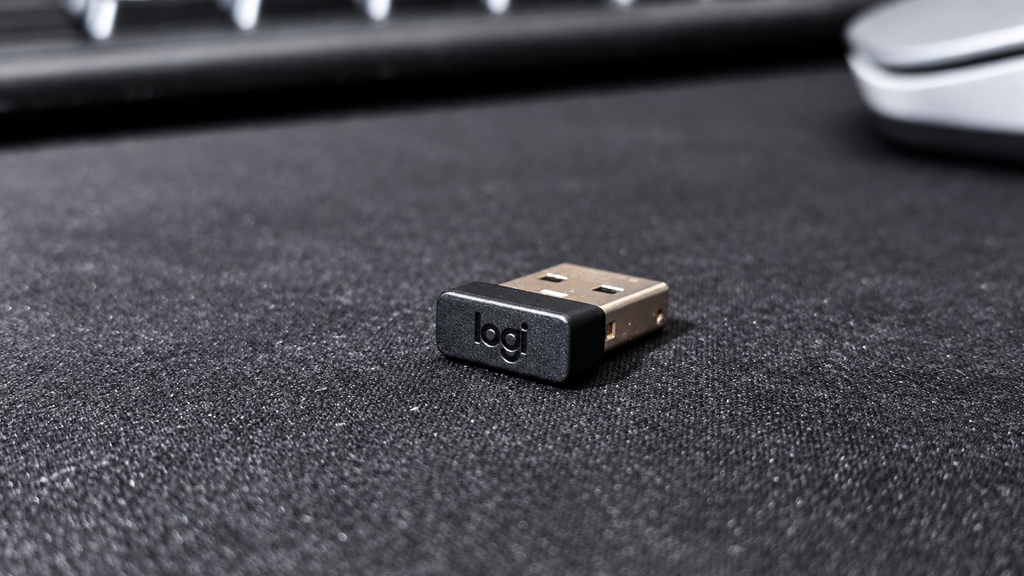
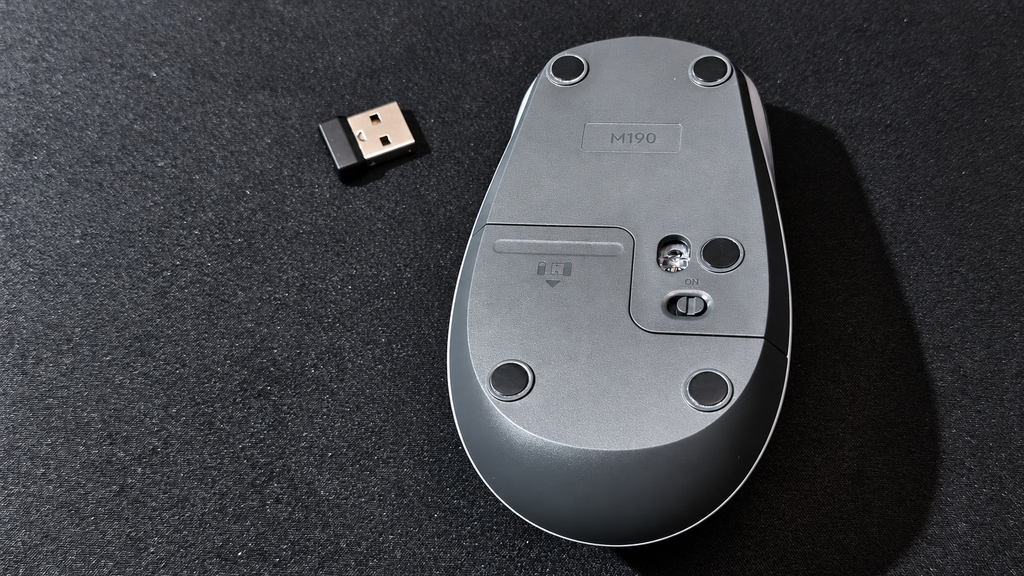
    There really isn’t much ceremony here. Inside the packaging you get the Logitech M190, its small USB receiver and the included AA battery. The receiver can be stored inside the mouse when you’re not using it, which is particularly useful if the M190 spends most of its time travelling inside a laptop bag.

    Setup is exactly what you’d expect. Plug the receiver into a free USB port, switch on the mouse and start using it. No account. No pairing process. No additional software required for basic operation.


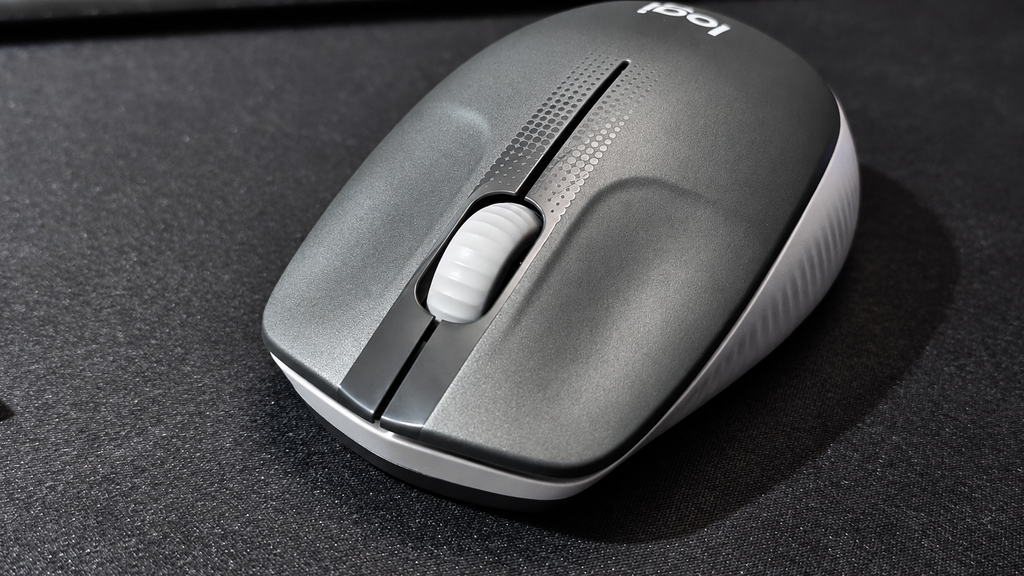
    The M190 is a full-size mouse, which is one of the main reasons I chose it over some of Logitech’s smaller portable models.

    The shape is simple and fairly conventional, with a curved body and textured sides that provide some additional grip.

    Build quality feels appropriate for an inexpensive Logitech mouse. It’s almost entirely plastic and doesn’t pretend to be a premium peripheral, but nothing immediately feels particularly fragile either. There are only the essentials: left and right buttons, a clickable scroll wheel and an on/off switch underneath.

    And honestly, that’s part of the appeal.

    I’ve been using the M190 with both my ThinkPad SL510 and the HP Mini 110 that I recently brought back to life with antiX Linux.

    The ThinkPad has recently become my main writing laptop for OpenBootLab, while the HP Mini is more of a lightweight Linux and home-lab machine. The M190 worked without any problems with both. Plug in the USB receiver and it is ready to go, including under antiX on the Mini.

    For writing articles, browsing WordPress, working with files, using the terminal and normal desktop work, the M190 does exactly what I wanted it to do. Tracking feels perfectly adequate, the wireless connection has been trouble-free so far, and I haven’t found myself thinking about the mouse while using it.

    That’s probably one of the better compliments you can give a basic peripheral.

    For gaming, however, the M190 wouldn’t be my first choice. It is perfectly fine for an occasional casual game, but this isn’t a gaming mouse. There are no additional buttons, adjustable DPI settings or other gaming-focused features, and the overall feel is clearly designed around everyday productivity rather than fast or competitive gameplay. That’s not really a criticism of the M190, it simply isn’t what this mouse was designed for.

    For web browsing, writing, office work, terminal use and general laptop use, however, I haven’t felt like I’m missing anything.


    One disadvantage compared with Bluetooth mice is that the M190 requires its dedicated USB receiver. On an older laptop like my ThinkPad, that’s not much of a problem. There are traditional USB-A ports available, so I can simply leave the receiver connected.

    The receiver itself is also tiny enough that it barely protrudes from the laptop. For newer ultrabooks with very few USB ports, or machines equipped only with USB-C, this approach is obviously less convenient. For the old hardware I’m using it with, however, it’s almost ideal.

    After using the Logitech M190 regularly for about five days, I’ve had enough time to get a good feel for how comfortable it is during everyday use.

    The first thing worth mentioning is the size. The M190 is a full-size mouse and seems better suited to larger hands. For me, that works well and I find it comfortable even during longer sessions. If you have smaller hands, however, the M190 might feel a little too large, especially compared with more compact laptop mice.

    The main buttons feel good and have a satisfying click without being excessively loud. The sound is restrained enough that I would have no problem using the M190 in an office or other quiet environment.

    The scroll wheel is similarly straightforward. It doesn’t feel particularly premium, but for web browsing, scrolling through documents and working in WordPress, it does exactly what I need it to do. After several days of using it with both the ThinkPad SL510 and HP Mini 110, comfort hasn’t been an issue. It’s not trying to reinvent the mouse—it simply provides a comfortable, predictable experience for normal everyday work.

    For the kind of inexpensive everyday mouse the M190 is supposed to be, that’s more than adequate.


    The Logitech M190 isn’t an exciting mouse, and after using it for several days, I think that’s actually one of its strengths.

    There is no RGB lighting, no software to configure, no adjustable DPI and no collection of extra buttons. You plug the tiny USB receiver into your computer, switch the mouse on and start using it. For gaming, I would definitely look elsewhere. But for the job I bought it for—writing, browsing, working on OpenBootLab and general everyday computer use—I don’t really need anything more.

    I’ve used it with both my ThinkPad SL510 and HP Mini 110, and it has worked exactly as expected with both machines. The full-size body fits my hands well, the buttons feel good, the clicks are quiet enough for office use and the scroll wheel is perfectly adequate for browsing and documents.

    It’s also exactly the kind of peripheral that makes sense with older hardware. There’s no software dependency or complicated setup to worry about. Just a USB receiver and a mouse. The M190 isn’t going to make an old laptop more exciting. It just makes it easier to use.

    And for a simple everyday wireless mouse, that’s really all I wanted.

  • My €90 Used Laptop Haul

    My €90 Used Laptop Haul

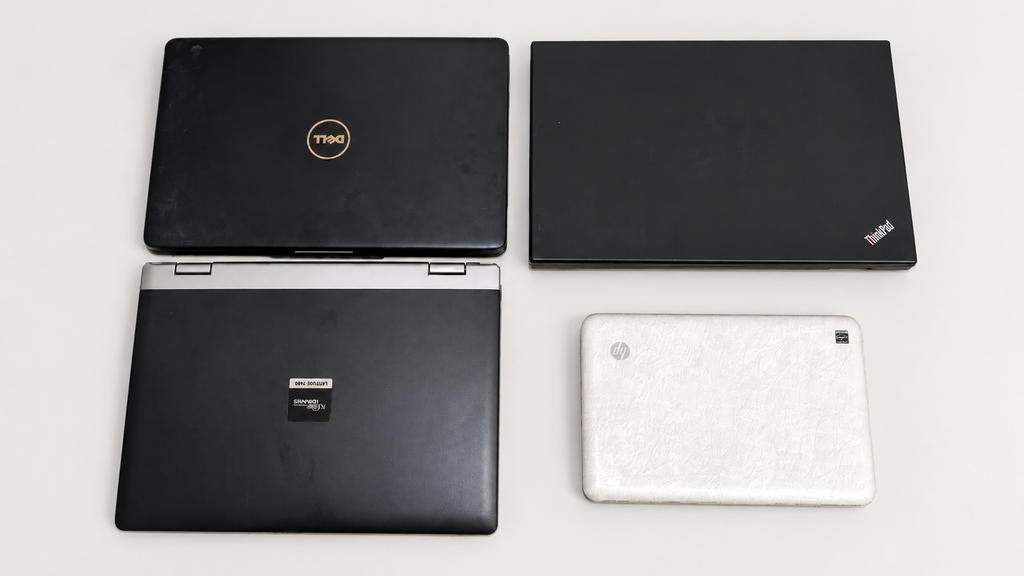
    I was only looking for one cheap laptop, but somehow I ended up buying a bundle of four older machines for €95.

    The haul included a Lenovo ThinkPad SL510, Dell Inspiron 1545, Fujitsu Siemens Amilo Pro V3545, and a tiny HP Mini 110. Even better, all four turned out to be working.


    I originally started looking for a cheap laptop that I could use mainly for writing OpenBootLab posts, browsing, and some light Linux testing.

    My budget was around €100, and at first I was looking at inexpensive refurbished Chromebooks and other low-cost used laptops. One of the options I was seriously considering was a refurbished Dell Chromebook.

    Instead, I contacted a seller I had bought hardware from before and asked if he had any older laptops available. You may already recognize the seller from the Mainframe project, where I previously bought a €30 bundle of old PC hardware from him. He usually has quite a bit of interesting older hardware around, so I have a feeling this probably will not be the last time something from him ends up in OpenBootLab.

    He had several laptops available, and after going through the options I ended up choosing four of them: a Lenovo ThinkPad SL510, Dell Inspiron 1545, Fujitsu Siemens Amilo Pro V3545, and a tiny HP Mini 110.

    The total price for all four was €90.

    What made the deal especially interesting was that I paid less for these four machines combined than I would have paid for the single refurbished Dell Chromebook I had been considering. At that price, I expected at least one of them to be completely dead or to need quite a bit of work.

    Instead, all four powered on and worked.

    So what started as a search for one inexpensive writing laptop somehow turned into four different machines, four potential OpenBootLab projects, and plenty more content for both me to make and you to enjoy.


    Now that the story behind the haul is out of the way, it is time to look at the four machines themselves.

    The four laptops are all from slightly different parts of the same era, but they are also very different from each other. There is a business-oriented ThinkPad, a mainstream Dell, an older Fujitsu Siemens machine, and a tiny HP netbook.

    The lineup looks like this:

    • Lenovo ThinkPad SL510
    • Dell Inspiron 1545
    • Fujitsu Siemens Amilo Pro V3545
    • HP Mini 110

    All four came with their power adapters, and all four were able to power on. Some of them also already had useful upgrades such as SSDs or additional RAM, which made the deal even more interesting.

    Of course, they are far from perfect. The cases show their age, there are scratches and signs of use, and the batteries on the larger machines are basically finished. But that is also part of the reason I wanted them.

    These are not collector pieces or restored machines. They are old laptops that have clearly been used, and now they get another chance to do something useful.

    From here, I will take a closer look at each one individually.


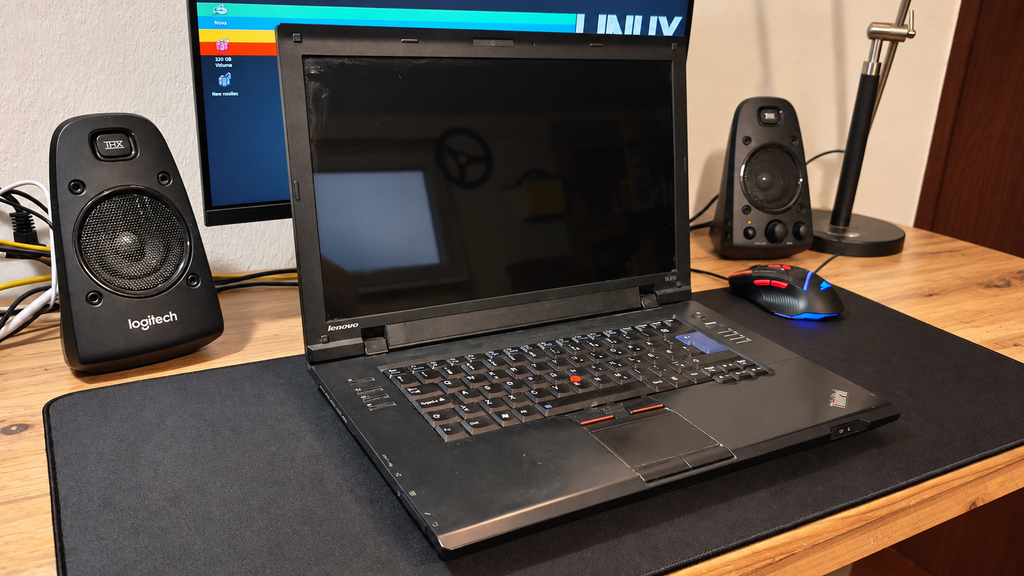
    The Lenovo ThinkPad SL510 was probably the machine I was most interested in when choosing the four laptops.

    I have always liked the more practical design of older ThinkPads, and this one still has a lot of the features people usually associate with them: a solid keyboard, the red TrackPoint in the middle, a fairly simple black chassis, and a design that is more functional than flashy.

    Cosmetically, it definitely shows its age. The lid has plenty of scratches and marks from years of use, but I actually prefer leaving that visible instead of trying to make it look brand new. This is a used machine, and the wear is part of its history.

    The good news is that the laptop itself works. The main downside is the battery, which is basically dead, so for now it needs to stay connected to the charger.

    My current plan is to turn the SL510 into a simple Linux laptop that I can use for writing OpenBootLab posts, browsing, terminal work, and some light testing. I am also considering replacing the battery later if I can find one at a reasonable price.

    Out of the four laptops, this is probably the one with the best chance of becoming an actual everyday-use machine rather than just another experiment.


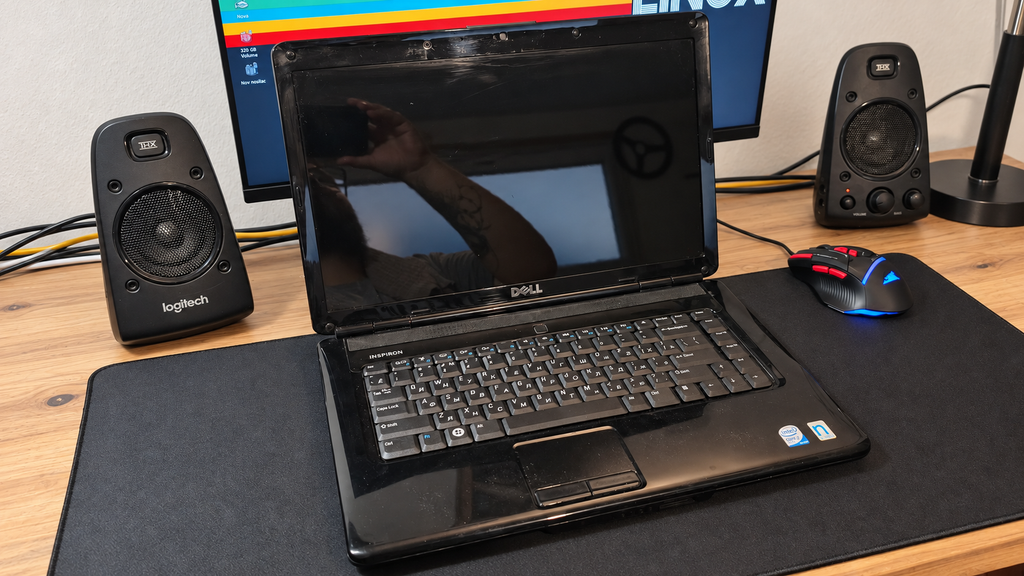
    The Dell Inspiron 1545 feels quite different from the ThinkPad. It is more of a mainstream consumer laptop from its era, with a simpler design and a glossy finish that definitely shows fingerprints, scratches, and years of use.

    Like the SL510, the important part is that it works.

    One thing I noticed immediately during the first boot was the charger situation. The seller had already mentioned that if I wanted the battery to charge properly, I would probably need to get an original Dell charger. He did not have one available, so he included a compatible HP power adapter instead. It powers the laptop without a problem, but the Inspiron does not recognize it as a proper Dell charger because it is missing Dell’s identification chip. Because of that, the laptop can run from the adapter, but battery charging is limited or unavailable.

    The battery itself is already in poor condition anyway, so this is not a major problem for what I currently want to do with the machine. If I eventually decide to replace the battery, I will probably also look for a proper Dell charger.

    Unlike the ThinkPad, I already have a fairly clear idea for the Inspiron. This will probably become one of my main Linux distribution testing machines, especially for lightweight distributions designed for older hardware. Instead of only testing them inside a virtual machine, I want to see how they actually behave on real hardware from this era.

    That should make the Inspiron useful for future OpenBootLab posts where I can compare different lightweight Linux distributions, installation experiences, hardware support, performance, and how usable they still are on an older laptop.

    So while it may not become my everyday writing machine, it could end up being one of the most frequently experimented-on laptops from the entire haul.


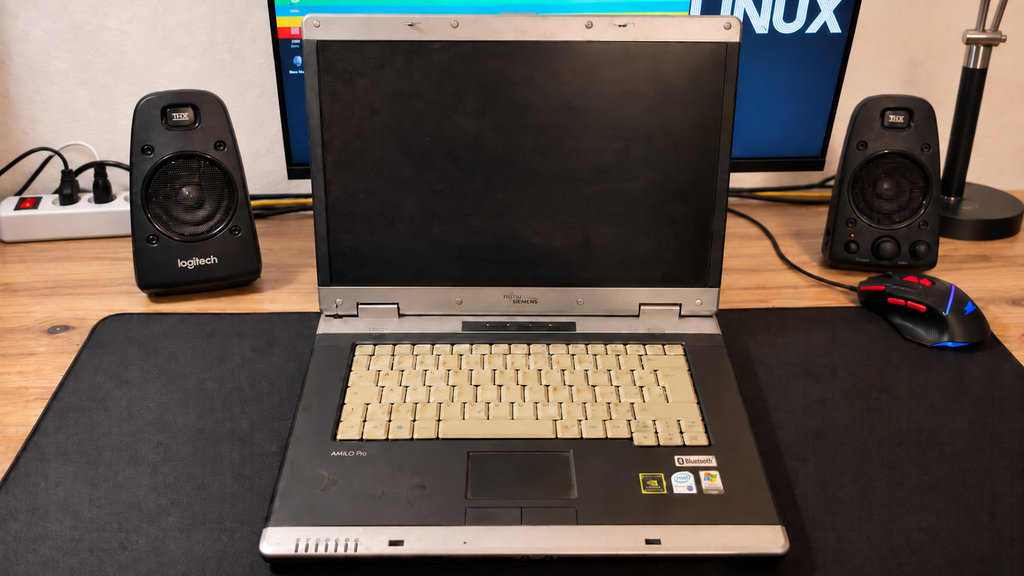
    The Fujitsu Siemens Amilo Pro V3545 is probably the most unusual laptop in the group, at least compared with the Dell and ThinkPad. Its design feels noticeably older, with a chunkier chassis, silver trim, and a much more early-2000s business-laptop look. It also stands out visually because of the light-colored keyboard and the large silver hinge area.

    Like the others, it is far from perfect cosmetically. There are scratches, marks, and signs of long-term use, but the machine itself still works, which is what matters most here.

    This one also came with Windows XP already installed, and I have decided to keep it that way.

    Because the laptop has a dedicated NVIDIA graphics card, my plan is to turn the Amilo Pro into an XP gaming laptop for older PC games and software from that era. Instead of trying to modernize it too much, I think it makes more sense to keep it close to the period it originally came from. That should make it useful for testing older games, software, drivers, and other Windows XP-era experiments without needing to set up a virtual machine every time.

    So unlike the Dell, which will mainly become a Linux testing machine, the Amilo already has a much clearer role in the lab: a dedicated Windows XP gaming and retro software machine.


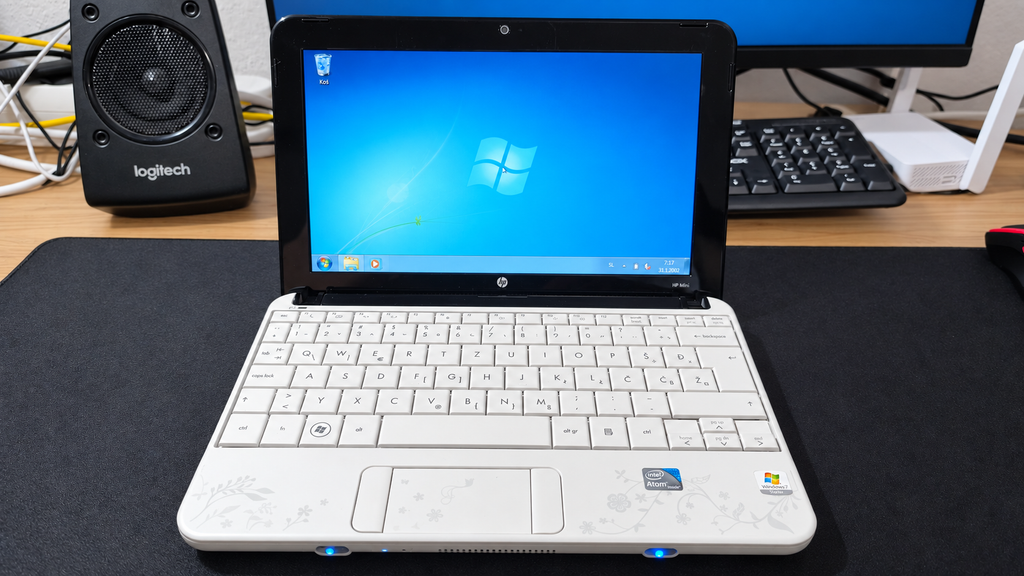
    The HP Mini 110 is easily the most different machine in the whole haul.

    Compared with the other three laptops, it is tiny. The small screen, compact keyboard, and lightweight chassis make it feel more like a little portable experiment than a normal laptop, which is exactly why I like it. This particular one is also a special edition model, which makes it even more interesting. Instead of the usual plain finish, it has the distinctive white floral-patterned lid, giving it a very different look from the typical black and silver laptops from the same era.

    It also surprised me in another way: the battery still works.

    That already makes it more practical than the larger laptops, especially for something I can actually carry around and use away from the desk. Performance is obviously limited by the Atom platform, but that is also what makes it interesting.

    I have already started experimenting with antiX Linux on it, and the goal is to see how usable such a low-powered machine can still be today with lightweight software. I want to try things like lightweight web browsing, IRC, terminal-based tools, music playback, writing, simple file transfers, and other low-resource Linux applications.

    The HP Mini will probably become my dedicated ultra-lightweight Linux experiment.

    It is definitely not the fastest machine in the group, but because of its size, working battery, special-edition design, and limitations, it may end up producing some of the most interesting Lab Notes from the entire haul.


    What started as a search for one cheap laptop turned into four different machines, each with its own role.

    The ThinkPad SL510 will probably become a regular appearance on OpenBootLab. It is the machine I can see myself using most often for writing, Linux, browsing, and general testing. The Dell Inspiron 1545 will mainly be used for experimenting with different lightweight Linux distributions on real hardware. The Fujitsu Siemens Amilo Pro V3545 is staying on Windows XP and will become my retro gaming and older software machine. And the tiny HP Mini 110 will continue as my low-power Linux experiment.

    For €90, I am more than happy with how this turned out.

    This post was only the introduction to the haul. I also plan to make a separate post for each laptop, where I can go into much more detail about the hardware, specifications, condition, upgrades, operating systems, performance, and what I eventually decide to use each machine for.

    None of these laptops are perfect. They are scratched, worn, old, and limited in different ways, but that is exactly what makes them interesting. They are not going onto a shelf. They are going back to work.

    And this definitely will not be the last time you see them on OpenBootLab.


  • SBOX K-14 Unboxing: Is This €6 Keyboard Any Good?

    SBOX K-14 Unboxing: Is This €6 Keyboard Any Good?

    Can a €6 Keyboard Be Any Good? SBOX K-14 Unboxing and First Impressions.


    The SBOX K-14 is one of the cheapest new keyboards I could find. I purchased it from TechTrade for only €6.71, which made me curious about what such a low-cost keyboard could actually offer.

    I wanted to find out whether it could be used for gaming, writing OpenBootLab posts and basic everyday tasks, or whether its extremely low price would make it frustrating to use.

    My immediate reaction after removing it from the box was simple: this keyboard is unbelievably light. The plastic feels very cheap, and the entire body flexes significantly with little pressure. That was not completely unexpected for €6.70, but the amount of flex still surprised me.

    Build quality is only one part of the experience, however. The real question is whether the SBOX K-14 can still function as a usable keyboard despite feeling so inexpensive.

    Watch the complete SBOX K-14 unboxing below:


    The SBOX K-14 is a basic full-size wired keyboard designed for everyday computer use. According to the specifications listed by TechTrade, it offers:

    • 105-key full-size layout
    • Slovenian/Croatian key layout
    • Membrane switches
    • Rated lifetime of three million presses per key
    • USB 2.0 connection
    • 1.35-metre fixed cable
    • 5 V / 100 mA USB power
    • Dimensions of 445 × 156 × 22 mm
    • Weight of approximately 530 g
    • Official compatibility with Windows XP, Vista, 7, 8 and 10
    • 12-month warranty

    The official compatibility list appears dated and does not mention Windows 11 or Linux. However, as a standard USB keyboard, it should work as a plug-and-play input device on most modern operating systems. I tested it on Arch Linux and will cover the results later in the post.

    There is no backlighting, wireless connectivity, software suite or gaming-focused feature set. This is a conventional membrane keyboard focused on providing the most basic functionality at the lowest possible price.


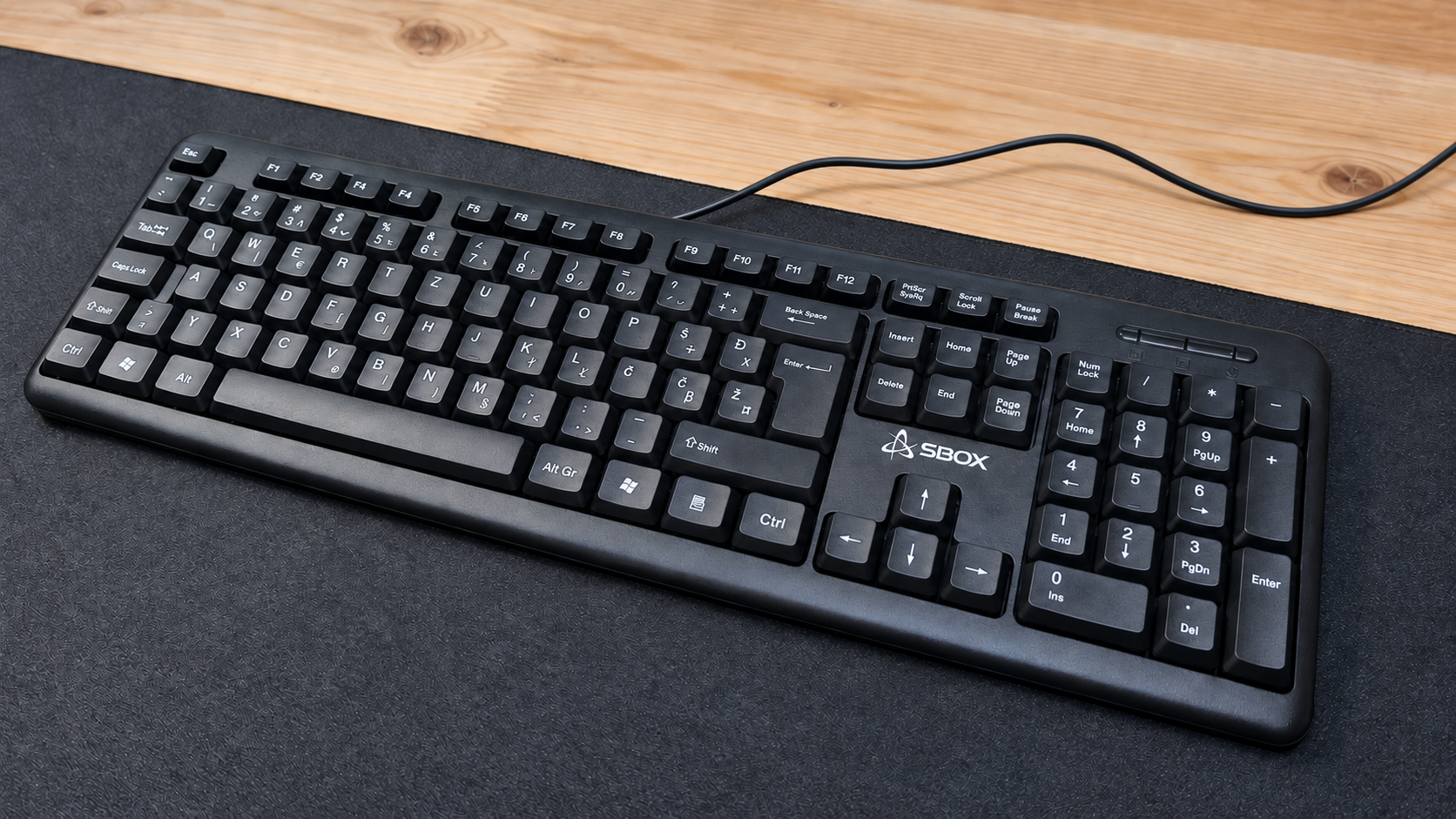
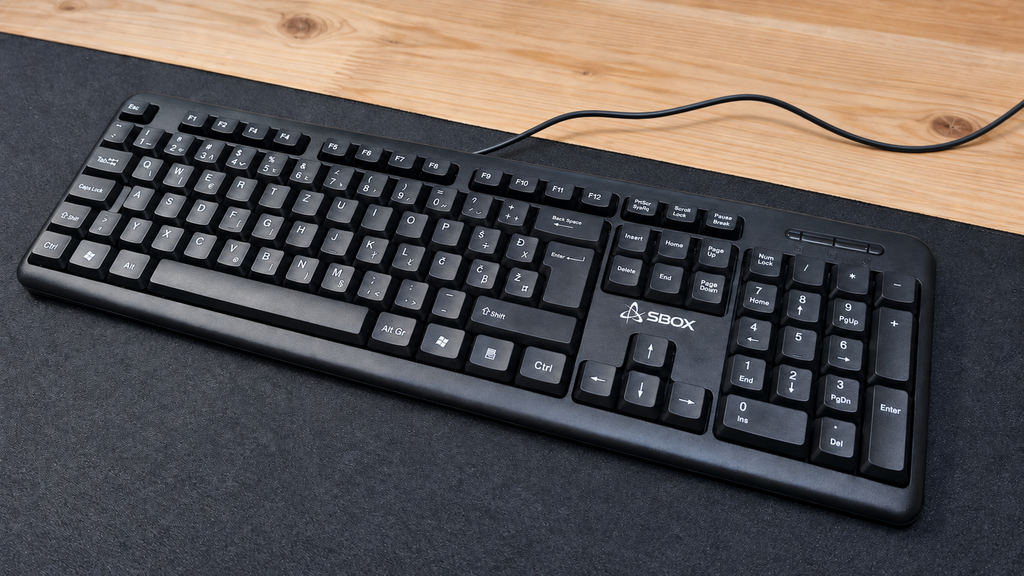
    he SBOX K-14 has a traditional full-size layout with a function-key row, navigation keys, arrow keys and a numeric keypad. One positive aspect is its relatively compact outer frame. There is very little unnecessary plastic surrounding the keys, so it does not occupy more desk space than a full-size keyboard actually needs.

    Its construction immediately reveals where the low price comes from. The plastic feels very cheap, the keyboard is extremely light, and the chassis flexes significantly with little pressure. It does not feel particularly sturdy, although that is not entirely surprising for a keyboard costing only €6.70.

    There are fold-out legs underneath, allowing the keyboard to be raised to a more comfortable typing angle. However, it has no rubber feet to grip the desk. Combined with its low weight, this means the keyboard slides around with very little force. The underside also includes several drainage holes. These should allow small amounts of spilled liquid to pass through the keyboard instead of remaining trapped inside, although I did not deliberately test this feature.

    The permanently attached 1.35-metre USB cable also feels thin and inexpensive. It should be long enough for a typical desktop setup, but its durability will only become clear after longer use.

    Overall, the K-14 offers a sensible and space-efficient full-size form factor, but its materials, flex and lack of grip make it obvious that keeping the price as low as possible was the main priority.


    The SBOX K-14 uses membrane switches, and the keys feel very mushy when pressed. Despite that, they are reasonably responsive for normal typing, and the keyboard is more comfortable to use than its extremely cheap construction initially suggested.

    The plastic does not feel pleasant beneath the fingers and constantly reminds you that this is a €6.70 keyboard. The larger keys, including Space and Enter, feel and sound fairly average. They are not particularly good, but they also do not stand out as a major problem.

    I made a few typing mistakes while testing it, although the number of missed or incorrect presses was not bad enough to make the keyboard frustrating. With more time, I would probably become more accustomed to its feel.

    One of its strongest qualities is how quiet it is. The K-14 produces very little noise during normal typing, which could make it suitable for a shared room, a quiet office or late-night use.

    If this were the only keyboard I had, I could comfortably use it to write multiple OpenBootLab posts and complete everyday tasks. However, if I had more money available, I would choose something with better materials and a more precise typing feel.

    The video below demonstrates how the SBOX K-14 sounds during normal typing and when pressing several individual keys. No background music was added, allowing the keyboard itself to be heard clearly.


    I tested the SBOX K-14 with my main desktop running Arch Linux and with my laptop running Windows 11 Pro.

    The keyboard was recognised immediately on both systems. I only had to connect the USB cable, and it was ready to use within seconds. No drivers, additional software or manual configuration were required—which is exactly what I expected from a standard wired USB keyboard.

    All the keys I tested worked correctly, including the Slovenian and Croatian characters Č, Š, Ž and Đ. The numeric keypad and the rest of the full-size layout also worked without any problems.

    Although the product information only officially lists older Windows versions, the K-14 worked normally with Windows 11 Pro and Arch Linux during my testing. Its simple plug-and-play compatibility is one of the areas where this inexpensive keyboard delivers exactly what it should.


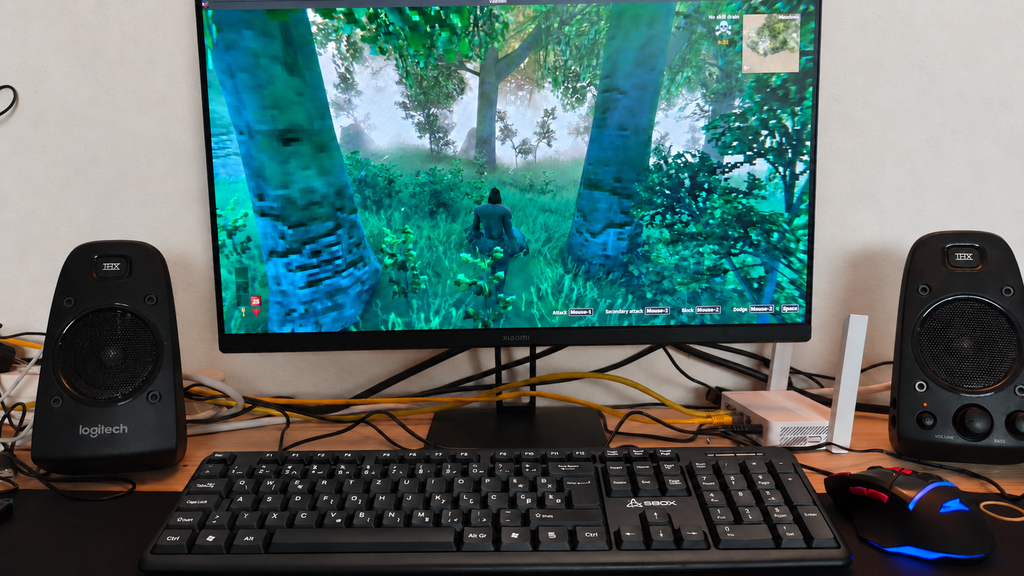
    I mainly play single-player games rather than competitive multiplayer titles, and for that kind of gaming, the SBOX K-14 is good enough.

    Basic movement and normal controls work without any major problems. However, when moving and pressing several keys very quickly, the keyboard can occasionally fail to register an input. This is unlikely to be a serious issue in slower single-player games, but it could become frustrating in fast or competitive titles where every keypress matters.

    The lack of rubber feet is also more noticeable while gaming. Because the keyboard is extremely light, it can slide across the desk during more intense moments.

    This is clearly not a gaming keyboard, and anyone who needs reliable multi-key input should look for something better. However, if the SBOX K-14 is the only new keyboard you can afford, it is still sufficient for casual gaming and everyday computer use.

    I am also writing this post on the K-14, which proves that it is usable beyond a short test. And if a particularly frustrating game ever causes it to meet an unfortunate end, at least replacing a €6.70 keyboard will not be too painful.


    So, can a €6.70 keyboard actually be any good? The answer depends entirely on what you expect from it.

    The SBOX K-14 feels extremely cheap. Its plastic is unpleasant, the chassis flexes considerably, the cable is thin, and the lack of rubber feet allows it to slide around the desk. The keys are also very mushy, and fast combinations are not always registered correctly.

    Despite those weaknesses, the keyboard is still functional. It is comfortable enough for writing, extremely quiet, compatible with both Arch Linux and Windows 11 Pro, and usable for basic tasks and casual single-player gaming. I even wrote this post using it.

    I would not choose the K-14 if I had enough money for a better keyboard. However, for someone who needs the cheapest possible new keyboard, a temporary replacement, or a spare for troubleshooting computers, it does the job.

    For €6.70, I cannot call it impressive—but I also cannot call it useless. It is exactly what it promises to be: an extremely cheap keyboard that works.

    Would you use a keyboard this inexpensive as your main keyboard, or would you keep it only as a spare?


  • Xiaomi Redmi A3 Unboxing & First Impressions

    Xiaomi Redmi A3 Unboxing & First Impressions

    The Xiaomi Redmi A3 is one of the cheapest Android smartphones you can buy, which made it an interesting device for OpenBootLab. After unboxing it, I used the phone for around two months to see what it was actually like to live with before eventually experimenting with Linux and turning it into something a little less ordinary.


    I bought the Redmi A3 around a year ago because I was curious about just how usable an extremely cheap smartphone could be. At the time, I paid around €59 per phone, which made me wonder whether you could actually live with a device this inexpensive as a normal daily phone. To make the experiment a bit more interesting, I actually bought two Redmi A3s, one for me and one for my wife. The idea was to use them normally and see how both of us would get along with such a cheap phone in everyday use.

    Rather than judging the Redmi A3 only from its specifications, I wanted to find out where the compromises would actually start to show after living with it for a while.


    The unboxing experience itself is pretty basic, which is exactly what I expected from a phone at this price. There is no premium presentation or anything unnecessary — you open the box, take out the phone, and get the essentials needed to start using it.

    You can watch the full Redmi A3 unboxing on the OpenBootLab YouTube channel below:

    What stood out more than the packaging was the phone itself. The Redmi A3 looked surprisingly good for something that cost around €59. The large circular camera module gives it a much more distinctive design than I expected from an entry-level device, and at first glance it really does not look like one of the cheapest smartphones on the market.

    That first impression became even stronger once I picked it up, but I’ll get into that in the next section.


    The first thing that surprised me about the Redmi A3 was how good it actually felt for the price. I already had a Samsung Galaxy A14 to compare it with, and despite the Redmi being the cheaper device, the A3 somehow felt more premium in the hand. A big part of that comes from the design. The large circular camera module gives the phone a much more distinctive look than most entry-level devices, and the overall build does not immediately scream “€59 phone.”

    Once you start using it, though, one of the first things you notice is just how large the screen bezels are. They make the phone look noticeably more budget-oriented from the front, especially compared with more expensive modern smartphones.

    The display, performance and cameras are also fairly basic, but during those first few hours the Redmi A3 still made a much better impression than I expected.

    That was what made me curious enough to use it for a longer period and find out whether the good first impression would survive everyday use.


    After the initial impressions, I used the Redmi A3 as my normal phone for around two months. For light everyday tasks, it genuinely surprised me. Messaging, browsing, watching videos and using simple apps all worked well, and it often felt more responsive than my Samsung Galaxy A16. I also liked having a 3.5 mm headphone jack. It is a small feature, but one I still appreciate.

    The limitations show up once you ask more from the phone. Using it for work, opening multiple documents, checking emails and switching between apps quickly slows it down. It works best when you keep things simple and focus on one task at a time. The camera is usable for basic photos, but not much more. It can record in Full HD, but the overall video quality is still quite basic.

    One downside is the occasional promotional notification for random apps and games. They can be disabled, but you have to dig through a few settings to get rid of them. It is annoying, but it is also one of the ways Xiaomi can keep phones like this so cheap.

    After two months, I was still more impressed than disappointed. For around €59, the Redmi A3 proved to be surprisingly capable as a basic everyday smartphone.


    The Redmi A3 is not a phone for heavy users, but for the price it does a lot better than I expected. For basic everyday use, it is responsive, the battery lasts well, the design feels more premium than the price suggests, and you still get useful features like the 3.5 mm headphone jack. The compromises are mostly where you would expect them: multitasking, camera quality and some annoying software promotions.

    Phones like the Redmi A3 also make a lot of sense in markets where more expensive smartphones can represent a much bigger part of someone’s income. In those places, a very cheap phone that still covers the basics can be far more important than flagship-level performance. It can also be a great choice as a first phone for a child. For watching YouTube, playing simple kids’ games and basic communication, it does the job without spending a lot of money on a device that may get dropped or damaged.

    Would I use it as my main phone long term? Probably not. But as a basic phone, backup device, first phone for a child or cheap platform for experiments, it makes a lot of sense.

    And that is exactly why this Redmi A3 did not end up sitting in a drawer. I later started experimenting with running Linux on it using Termux, Debian and Proot. You can check out that Lab Note here.


    Display: 6.71-inch IPS LCD, 90 Hz Resolution: 720 × 1650
    Chipset: MediaTek Helio G36 CPU: Octa-core
    RAM: 3 GB / 4 GB
    Storage: 64 GB / 128 GB
    Expandable Storage: microSD support
    Rear Camera: 8 MP Front Camera: 5 MP
    Video: Up to 1080p
    Battery: 5000 mAh
    Charging: 10 W Headphone
    Jack: 3.5 mm
    Connectivity: 4G LTE, Wi-Fi, Bluetooth
    Operating System: Android with Xiaomi software
    Fingerprint Sensor: Side-mounted
    USB: USB-C

    Specifications may vary slightly depending on the region and configuration.