Tag: retro computing

  • How to Install Linux on a 32-Bit Atom Netbook in 2026

    How to Install Linux on a 32-Bit Atom Netbook in 2026

    The HP Mini 110 is exactly the kind of machine that OpenBootLab exists for. It is small, inexpensive, easy to dismiss and far too interesting to throw away.

    My example uses an Intel Atom N270, a processor from an era when 32-bit netbooks were everywhere. That architecture is now the biggest obstacle: most mainstream Linux distributions have stopped producing 32-bit installation images, while modern websites and applications expect much faster hardware.

    That does not make the HP Mini useless. With a realistic goal and a lightweight operating system, it can still be a compact writing machine, terminal, retro gaming system or Linux experiment.

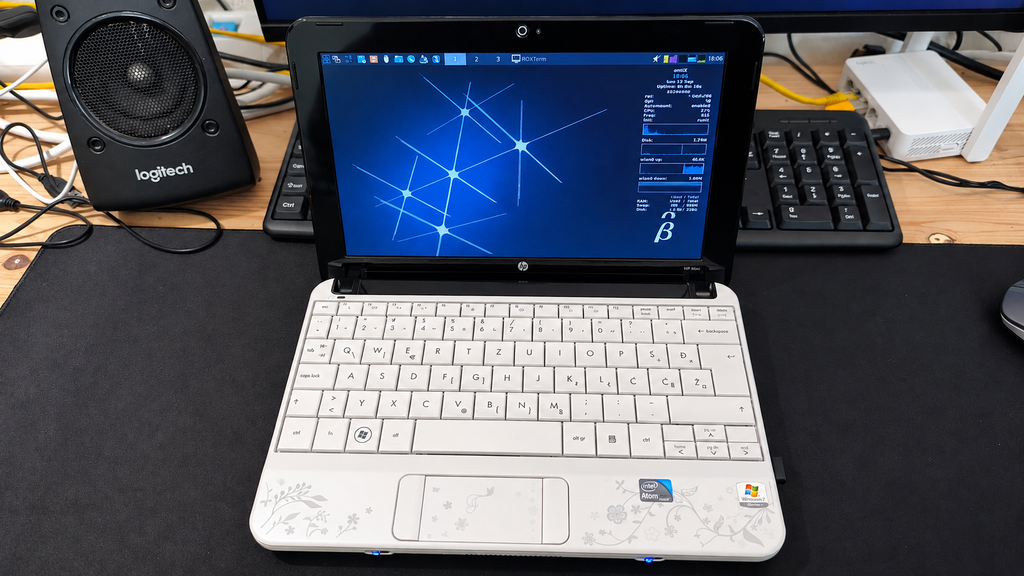
    For this project, I installed antiX Linux, a lightweight Debian based distribution that still offers a 32-bit edition.
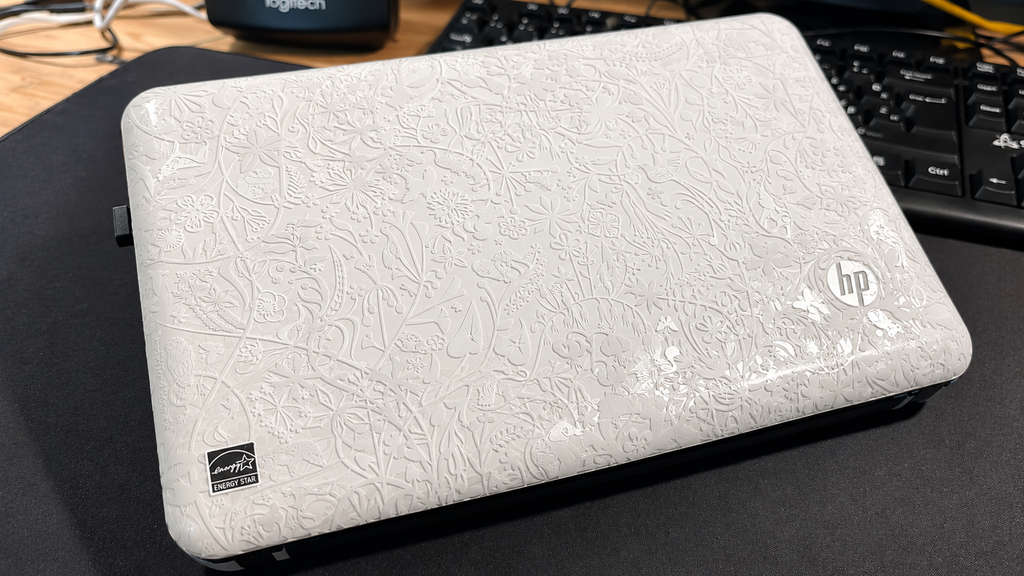

    My machine is an HP Mini 110 special edition, model VT867EA#BED. Its Intel Atom N270 is a single-core processor with Hyper-Threading and, most importantly for this guide, a 32-bit instruction set.

    The original machine came with Windows 7 Starter and a generous collection of preinstalled HP software and casual games. It is an interesting time capsule, but Windows 7 is no longer a sensible everyday online operating system.

    The goal was not to turn this netbook into a modern powerhouse. I wanted a currently maintained Linux system that could make the hardware useful again.


    Do not assume that every Atom netbook is 32-bit. Some later Atom processors support 64-bit operating systems.

    If Linux is already running, check the architecture with:

    Look for the Architecture and CPU op-mode(s) lines.

    You can also run:

    Common results include:

    • i686 or i386 – a 32-bit Linux system
    • x86_64 – a 64-bit Linux system

    If no operating system is installed, search the exact processor model before downloading an ISO. The Atom N270 used in my HP Mini requires a 32-bit operating system.

    If your computer is running Windows, you can find detailed information about its hardware and system specifications by opening System Information or running the dxdiag command to launch the DirectX Diagnostic Tool.


    Finding a Linux distribution that still supports 32-bit hardware is becoming increasingly difficult. Most mainstream distributions have moved exclusively to 64-bit systems, leaving older computers like the HP Mini 110 with fewer options.

    Fortunately, antiX Linux continues to support 32-bit x86 processors. Based on Debian Stable, antiX is designed to run efficiently on older and less powerful computers without requiring systemd.

    That makes it a particularly good match for hardware with:

    • A 32-bit processor
    • Limited RAM
    • A slow mechanical hard drive
    • Older integrated graphics
    • A low-power Intel Atom CPU

    At the time of writing, the latest release is antiX 26.1, released on 29 September 2026.

    antiX 26.1 is available in both 32-bit and 64-bit editions, with two installation options:

    • Full Edition: Includes several lightweight window managers, preinstalled applications, and broader hardware support. This is the recommended option for most users.
    • Core Edition: A smaller installation without a graphical desktop, intended for experienced users who prefer to build their system from a minimal foundation.

    For this project, I chose the 32-bit Full Edition. It provides a usable desktop environment out of the box while keeping system requirements low enough for the HP Mini 110’s aging hardware.

    DOWNLOADING ANTIX

    The latest installation images are available from the official antiX website:

    For the HP Mini 110 equipped with an Intel Atom N270, select the following ISO:

    antiX-26.1_386-full.iso

    Important: The Intel Atom N270 only supports 32-bit operating systems. A 64-bit installation image will not boot on this processor.

    If a newer version of antiX becomes available after this article is published, check the official download page for the corresponding 32-bit Full Edition.

    Note: My original installation used antiX 26. The newer antiX 26.1 release includes bug fixes, so I recommend downloading the updated version when performing a fresh installation.


    • The HP Mini or another 32-bit x86 netbook
    • A USB flash drive of at least 4 GB
    • Another computer for downloading the ISO and creating the USB
    • The 32-bit antiX ISO
    • A backup of anything important on the netbook
    • A charger connected throughout installation

    Installing Linux can erase the internal drive. Copy any files you want to keep before continuing.
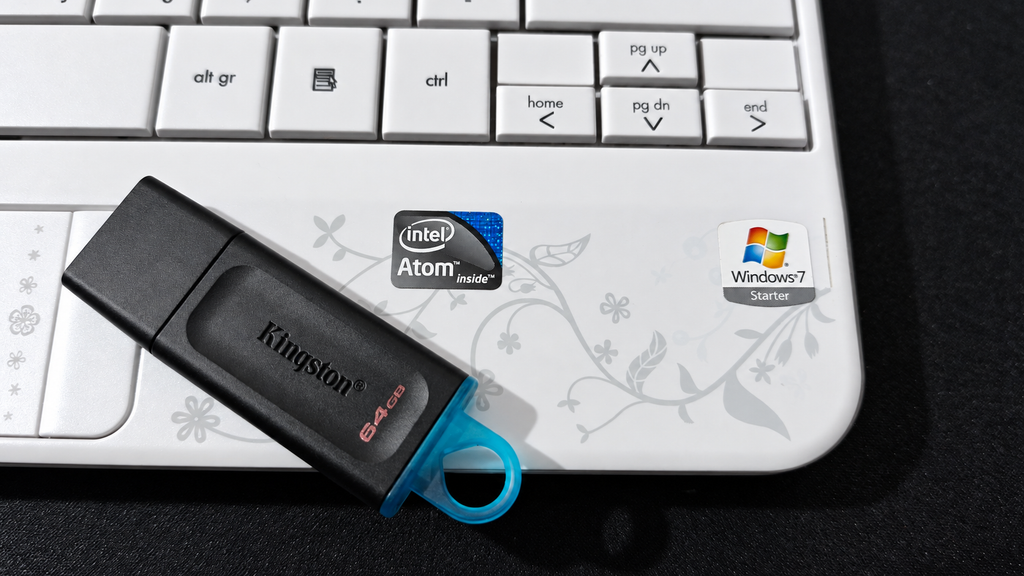

    Before installing antiX, you’ll need to create a bootable USB drive using the ISO file downloaded earlier.

    Option 1: Windows – Using Rufus

    If you’re using Windows, Rufus is a popular tool for creating bootable USB drives.

    1. Download Rufus from its official website.
    2. Connect a USB flash drive (at least 4 GB).
    3. Open Rufus and select your USB device.
    4. Click SELECT and choose the downloaded antiX ISO.
    5. For older BIOS-based netbooks, select MBR as the partition scheme and BIOS as the target system, where these options are available.
    6. Click START and follow the prompts.

    Warning: Creating the bootable USB will erase the existing contents of the selected drive.

    Option 2: Linux – Using GNOME Disks

    If you’re already using Linux, you can create the bootable USB using GNOME Disks.

    1. Connect your USB drive.
    2. Open GNOME Disks.
    3. Select the USB drive from the device list.
    4. Open the drive menu and choose Restore Disk Image.
    5. Select the antiX ISO file.
    6. Confirm and allow the image-writing process to finish.

    Once completed, safely eject the USB drive. You’re now ready to boot the HP Mini.


    Connect the charger and insert the USB drive while the HP Mini is powered off.

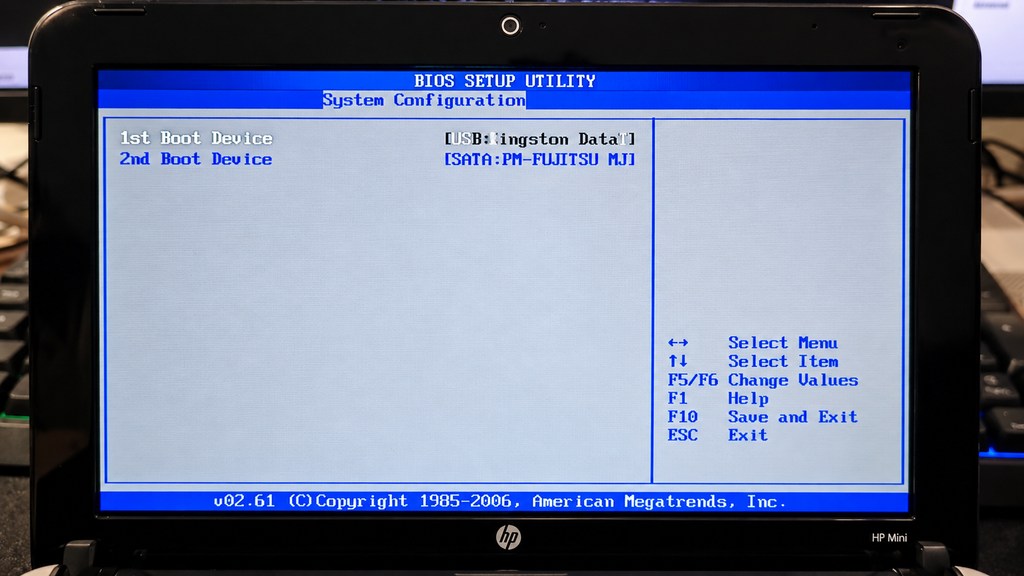
    On the HP Mini 110, press Esc repeatedly immediately after powering it on to open the Startup Menu. Select the boot-device menu—normally F9—and choose the USB drive.

    On another netbook, the key may be F12, F10, F9, Esc or Delete.

    If the USB drive does not appear:

    • Recreate it using an MBR/BIOS-compatible layout
    • Try another USB port
    • Check that USB boot is enabled in the BIOS
    • Disable any quick-boot option if present
    • Confirm that you downloaded the 32-bit ISO

    These machines predate modern UEFI-only installation assumptions, so legacy BIOS compatibility matters.

    antiX can run as a live system before anything is installed on the internal drive. Boot the default live option and allow the desktop to load.

    Before starting the installation, I recommend checking the following:

    • Keyboard and touchpad
    • Display resolution and brightness controls
    • Wi-Fi or Ethernet connectivity
    • Audio
    • USB ports
    • Battery detection

    Testing the live environment is a useful way to identify potential hardware compatibility issues before making changes to the internal drive.

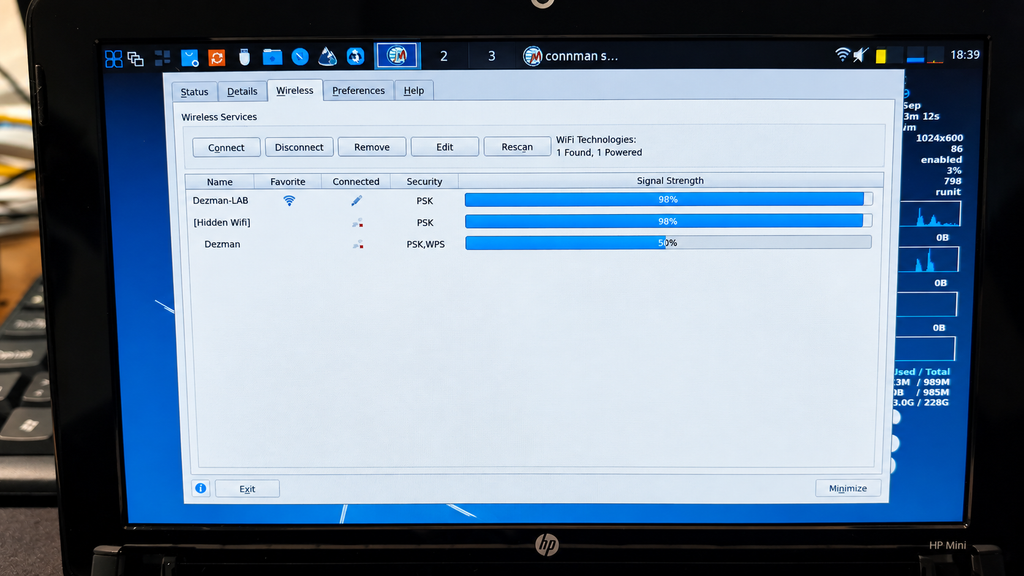
    WI-FI CONNECTIVITY ISSUE

    During my initial testing, I encountered an issue with the HP Mini 110’s wireless connectivity. The built-in Wi-Fi adapter was not functioning as expected, preventing me from establishing a reliable wireless connection.

    To work around this, I connected the netbook directly to my network using an Ethernet cable. This allowed me to continue with the installation and download the necessary system updates without relying on Wi-Fi.

    After completing the installation, I investigated the wireless connectivity issue further and discovered that the correct driver was not being used.

    Once the appropriate driver was installed and configured, the wireless adapter started working correctly. Since resolving the driver issue, I haven’t experienced any further problems with wireless connectivity.

    This is something worth keeping in mind when working with older hardware. Even if a component doesn’t work immediately, it doesn’t necessarily mean that it is unsupported. Sometimes, installing the correct driver or firmware is all that is needed.

    PERFORMANCE EXPECTATIONS

    Do not expect instant performance when running antiX from a USB drive. Older USB interfaces and slower flash drives can make the live environment feel less responsive than the final installation.

    The important thing at this stage is to verify that the essential hardware works and that the system is suitable for installation.
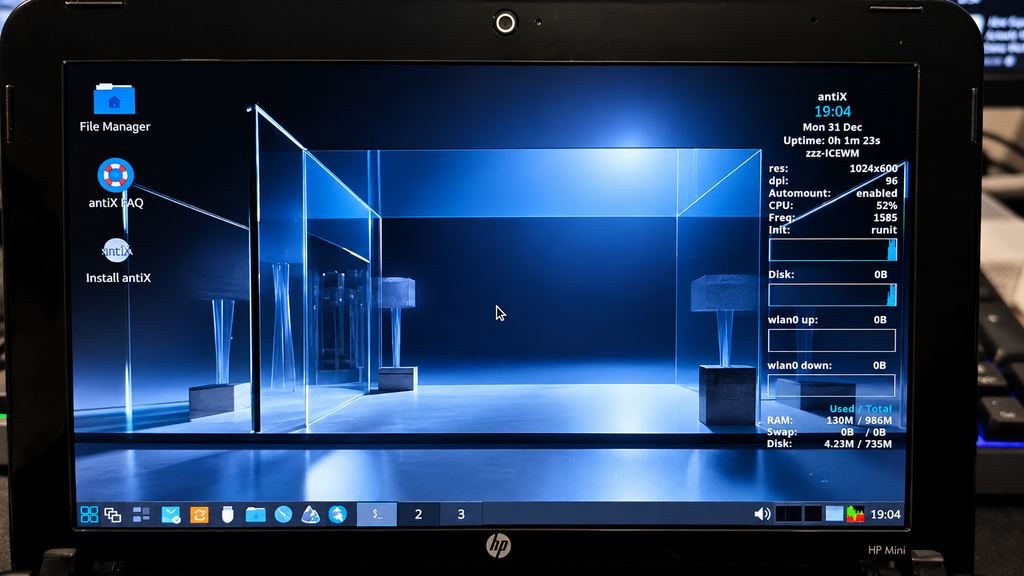

    As mentioned before If the internal Wi-Fi adapter is supported, use the network manager in the antiX desktop to select your network and enter its password.

    Old wireless adapters can be unpredictable. If the internal card cannot see modern networks or repeatedly disconnects, useful alternatives include:

    • Connecting temporarily with Ethernet
    • Using a small Linux-compatible USB Wi-Fi adapter
    • Downloading any required firmware from another computer

    This is worth testing before installation because network access makes system updates much easier.


    Start the antiX installer from the live desktop or application menu.

    The exact wording can vary slightly between antiX releases, but the process follows the same general order:

    1. Choose the keyboard layout and language.
    2. Select the internal drive.
    3. Choose automatic installation using the entire disk, unless you specifically need manual partitioning or dual boot.
    4. Confirm the partition changes carefully.
    5. Choose the computer name.
    6. Create the normal user account and password.
    7. Set the administrator/root password if requested.
    8. Select the location and time zone.
    9. Install the bootloader to the internal disk.
    10. Wait for the files to be copied.

    For a dedicated Linux netbook, allowing the installer to use the entire drive is the simplest approach. It also erases the existing Windows installation and all files on that disk.

    Read the disk-selection screen carefully. If more than one drive is connected, verify the model and capacity before confirming any partition changes.
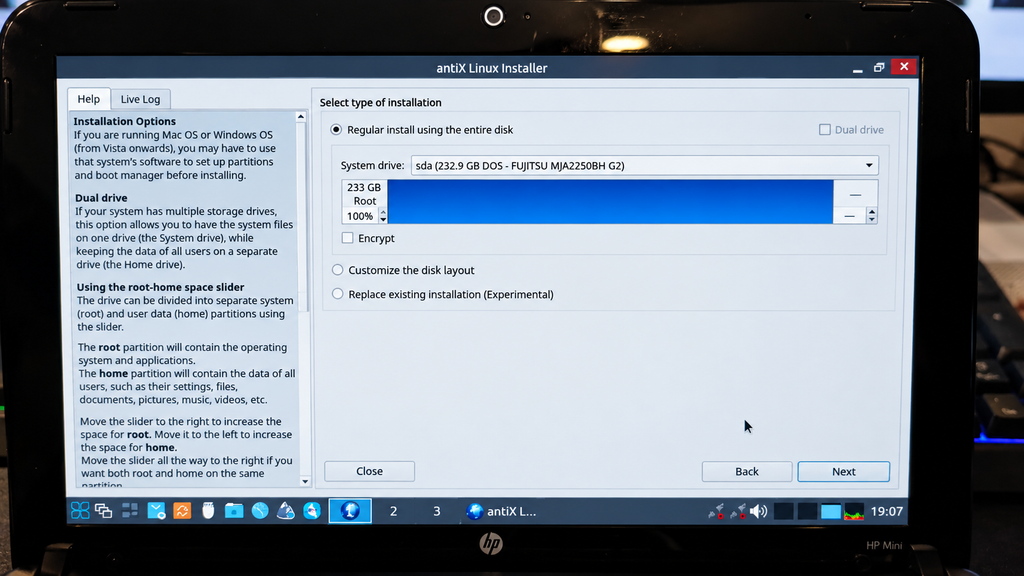

    When installation finishes, shut down or restart the computer and remove the USB drive when prompted.

    The first boot from an old mechanical hard drive may take some time. Once the desktop appears, confirm the installed architecture:

    On the HP Mini with the 32-bit antiX image, the result should identify a 32-bit x86 system.

    You can also record the complete system information for the project:

    The -z option filters some sensitive network information, which makes the output safer for screenshots.
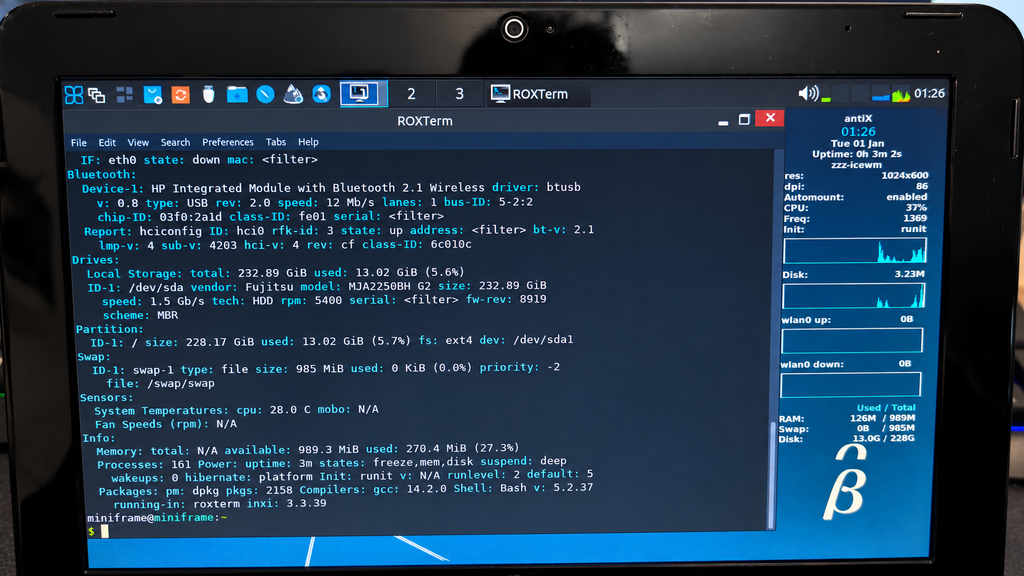

    After connecting to the internet, update the package lists and installed software:

    Let the process finish, then restart if the update installs a new kernel or other core components.

    On old hardware, the first large update can take considerably longer than it would on a modern SSD. Slow package installation does not necessarily mean that the system has frozen.


    The Atom N270 is the main limitation, so every unnecessary background task matters more than it would on a modern laptop.

    My approach is simple:

    • Keep the default lightweight window manager
    • Avoid heavy startup applications
    • Open only a few browser tabs
    • Prefer lightweight native applications
    • Use the terminal where it makes sense
    • Avoid expecting modern HD streaming performance

    Installing a heavier desktop environment would remove much of the reason for choosing antiX.

    An SSD can improve boot times and application loading, but it cannot turn the Atom processor into a modern CPU. The goal is responsiveness within realistic limits.


    With antiX installed, the HP Mini can still be useful for:

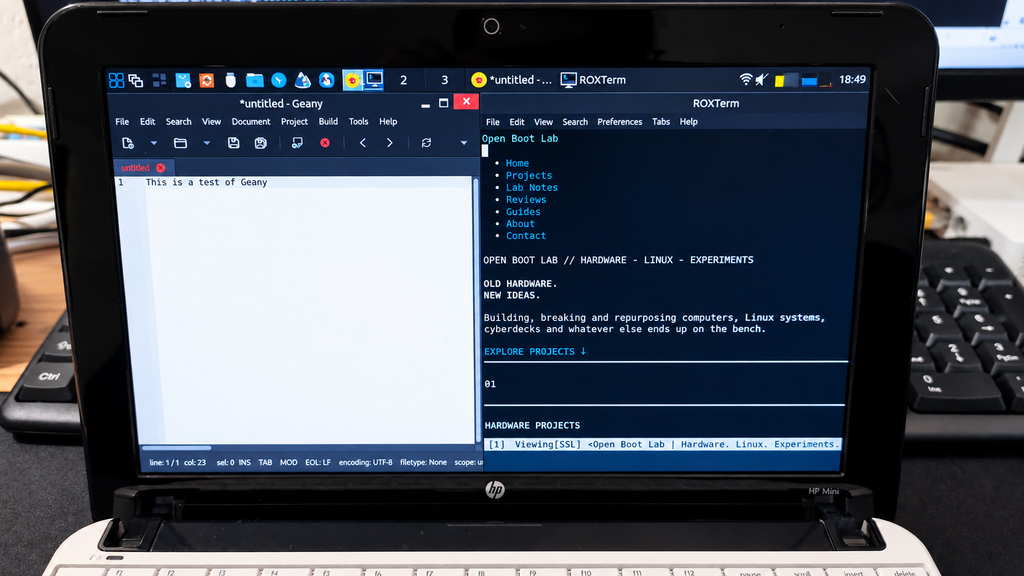
    • Writing and editing text
    • Terminal and SSH access
    • Lightweight web browsing
    • Learning Linux commands
    • Playing DOS and older games
    • Running small scripts
    • Displaying documentation beside another computer
    • Acting as a deliberately limited, distraction-free machine

    The modern web is the hardest workload. Heavy JavaScript, advertising, video playback and several open tabs can overwhelm the Atom processor quickly.

    For local software and simple tasks, however, the machine feels far more useful than its specifications suggest.


    Reviving old hardware is more interesting when the limitations are stated honestly.

    32-BIT SOFTWARE AVAILABILITY

    antiX still supports the architecture, but not every third-party application provides a 32-bit Linux build. This will become a larger limitation over time.

    MODERN WEB BROWSING

    Simple pages can work, but complex websites may load slowly. Modern video streaming is not this machine’s strength.

    PROCESSOR PERFORMANCE

    The Atom N270 was designed for low power consumption, not heavy multitasking. One demanding task at a time is the realistic approach.

    OLD STORAGE

    If the netbook still uses its original hard drive, check its SMART health before trusting it with important data. An SSD upgrade can make the system feel much more responsive.

    BATTERY CONDITION

    Original netbook batteries are now very old. Mine still works, but battery condition will vary enormously between individual machines.


    Installing antiX does not make the HP Mini 110 modern again, and that was never the goal.

    It takes a 32-bit Atom netbook that modern operating systems have largely left behind and gives it a current, lightweight Linux environment. The result is still slow by today’s standards, but it can write, run a terminal, connect to other systems and play older games.

    More importantly, it is useful enough to keep experimenting with.

    The HP Mini is not ready to replace a modern laptop. It is ready for a second life.

    I will also make a full video tutorial on how to install antiX linux on a computer.

    BUILD IT. BREAK IT. LEARN SOMETHING. TRY AGAIN.

  • Free Software in the Mail – FSFE Sticker Pack

    Free Software in the Mail – FSFE Sticker Pack

    Sometimes the best upgrades don’t need more RAM, a faster SSD or a new CPU.

    Sometimes they just arrive in an envelope.

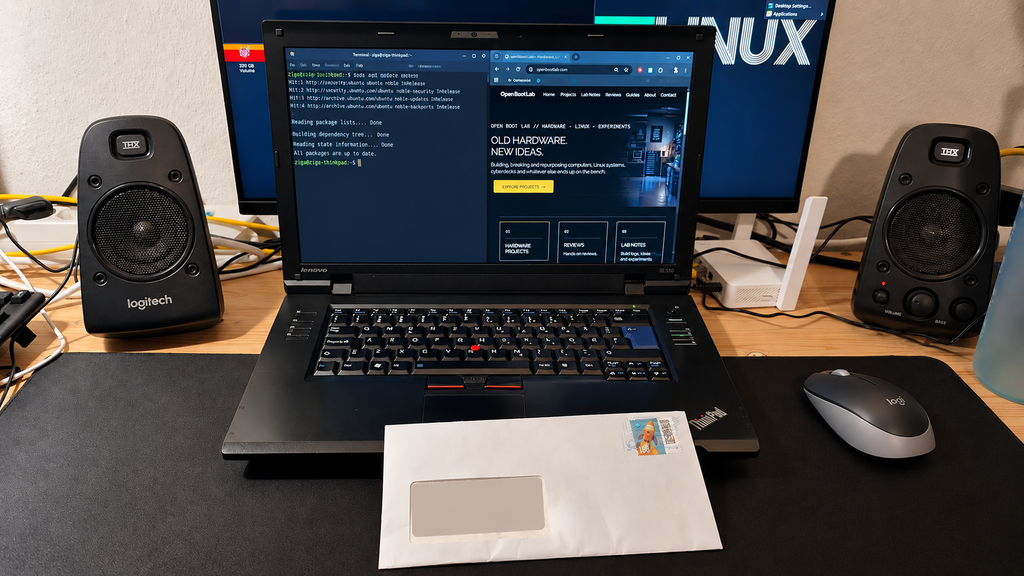
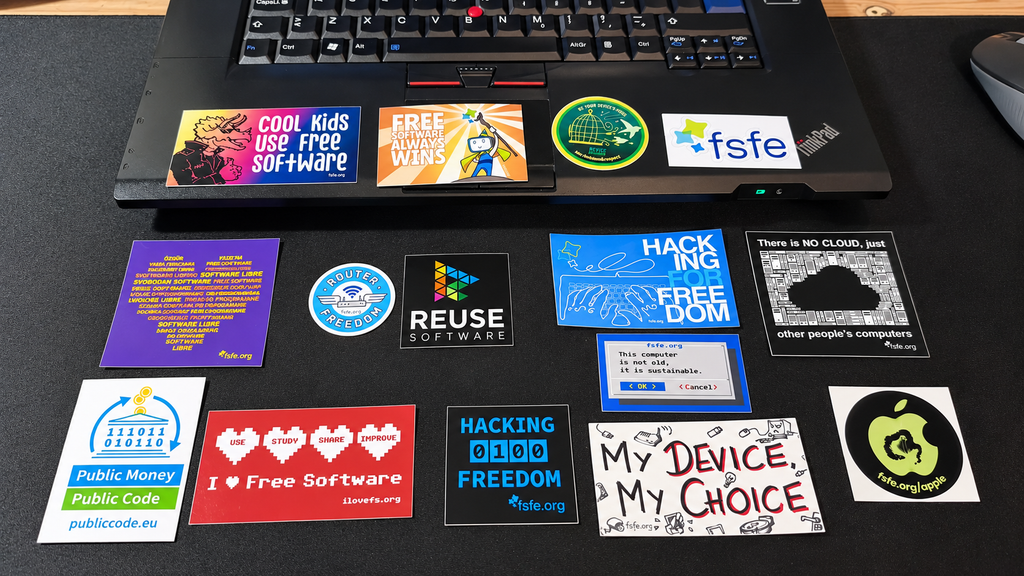
    A few days ago, I got in touch with the Free Software Foundation Europe (FSFE). Today, an envelope from Berlin arrived at OpenBootLab, filled with stickers, Free Software material and a few other surprises.

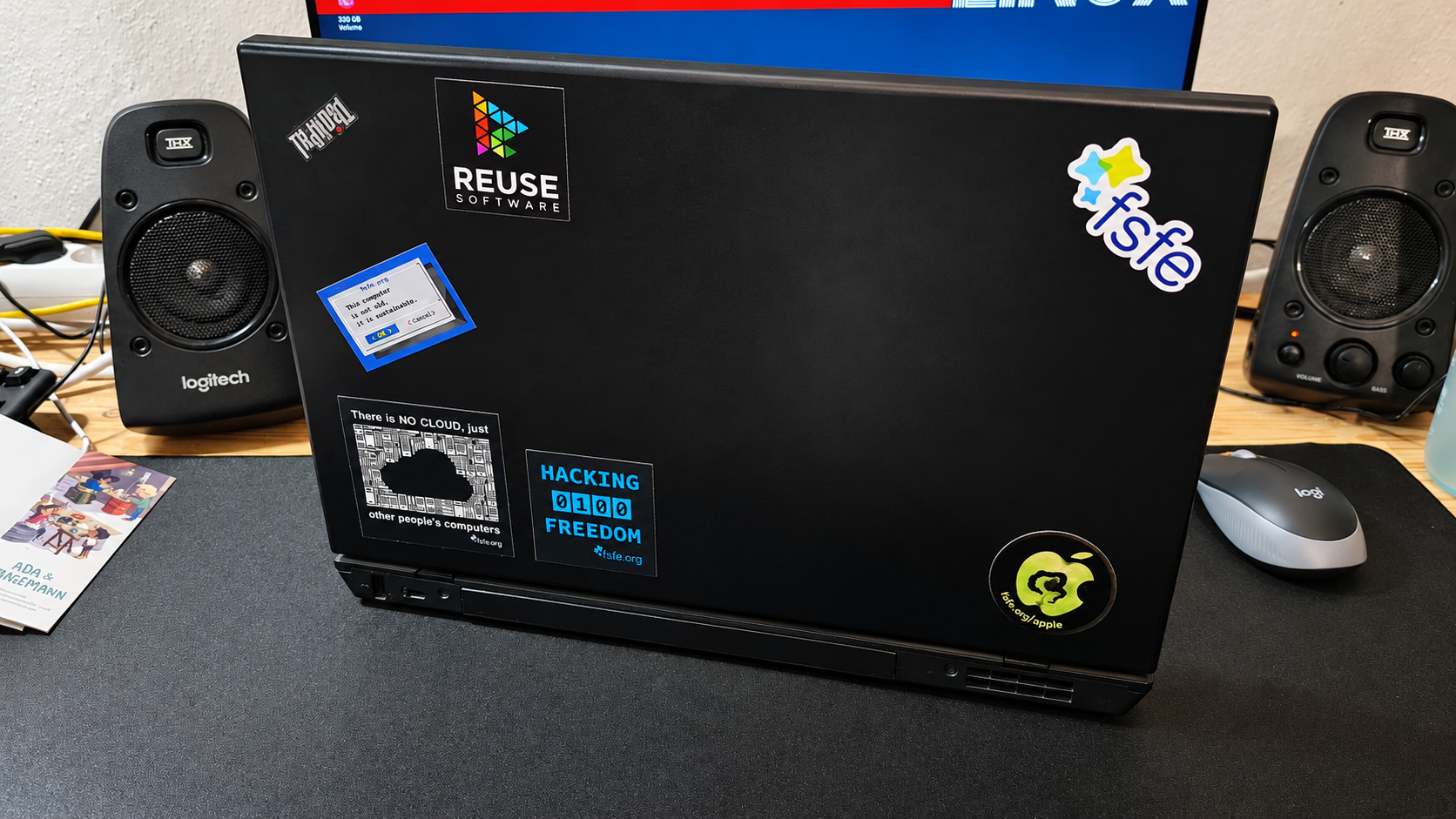
    Naturally, it didn’t take long before some of them found their way onto a ThinkPad.


    The Free Software Foundation Europe, usually shortened to FSFE, is a charitable organisation that has been working to promote software freedom in Europe since 2001.

    Their goal is to empower people to control the technology they use. When we talk about Free Software, the important part isn’t necessarily the price. It’s about freedom, having the ability to use, study, share and improve software. FSFE works on this from several directions, including public awareness, policy, legal support, education and campaigns surrounding digital freedom.

    Learn more about the Free Software Foundation Europe

    And that philosophy fits OpenBootLab rather nicely.

    A lot of what happens here involves taking older hardware and finding new ways to use it. Linux and Free Software can often keep machines useful long after their original operating systems and manufacturers have moved on.

    Sometimes a computer doesn’t need replacing. It just needs a different purpose.


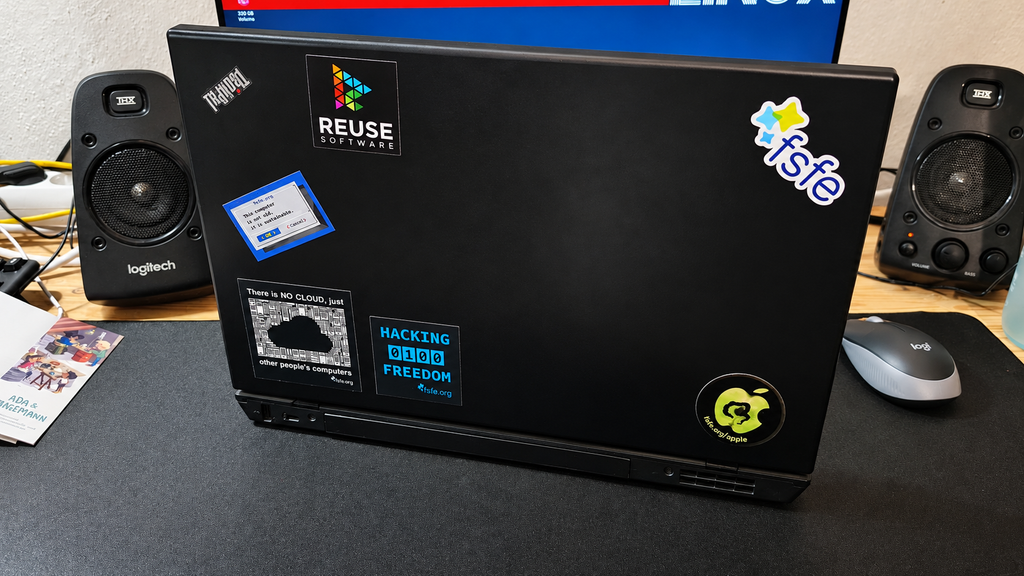
    It was probably inevitable that at least a few of these stickers would end up on the ThinkPad. The machine has already become one of the regular OpenBootLab systems, and it somehow feels like the right place for a few Free Software stickers.

    The first ones I picked were some of the designs that fit the spirit of the project best:

    HACKING 0100 FREEDOM
    THERE IS NO CLOUD, JUST OTHER PEOPLE’S COMPUTERS
    REUSE SOFTWARE,
    THIS COMPUTER IS NOT OLD, IT IS SUSTAINABLE
    FSFE LOGO

    They work surprisingly well on an old ThinkPad that is still being used for Linux, writing, testing and whatever else ends up happening on the bench. I’m not planning to cover the whole machine though. A few stickers are enough to give it some character, and the rest can wait for other hardware. There are definitely enough machines around here that they’ll eventually find a home.

    And before the rest disappear onto laptops, cases and other hardware, here is the full set that arrived from FSFE together with the letter included in the package.


    If you want to learn more about FSFE, their campaigns or the work they’re doing around Free Software in Europe, their website is the best place to start.

    Free Software Foundation Europe

    FSFE also maintains several ways for people to get involved with the community, including local groups, mailing lists and online communication channels.

    FSFE — Get Involved

    For general enquiries, FSFE can also be contacted through the details provided on their official contact page.

    FSFE — Contact


    Finally, a big thank you to the FSFE team for sending all of this over.

    It’s a small thing, but it’s genuinely cool seeing organisations supporting the Free Software community with material like this — and several of these stickers already look very much at home in the lab.

    The ThinkPad has claimed a few.

    The rest?

    They’ll have to wait and see which machine comes across the bench next.

    // FREE SOFTWARE // OLD HARDWARE // KEEP EXPERIMENTING


  • HP Mini 110 in 2026 -Atom Netbook with antiX Linux

    HP Mini 110 in 2026 -Atom Netbook with antiX Linux

    The HP Mini 110 comes from an era when netbooks were everywhere. These tiny and inexpensive computers were designed for basic browsing, writing and accessing the internet while travelling.

    Today, their limited memory and ageing Intel Atom processors make them difficult to use with modern software. My particular HP Mini is powered by the 32-bit Intel Atom N270, which restricts the choice of supported operating systems even further.

    With the right lightweight Linux distribution, could this little netbook still serve a useful purpose in 2026?

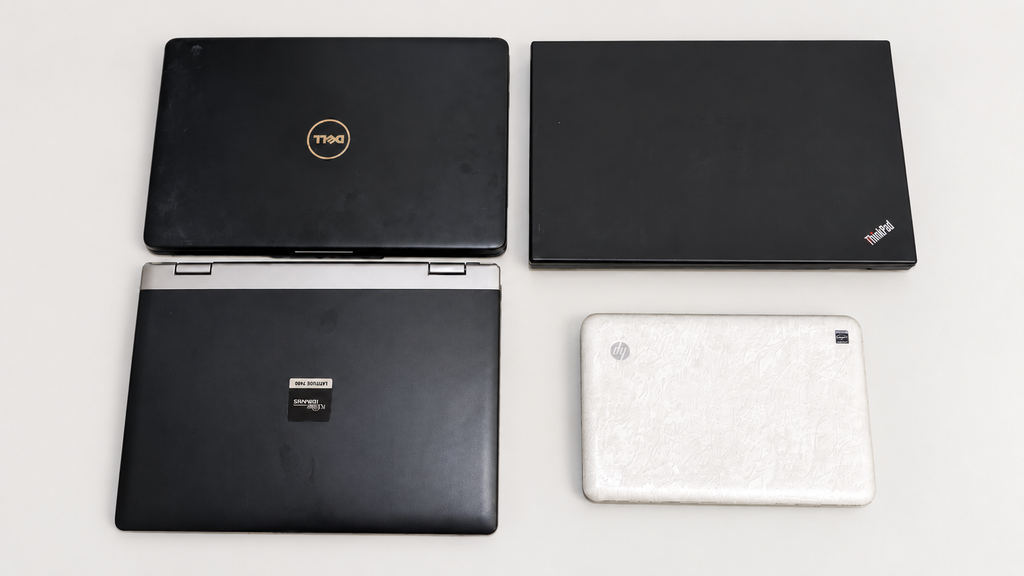
    I recently acquired this white HP Mini 110 Special Edition as part of a €95 bundle containing four older laptops. It turned out to be one of the most interesting machines in the entire collection.


    The HP Mini 110 arrived together with three other laptops:

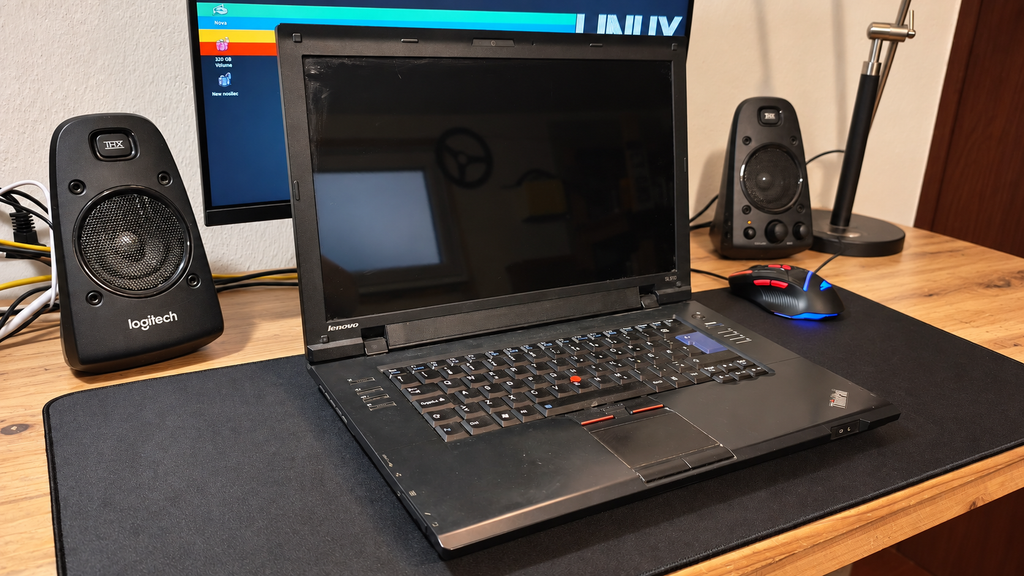
    • Lenovo ThinkPad SL510
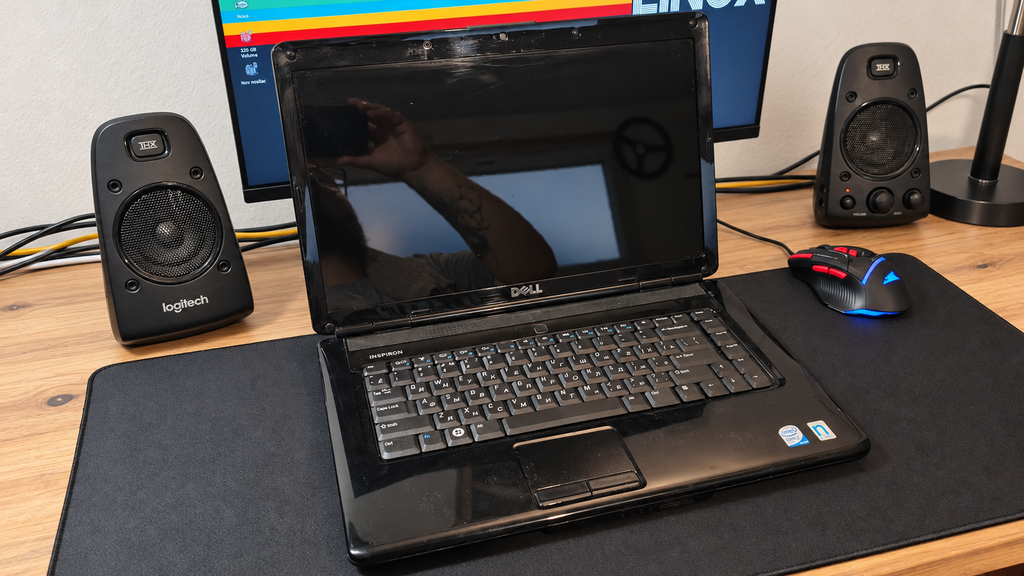
    • Dell Inspiron 1545
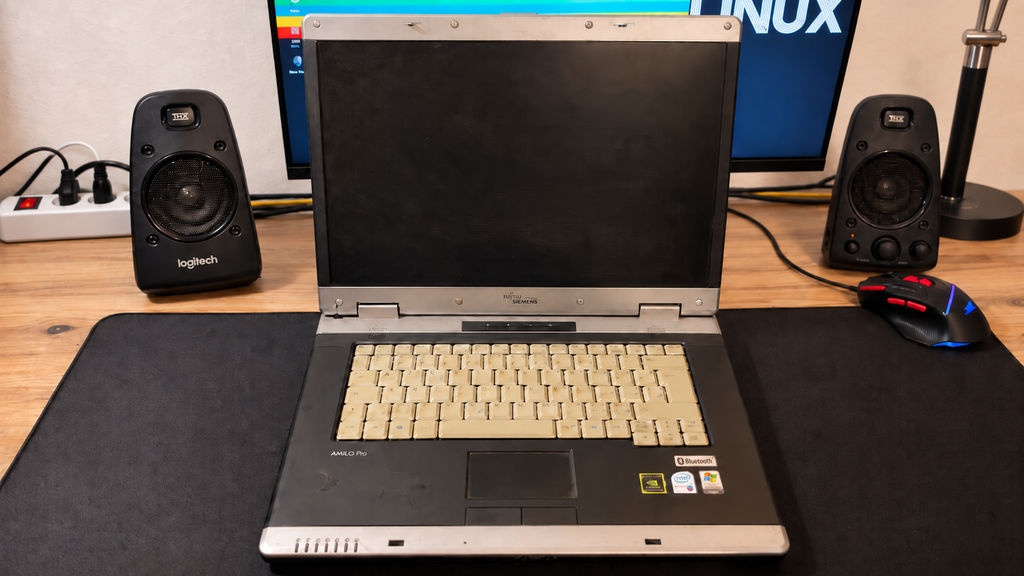
    • Fujitsu Siemens Amilo Pro V3545
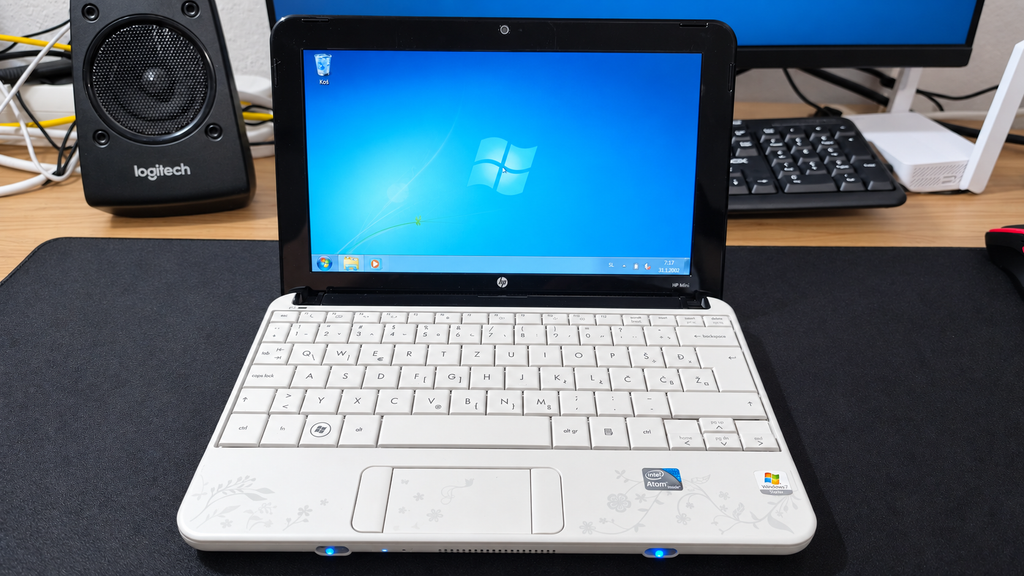
    • HP Mini 110 Special Edition

    All four computers were working, which already made the €95 bundle a surprisingly good purchase.

    The batteries in the three larger Core 2 Duo laptops were effectively dead. Surprisingly, the little HP Mini was the only machine in the collection that could still run from its original battery.

    That immediately made it more interesting as a genuinely portable retro computer.

    The HP Mini 110 was the smallest of the four laptops, and interestingly, the only one that arrived with a working battery. You can read more about the full €90 laptop haul here.


    This is not an ordinary black netbook like the Asus EeePC.

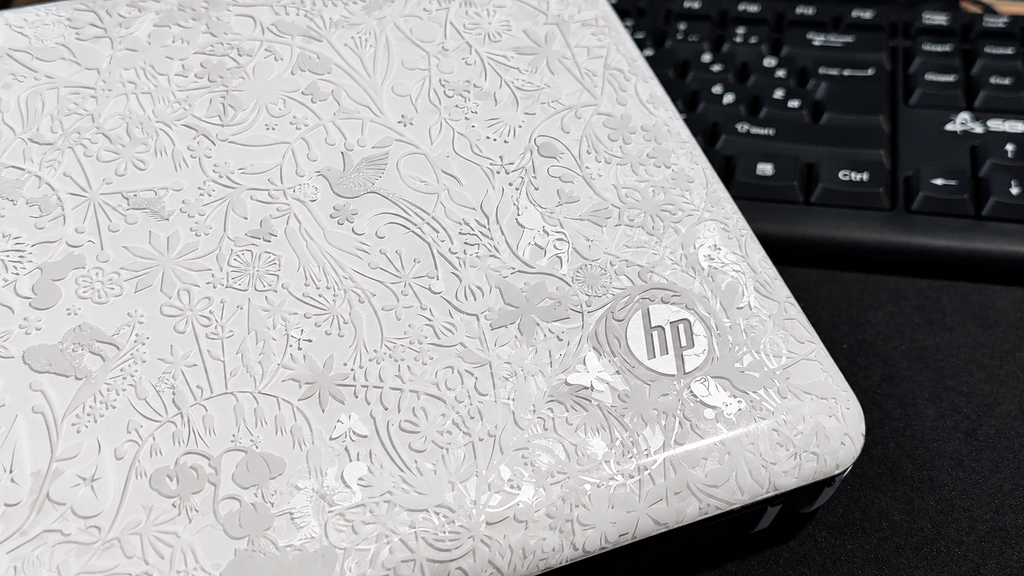
    The model number printed on my machine is VT867EA#BED, but what makes it particularly interesting is its design. This is the HP Mini 110 by Studio Tord Boontje, a special edition created in collaboration with Dutch designer Tord Boontje.

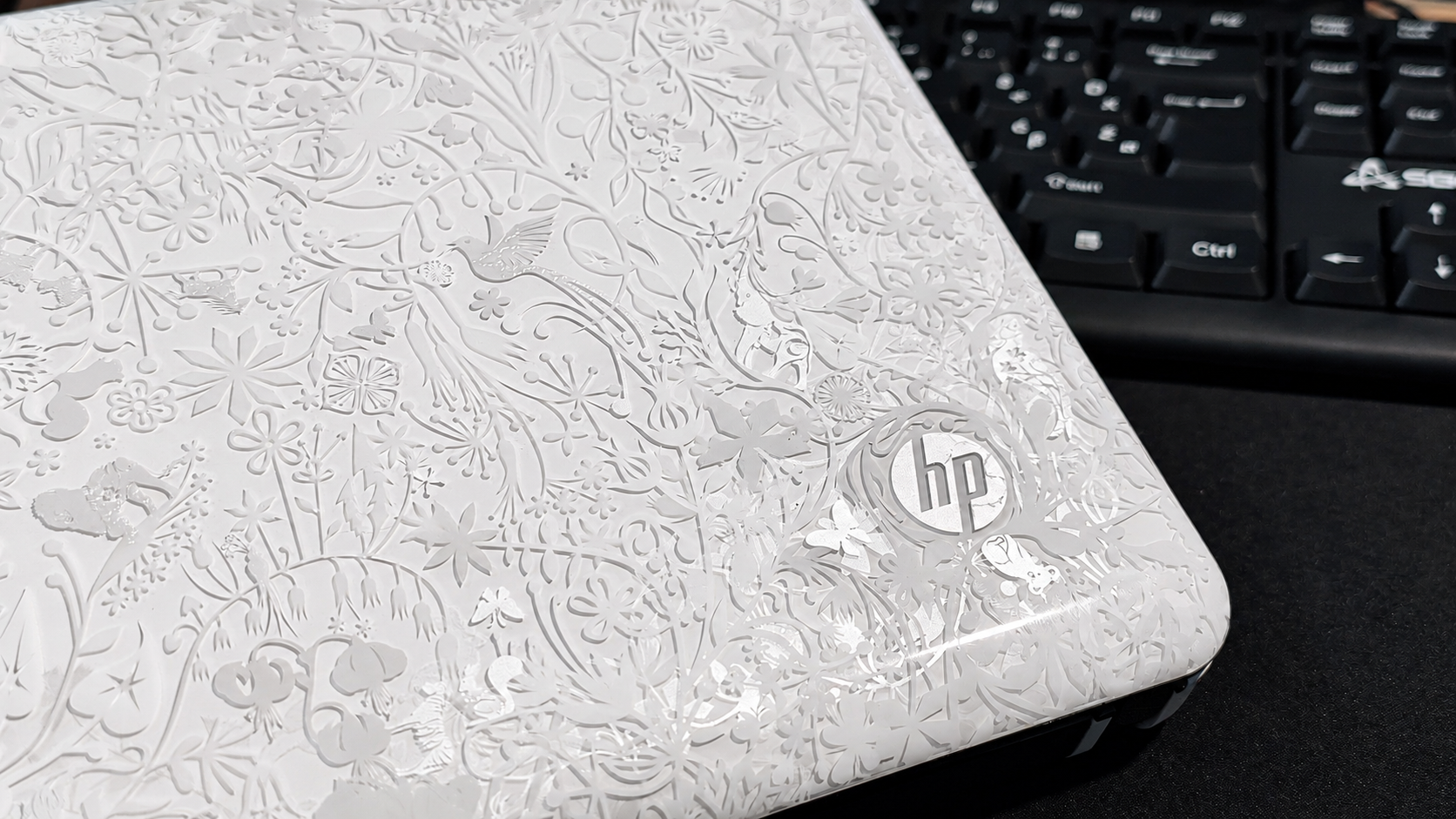
    Its white exterior is covered with an intricate floral pattern extending across the lid and palm rest. The layered design includes flowers, branches and small animals hidden among the details. It gives the netbook an appearance unlike almost any modern laptop.

    The design is unmistakably connected to the late 2000s and early 2010s—a period when computer manufacturers were much more willing to experiment with colours, patterns and unusual limited editions.

    The distinctive floral artwork makes this much more interesting than an ordinary old netbook.

    The finish has collected some marks over the years, but the netbook remains in good overall condition. I initially considered covering parts of it with black vinyl, although I am now hesitant to hide such a distinctive part of the machine’s identity.

    Its small display and compact keyboard make it considerably smaller than a conventional laptop. Combined with the unusual Tord Boontje artwork, it feels more like a preserved piece of netbook history than an ordinary old computer.


    When I received the HP Mini 110, it still had its original Windows 7 Starter installation.

    Windows 7 Starter was a simplified edition of Windows created primarily for inexpensive netbooks. It offered fewer features than the other Windows 7 editions, but its lower hardware requirements made it a logical choice for machines such as the HP Mini 110.

    Booting into the original installation felt like opening a small time capsule from the netbook era. Alongside Windows 7, HP had installed a considerable amount of additional software and bloatware.

    One of the most noticeable additions was a game centre containing a collection of casual games. The selection included familiar titles such as Mahjong and Bejeweled, together with several other games divided across different categories and levels.

    The original Windows 7 Starter installation was still present when I received the netbook.

    The game centre was one of several additional programs preinstalled on the machine.

    It is the kind of software package that was commonly installed on consumer laptops during this period. It adds to the authentic late-2000s experience, although it also consumes valuable storage and resources on a machine with very limited hardware.

    The original installation was interesting to explore, but Windows 7 is no longer a suitable choice for a computer that will regularly connect to the internet. Instead of trying to turn it back into a practical everyday Windows machine, I decided to see whether lightweight Linux could give it a more useful second life.


    The HP Mini 110 is powered by an Intel Atom N270, a single-core processor with two threads running at up to 1.60 GHz. It is paired with just 1 GB of RAM and, in my machine, a conventional 5400 RPM hard drive.

    Even by modern low-end standards, that is an extremely limited combination. The 1 GB of memory leaves very little room for multitasking, while the mechanical hard drive makes loading applications and starting the operating system noticeably slower than what we are used to with SSDs today.

    More importantly, the Atom N270 uses a 32-bit architecture. This significantly restricts the choice of modern operating systems because many Linux distributions no longer provide versions for 32-bit computers.

    Atom processors were originally designed to consume little power and keep netbooks inexpensive. Even when these machines were new, performance was never their strongest feature. More than a decade later, modern websites and applications can easily overwhelm them.

    Installing a conventional modern operating system would leave very few resources available for actual programs. Windows 10 or a feature-heavy Linux desktop would therefore make little sense on this hardware.

    The challenge was not to make the HP Mini fast by modern standards. That would be impossible.

    The goal was to find a lightweight 32-bit operating system capable of making its limited hardware useful again.


    For this experiment, I installed the 32-bit version of antiX Linux.

    antiX is designed to work on older and resource-constrained computers. It avoids many of the heavy components found in mainstream desktop Linux distributions and provides a lightweight environment that remains practical on limited hardware.

    Just as importantly, its availability for 32-bit hardware makes it suitable for systems powered by processors such as the Atom N270.

    This made antiX a much more appropriate choice for the HP Mini 110 than the heavier Linux installations I use on my more powerful computers.

    The result is not instant or especially fast, but the system is responsive enough to navigate, open lightweight applications and use the machine without constantly fighting the operating system.

    Simply getting a usable Linux system running on hardware of this age already feels like a small victory. Here is what a full antiX boot looks like on the HP Mini 110 with its Atom N270, 1 GB of RAM and original 5400 RPM hard drive:

    It is certainly not instant, but considering the age and limitations of the hardware, the result is surprisingly usable.


    The first issue appeared shortly after installing antiX: the internal Wi-Fi was not working correctly.

    That was an important problem because a small portable computer loses much of its usefulness if it must remain connected through an Ethernet cable.

    After some troubleshooting, I managed to get the wireless connection working. The HP Mini could finally connect to the network without needing an additional external adapter.

    This is exactly the sort of small obstacle I expect when bringing old hardware back into service. The components may still work, but modern operating systems do not always support every old device immediately.

    Once Wi-Fi was working, I could begin testing what the netbook was actually capable of doing.

    With the internal Wi-Fi working, the HP Mini became a genuinely portable Linux machine again.


    The modern web is probably the worst possible workload for an old Atom netbook.

    Many websites now contain heavy scripts, advertisements, animations and background processes. Even a simple page can require considerably more processing power and memory than an entire desktop environment from the HP Mini’s original era.

    Lightweight browsing is still possible, but expectations need to remain realistic. Simple pages work much better than large modern websites, and opening multiple browser tabs quickly becomes impractical.

    The machine is much more convincing when used for focused, lightweight tasks:

    • Writing text and notes
    • Basic file management
    • Using the Linux terminal
    • Connecting to IRC
    • Running terminal-based applications
    • Managing files on other computers
    • Lightweight network administration
    • Experimenting with older software
    • Learning more about Linux without distractions

    These tasks suit the hardware much better than trying to use it like a modern multimedia laptop.

    Of course, knowing that this is an old Atom-powered netbook did not stop me from trying a game or two.

    The HP Mini is clearly not a gaming machine, but lightweight and older games are still worth experimenting with. Simple puzzle games, classic PC titles, DOS games and other less-demanding releases are a much better match for its limited hardware than anything modern. Testing games on computers that were never designed for gaming is also part of the fun. I do not expect impressive performance, but finding a few titles that run well could give the HP Mini another entertaining purpose.

    I plan to cover my gaming results in a separate OpenBootLab lab note. Here’s Freedoom running on the HP Mini 110:


    The most interesting role for the HP Mini may be as a small portable terminal.

    Terminal applications require far fewer resources than modern graphical software. An IRC client, text editor, file manager or remote connection can run without placing the same load on the Atom processor as a modern browser. The small screen also makes more sense in this context. It is restrictive for complicated websites, but perfectly suitable for displaying a terminal, writing a document or monitoring another computer.

    I have also been exploring terminal-based browsers and music clients. Not every modern service will work perfectly on hardware this old, but experimenting with these tools is part of the fun.

    Rather than asking the HP Mini to do everything, I can give it a small number of specific jobs that match its capabilities.


    Another possible use is as a dedicated writing machine for OpenBootLab.

    A modern computer makes it incredibly easy to become distracted by videos, social media, notifications and dozens of open browser tabs. The HP Mini does not encourage that kind of multitasking because it simply does not have the performance for it. That limitation could actually be useful.

    With a lightweight text editor, the netbook could provide a simple environment for drafting articles and taking project notes. The keyboard is small, so I would not choose it for writing an entire book, but it could work well for preparing short drafts away from my main computer.

    Sometimes a machine becomes more useful when it cannot do everything.


    Installing antiX does not magically turn the HP Mini 110 into a fast computer.

    Its limitations remain obvious:

    • The Atom N270 is extremely slow by current standards.
    • Its 32-bit architecture limits software and operating-system compatibility.
    • The available memory is very limited.
    • Modern websites can take a long time to load.
    • Multiple browser tabs quickly reduce responsiveness.
    • Modern video streaming is demanding.
    • The small display limits the usable workspace.
    • The compact keyboard requires some adjustment.

    This is not a replacement for a modern laptop or Chromebook.

    However, that is also not the point of the experiment. The HP Mini is interesting because it shows how much usefulness can still be recovered from hardware that most people would now consider obsolete.


    The experiment with antiX proved that the HP Mini 110 can still be useful, but I am not quite finished with the hardware yet.

    The first upgrade I would like to make is increasing the memory from 1 GB to 2 GB of RAM, assuming I can find a compatible module. Two gigabytes is still tiny by modern standards, but on a lightweight 32-bit Linux installation it should provide noticeably more breathing room.

    The other obvious upgrade is storage. My HP Mini currently has its original-style 250 GB 5400 RPM mechanical hard drive, and replacing it with an SSD should make the system feel much more responsive when booting, launching applications and working with files. It will not make the Atom N270 any faster, of course, but it should remove one of the biggest remaining bottlenecks.

    My original idea was to take this a little further and start using the HP Mini as an everyday-carry computer — a tiny machine that I could throw into a bag and use for writing, terminal work and other lightweight tasks.

    There is just one problem with that plan. Since picking up the HP Mini, I have also started using an old ThinkPad SL510. With considerably more processing power, a much larger keyboard and a new replacement battery, the ThinkPad has unexpectedly become my main OpenBootLab writing machine.

    That doesn’t mean the HP Mini is going back onto a shelf, though. Its tiny size, working battery and lightweight antiX installation give it a completely different character. I still want to upgrade it, experiment with it and find out exactly how useful a little Atom-powered netbook can be in 2026.

    As for the ThinkPad? That is a story for another post.


    The HP Mini 110 is clearly obsolete as a conventional modern laptop. Its Atom N270 struggles with the modern web, 1 GB of RAM leaves very little room for multitasking, and its 32-bit architecture makes finding compatible modern software increasingly difficult.

    But after spending some time with antiX, I don’t think this little netbook needs to be a conventional laptop anymore.

    I can see it becoming a small home-lab terminal that I can keep nearby for connecting to servers and other machines over SSH, using IRC, running terminal applications and handling other lightweight tasks. For that kind of work, raw performance matters far less than having a small computer with a physical keyboard and a working battery. It could also become my truly portable writing machine.

    The ThinkPad SL510 has already taken over as my main OpenBootLab writing laptop. It is considerably more powerful, has a much larger and more comfortable keyboard, and with the replacement battery I recently bought, it has become surprisingly practical for everyday use. I’ll have much more to say about that machine in another post.

    But the ThinkPad is also big and heavy.

    If I’m going for a walk in the woods, spending some time outdoors or going camping with my family, carrying a full-size old ThinkPad around doesn’t make much sense. The HP Mini does. It is small enough to throw into a bag and forget about until I want to sit down somewhere and write a few paragraphs, capture an idea or access something remotely.

    There are still a couple of upgrades I would like to make. If I can find compatible memory, I want to increase it to 2 GB of RAM, and replacing the current 250 GB 5400 RPM hard drive with an SSD should make everyday use considerably more pleasant. Those upgrades won’t suddenly make an Atom N270 fast. They don’t need to.

    For €90, I didn’t just get four working old laptops. I also found a tiny, unusual netbook that may end up having a surprisingly specific place in my setup: part home-lab terminal, part portable writing machine, and part Linux experimentation platform.

    The HP Mini 110 may no longer be fast, but I think I’ve found a reason to keep using it.


  • My €90 Used Laptop Haul

    My €90 Used Laptop Haul

    I was only looking for one cheap laptop, but somehow I ended up buying a bundle of four older machines for €95.

    The haul included a Lenovo ThinkPad SL510, Dell Inspiron 1545, Fujitsu Siemens Amilo Pro V3545, and a tiny HP Mini 110. Even better, all four turned out to be working.


    I originally started looking for a cheap laptop that I could use mainly for writing OpenBootLab posts, browsing, and some light Linux testing.

    My budget was around €100, and at first I was looking at inexpensive refurbished Chromebooks and other low-cost used laptops. One of the options I was seriously considering was a refurbished Dell Chromebook.

    Instead, I contacted a seller I had bought hardware from before and asked if he had any older laptops available. You may already recognize the seller from the Mainframe project, where I previously bought a €30 bundle of old PC hardware from him. He usually has quite a bit of interesting older hardware around, so I have a feeling this probably will not be the last time something from him ends up in OpenBootLab.

    He had several laptops available, and after going through the options I ended up choosing four of them: a Lenovo ThinkPad SL510, Dell Inspiron 1545, Fujitsu Siemens Amilo Pro V3545, and a tiny HP Mini 110.

    The total price for all four was €90.

    What made the deal especially interesting was that I paid less for these four machines combined than I would have paid for the single refurbished Dell Chromebook I had been considering. At that price, I expected at least one of them to be completely dead or to need quite a bit of work.

    Instead, all four powered on and worked.

    So what started as a search for one inexpensive writing laptop somehow turned into four different machines, four potential OpenBootLab projects, and plenty more content for both me to make and you to enjoy.


    Now that the story behind the haul is out of the way, it is time to look at the four machines themselves.

    The four laptops are all from slightly different parts of the same era, but they are also very different from each other. There is a business-oriented ThinkPad, a mainstream Dell, an older Fujitsu Siemens machine, and a tiny HP netbook.

    The lineup looks like this:

    • Lenovo ThinkPad SL510
    • Dell Inspiron 1545
    • Fujitsu Siemens Amilo Pro V3545
    • HP Mini 110

    All four came with their power adapters, and all four were able to power on. Some of them also already had useful upgrades such as SSDs or additional RAM, which made the deal even more interesting.

    Of course, they are far from perfect. The cases show their age, there are scratches and signs of use, and the batteries on the larger machines are basically finished. But that is also part of the reason I wanted them.

    These are not collector pieces or restored machines. They are old laptops that have clearly been used, and now they get another chance to do something useful.

    From here, I will take a closer look at each one individually.


    The Lenovo ThinkPad SL510 was probably the machine I was most interested in when choosing the four laptops.

    I have always liked the more practical design of older ThinkPads, and this one still has a lot of the features people usually associate with them: a solid keyboard, the red TrackPoint in the middle, a fairly simple black chassis, and a design that is more functional than flashy.

    Cosmetically, it definitely shows its age. The lid has plenty of scratches and marks from years of use, but I actually prefer leaving that visible instead of trying to make it look brand new. This is a used machine, and the wear is part of its history.

    The good news is that the laptop itself works. The main downside is the battery, which is basically dead, so for now it needs to stay connected to the charger.

    My current plan is to turn the SL510 into a simple Linux laptop that I can use for writing OpenBootLab posts, browsing, terminal work, and some light testing. I am also considering replacing the battery later if I can find one at a reasonable price.

    Out of the four laptops, this is probably the one with the best chance of becoming an actual everyday-use machine rather than just another experiment.


    The Dell Inspiron 1545 feels quite different from the ThinkPad. It is more of a mainstream consumer laptop from its era, with a simpler design and a glossy finish that definitely shows fingerprints, scratches, and years of use.

    Like the SL510, the important part is that it works.

    One thing I noticed immediately during the first boot was the charger situation. The seller had already mentioned that if I wanted the battery to charge properly, I would probably need to get an original Dell charger. He did not have one available, so he included a compatible HP power adapter instead. It powers the laptop without a problem, but the Inspiron does not recognize it as a proper Dell charger because it is missing Dell’s identification chip. Because of that, the laptop can run from the adapter, but battery charging is limited or unavailable.

    The battery itself is already in poor condition anyway, so this is not a major problem for what I currently want to do with the machine. If I eventually decide to replace the battery, I will probably also look for a proper Dell charger.

    Unlike the ThinkPad, I already have a fairly clear idea for the Inspiron. This will probably become one of my main Linux distribution testing machines, especially for lightweight distributions designed for older hardware. Instead of only testing them inside a virtual machine, I want to see how they actually behave on real hardware from this era.

    That should make the Inspiron useful for future OpenBootLab posts where I can compare different lightweight Linux distributions, installation experiences, hardware support, performance, and how usable they still are on an older laptop.

    So while it may not become my everyday writing machine, it could end up being one of the most frequently experimented-on laptops from the entire haul.


    The Fujitsu Siemens Amilo Pro V3545 is probably the most unusual laptop in the group, at least compared with the Dell and ThinkPad. Its design feels noticeably older, with a chunkier chassis, silver trim, and a much more early-2000s business-laptop look. It also stands out visually because of the light-colored keyboard and the large silver hinge area.

    Like the others, it is far from perfect cosmetically. There are scratches, marks, and signs of long-term use, but the machine itself still works, which is what matters most here.

    This one also came with Windows XP already installed, and I have decided to keep it that way.

    Because the laptop has a dedicated NVIDIA graphics card, my plan is to turn the Amilo Pro into an XP gaming laptop for older PC games and software from that era. Instead of trying to modernize it too much, I think it makes more sense to keep it close to the period it originally came from. That should make it useful for testing older games, software, drivers, and other Windows XP-era experiments without needing to set up a virtual machine every time.

    So unlike the Dell, which will mainly become a Linux testing machine, the Amilo already has a much clearer role in the lab: a dedicated Windows XP gaming and retro software machine.


    The HP Mini 110 is easily the most different machine in the whole haul.

    Compared with the other three laptops, it is tiny. The small screen, compact keyboard, and lightweight chassis make it feel more like a little portable experiment than a normal laptop, which is exactly why I like it. This particular one is also a special edition model, which makes it even more interesting. Instead of the usual plain finish, it has the distinctive white floral-patterned lid, giving it a very different look from the typical black and silver laptops from the same era.

    It also surprised me in another way: the battery still works.

    That already makes it more practical than the larger laptops, especially for something I can actually carry around and use away from the desk. Performance is obviously limited by the Atom platform, but that is also what makes it interesting.

    I have already started experimenting with antiX Linux on it, and the goal is to see how usable such a low-powered machine can still be today with lightweight software. I want to try things like lightweight web browsing, IRC, terminal-based tools, music playback, writing, simple file transfers, and other low-resource Linux applications.

    The HP Mini will probably become my dedicated ultra-lightweight Linux experiment.

    It is definitely not the fastest machine in the group, but because of its size, working battery, special-edition design, and limitations, it may end up producing some of the most interesting Lab Notes from the entire haul.


    What started as a search for one cheap laptop turned into four different machines, each with its own role.

    The ThinkPad SL510 will probably become a regular appearance on OpenBootLab. It is the machine I can see myself using most often for writing, Linux, browsing, and general testing. The Dell Inspiron 1545 will mainly be used for experimenting with different lightweight Linux distributions on real hardware. The Fujitsu Siemens Amilo Pro V3545 is staying on Windows XP and will become my retro gaming and older software machine. And the tiny HP Mini 110 will continue as my low-power Linux experiment.

    For €90, I am more than happy with how this turned out.

    This post was only the introduction to the haul. I also plan to make a separate post for each laptop, where I can go into much more detail about the hardware, specifications, condition, upgrades, operating systems, performance, and what I eventually decide to use each machine for.

    None of these laptops are perfect. They are scratched, worn, old, and limited in different ways, but that is exactly what makes them interesting. They are not going onto a shelf. They are going back to work.

    And this definitely will not be the last time you see them on OpenBootLab.