Tag: PC Gaming

  • Baracuda Manta Gaming Mouse

    Baracuda Manta Gaming Mouse

    Gaming mice can get expensive very quickly. But what happens when you go completely in the opposite direction?

    The Baracuda Manta is a wired RGB gaming mouse that sits firmly in the budget category, but on paper it comes with features normally associated with much more expensive gaming mice. You get an optical sensor capable of up to 12,800 DPI, 8 buttons, 1000 Hz polling, RGB lighting and software support, all packed into an 81 g mouse.

    I’ve now been using the Manta for around three weeks, not only for gaming but also as my everyday mouse for work and writing. And surprisingly, I actually like it.
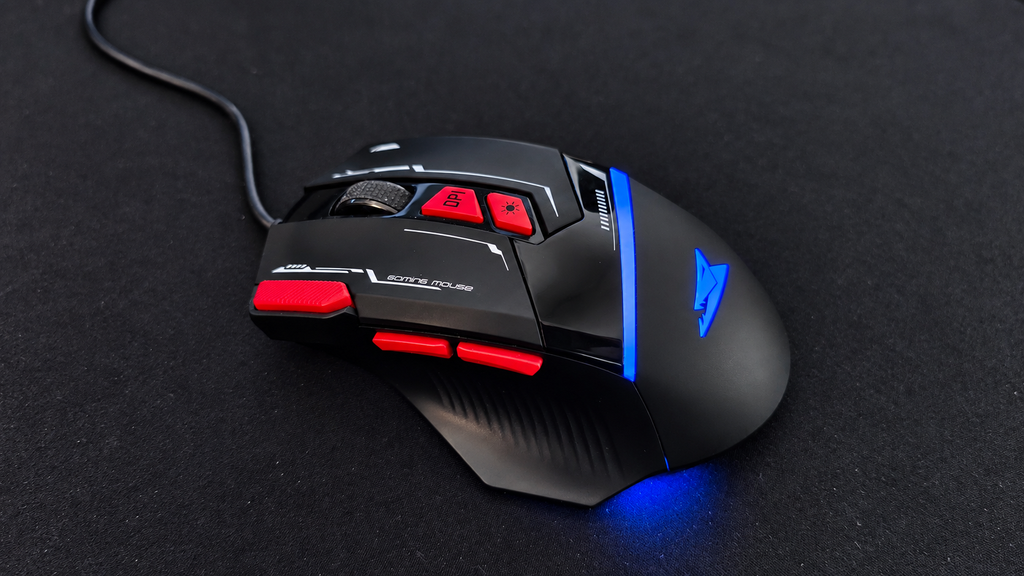

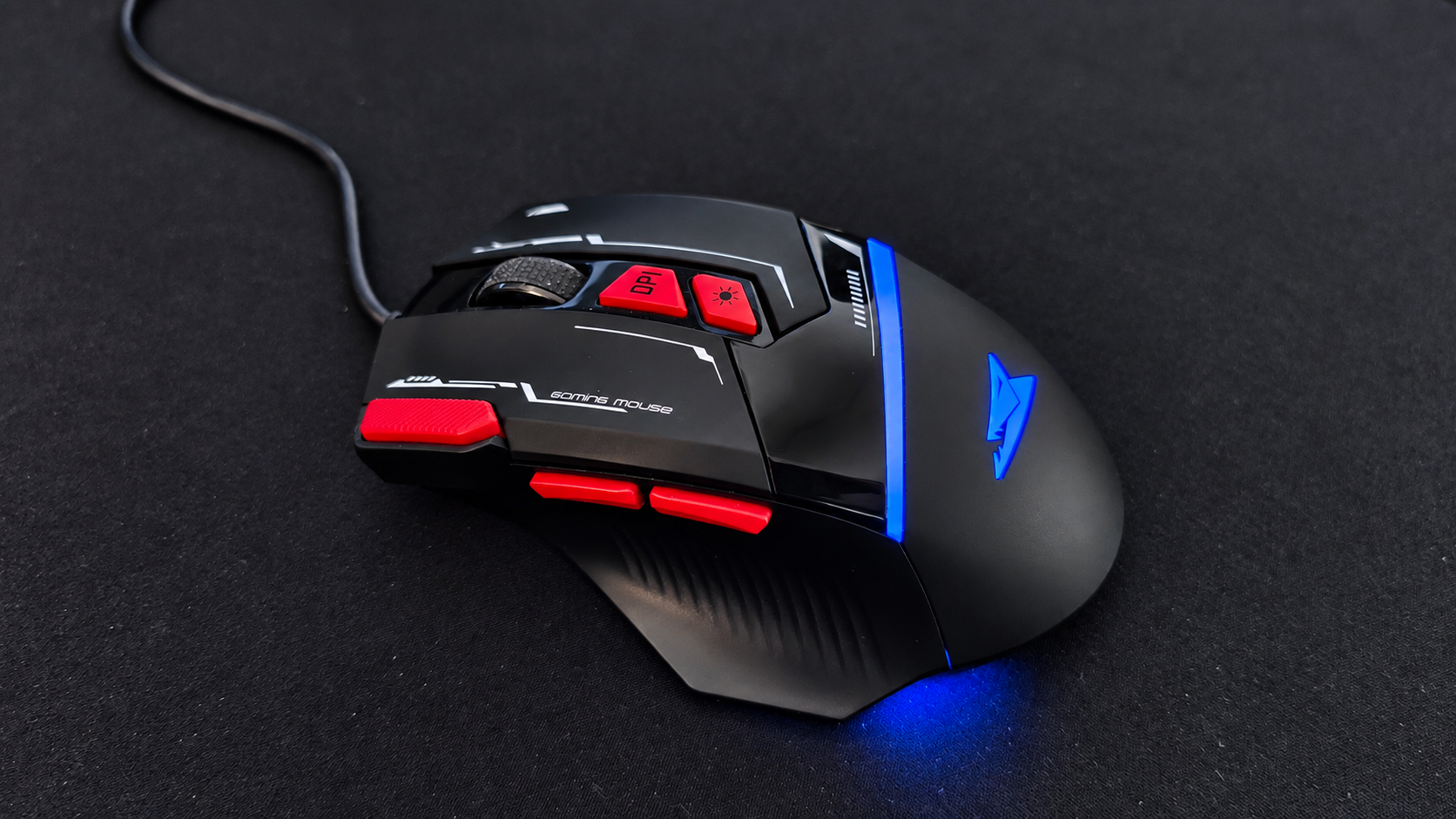
    The Manta is very clearly trying to be a gaming mouse. It has the aggressive shape, plenty of buttons, adjustable DPI and, of course, a healthy amount of RGB lighting. But I’ve actually ended up using it much more as an everyday mouse than purely as a gaming peripheral.

    That’s probably the more interesting test anyway.

    It’s easy to make a cheap mouse look good on a specification sheet. The question is whether you still want to use it after a few weeks.


    For something this inexpensive, the specification list is surprisingly long.

    • Optical Instant 825 sensor
    • Up to 12,800 DPI
    • 8 buttons
    • 1000 Hz polling rate
    • Up to 20 G acceleration
    • RGB lighting with 16.8 million colours
    • Software support
    • USB 2.0 wired connection
    • 1.5 m cable
    • 81 g
    • 126 × 82 × 42 mm
    • Rated for more than 5 million clicks
    • Windows and macOS support

    As always, numbers don’t tell you everything.

    After three weeks, the shape and button placement have mattered much more to me than the maximum DPI number.
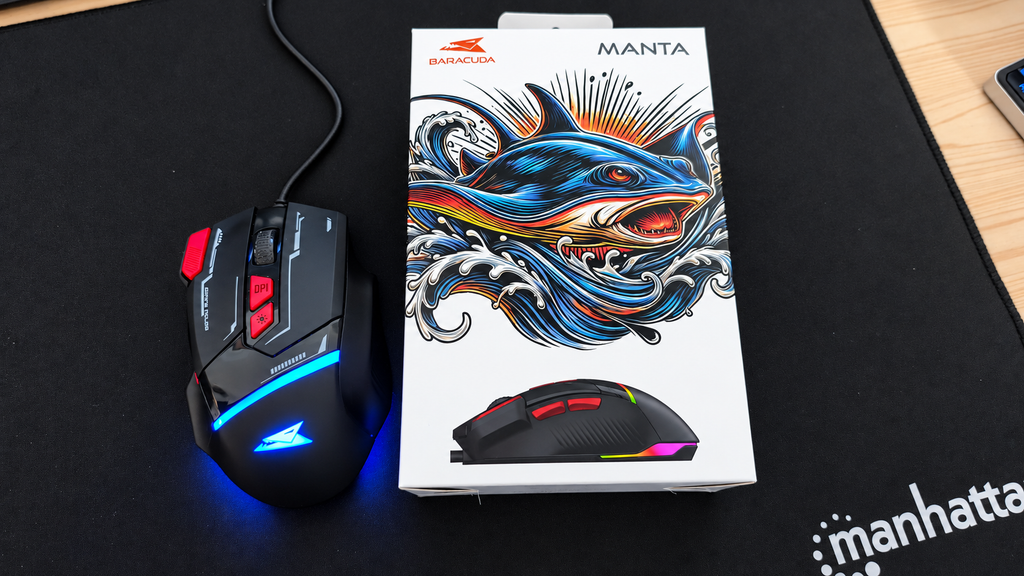

    The packaging is straightforward. Take the mouse out, connect the USB cable and you’re basically ready to go. That’s still one thing I like about simple wired peripherals. There is no battery to charge. No Bluetooth pairing. No wireless receiver to lose.

    Plug it in, the RGB comes alive, and start using it.


    This is probably one of the most important things to know about the Manta:

    It’s quite a large mouse. For me, that works well. I find the shape comfortable and after several weeks of use I haven’t had any problems using it for longer periods. But if you have smaller hands, I could definitely see the Manta feeling too big.

    So this isn’t necessarily a mouse I would recommend buying purely from the specification sheet without considering its size. The overall design is also something I genuinely like. It has that unmistakable gaming-mouse appearance without going completely overboard.
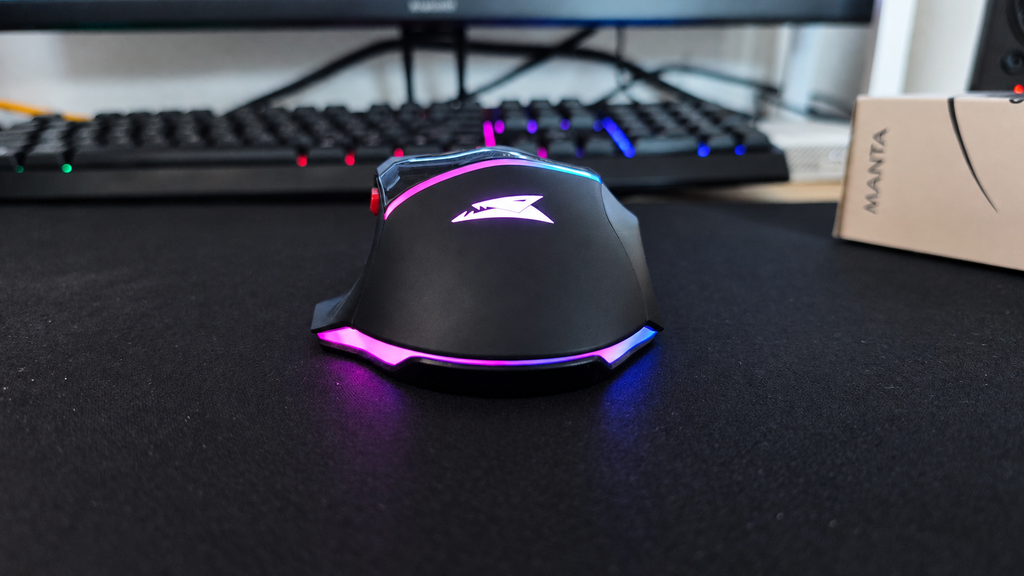
    And then there is the RGB. The lighting is easily one of my favourite parts of the Manta. It looks much better in person than I expected from such an inexpensive mouse and gives it considerably more personality when sitting on the desk.

    The cable is also perfectly acceptable for the price. It doesn’t feel especially premium and it isn’t something I would point to as a standout feature, but it also hasn’t given me any problems during normal use.

    In other words: it’s fine, but nothing to brag about.


    At around 81 grams, the Manta isn’t particularly heavy. At the same time, I wouldn’t describe it as an ultra-light gaming mouse either. It sits somewhere in the middle.For normal desktop use and the kind of games I play, that has been perfectly fine.

    If you’re heavily into competitive multiplayer games and specifically want the lightest mouse possible, you’ll probably be looking at a completely different category of product anyway.

    For my use, the weight hasn’t bothered me.


    This is where the Manta has actually surprised me the most.

    The two side buttons are positioned well and I’ve ended up using them a lot while working. They’re easy to reach without having to awkwardly change my grip, and after a few weeks they’ve become part of my normal workflow. There’s also an additional button next to the main left mouse button. I initially thought of it mostly as another gaming feature, but I’ve found it surprisingly useful when I’m doing a lot of text work and repeatedly working with copied text.

    These extra buttons have probably been more useful to me while working than while gaming.
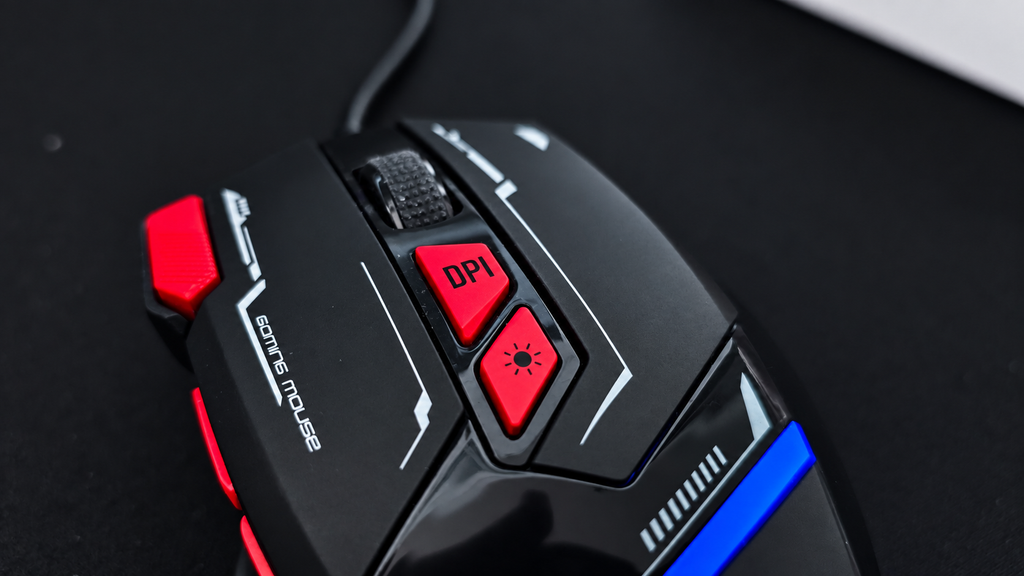
    The DPI button is also conveniently positioned and lets you quickly switch sensitivity. If you play a lot of competitive or multiplayer games, being able to change DPI quickly could be genuinely useful. For me personally, it isn’t particularly important because I don’t really play multiplayer games.

    Still, it’s nice to have.


    The buttons themselves feel good enough for everyday use.

    After several weeks I haven’t noticed anything that would make me want to stop using the mouse. The scroll wheel, on the other hand, is probably one of the least exciting parts of the Manta. It’s fine. It works. But that’s about it.

    I would describe it as average rather than particularly good or bad.

    Considering the price of the mouse, though, that’s not exactly a major complaint.


    Baracuda also provides software for the Manta, which should allow additional configuration of the mouse. Unfortunately, this is one part I haven’t been able to properly test yet. On most of my LAB computers I run Linux, but software is only supported for Windows.

    So I’m not going to judge the software without any test,beacuse for this review, I’ve mainly been using the mouse as it works out of the box.

    And honestly, even without touching the software, I’ve been perfectly happy using it.


    This is where the Manta has done better than I originally expected. I’ve been using it for roughly three weeks now for normal desktop work, writing and some gaming, and I haven’t felt the need to replace it. That’s probably one of the best things I can say about a cheap peripheral.

    The large shape works well for my hands. The side buttons are genuinely useful. The extra button has found its place in my normal work routine. The RGB looks great. The cable is good enough for normal use. And despite clearly being a budget product, nothing about it has made me want to immediately go back to another mouse.

    There are better mice. There are lighter mice. There are certainly more premium mice.

    But the Manta has been completely usable as an everyday mouse.


    After around three weeks with the Baracuda Manta, I like it more than I expected to. Its biggest consideration is probably its size. If you have larger hands, the shape can be very comfortable. If your hands are smaller, I would be a little more careful because this is definitely not a compact mouse.

    The RGB looks great, the button placement is genuinely useful and the mouse has worked just as well for everyday productivity as it has for casual gaming. The scroll wheel is average, the cable is nothing special and I haven’t been able to test the software yet.

    But that’s also missing the point. This is a very inexpensive gaming mouse. And after three weeks, I’m still happily using it every day.

    For a budget peripheral, that’s a pretty successful result.
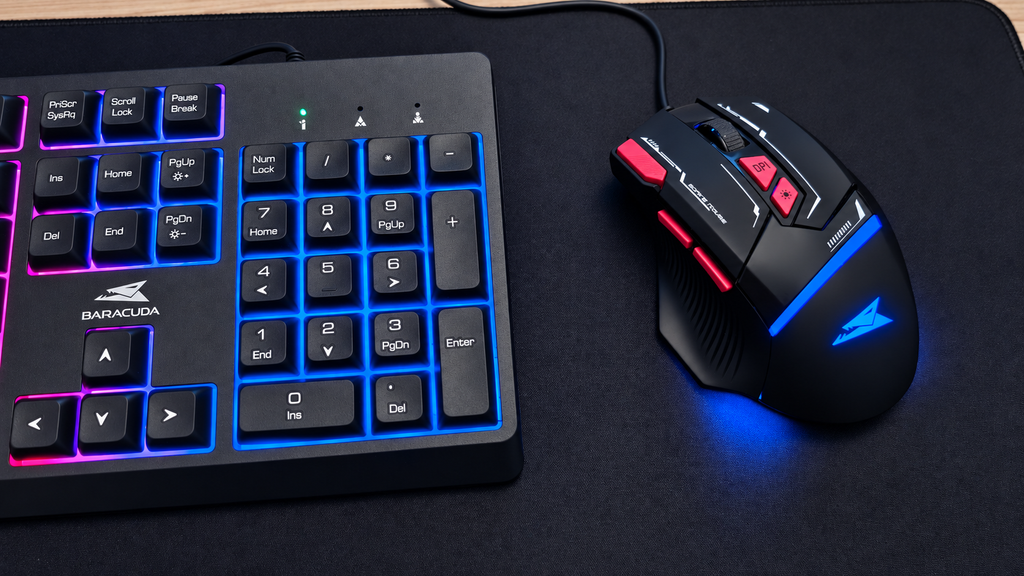
    Spoiler: the keyboard isn’t here by accident.


  • SBOX K-14 Unboxing: Is This €6 Keyboard Any Good?

    SBOX K-14 Unboxing: Is This €6 Keyboard Any Good?

    Can a €6 Keyboard Be Any Good? SBOX K-14 Unboxing and First Impressions.


    The SBOX K-14 is one of the cheapest new keyboards I could find. I purchased it from TechTrade for only €6.71, which made me curious about what such a low-cost keyboard could actually offer.

    I wanted to find out whether it could be used for gaming, writing OpenBootLab posts and basic everyday tasks, or whether its extremely low price would make it frustrating to use.

    My immediate reaction after removing it from the box was simple: this keyboard is unbelievably light. The plastic feels very cheap, and the entire body flexes significantly with little pressure. That was not completely unexpected for €6.70, but the amount of flex still surprised me.

    Build quality is only one part of the experience, however. The real question is whether the SBOX K-14 can still function as a usable keyboard despite feeling so inexpensive.

    Watch the complete SBOX K-14 unboxing below:


    The SBOX K-14 is a basic full-size wired keyboard designed for everyday computer use. According to the specifications listed by TechTrade, it offers:

    • 105-key full-size layout
    • Slovenian/Croatian key layout
    • Membrane switches
    • Rated lifetime of three million presses per key
    • USB 2.0 connection
    • 1.35-metre fixed cable
    • 5 V / 100 mA USB power
    • Dimensions of 445 × 156 × 22 mm
    • Weight of approximately 530 g
    • Official compatibility with Windows XP, Vista, 7, 8 and 10
    • 12-month warranty

    The official compatibility list appears dated and does not mention Windows 11 or Linux. However, as a standard USB keyboard, it should work as a plug-and-play input device on most modern operating systems. I tested it on Arch Linux and will cover the results later in the post.

    There is no backlighting, wireless connectivity, software suite or gaming-focused feature set. This is a conventional membrane keyboard focused on providing the most basic functionality at the lowest possible price.


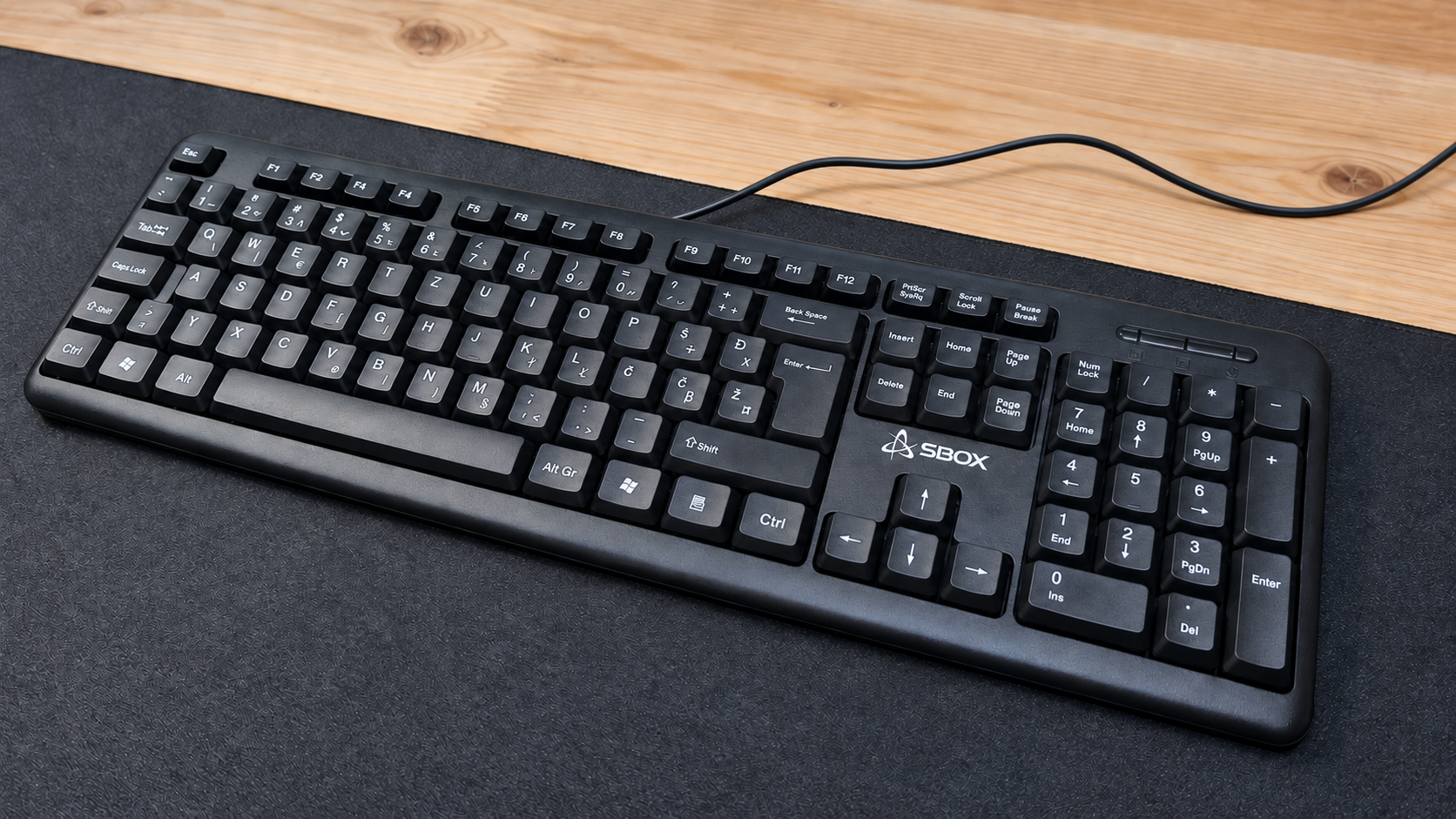
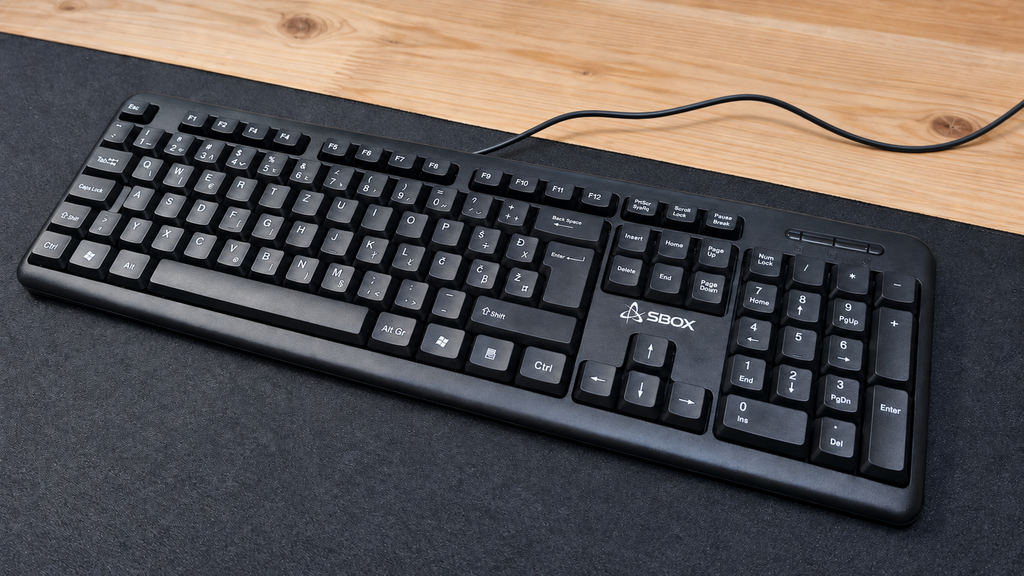
    he SBOX K-14 has a traditional full-size layout with a function-key row, navigation keys, arrow keys and a numeric keypad. One positive aspect is its relatively compact outer frame. There is very little unnecessary plastic surrounding the keys, so it does not occupy more desk space than a full-size keyboard actually needs.

    Its construction immediately reveals where the low price comes from. The plastic feels very cheap, the keyboard is extremely light, and the chassis flexes significantly with little pressure. It does not feel particularly sturdy, although that is not entirely surprising for a keyboard costing only €6.70.

    There are fold-out legs underneath, allowing the keyboard to be raised to a more comfortable typing angle. However, it has no rubber feet to grip the desk. Combined with its low weight, this means the keyboard slides around with very little force. The underside also includes several drainage holes. These should allow small amounts of spilled liquid to pass through the keyboard instead of remaining trapped inside, although I did not deliberately test this feature.

    The permanently attached 1.35-metre USB cable also feels thin and inexpensive. It should be long enough for a typical desktop setup, but its durability will only become clear after longer use.

    Overall, the K-14 offers a sensible and space-efficient full-size form factor, but its materials, flex and lack of grip make it obvious that keeping the price as low as possible was the main priority.


    The SBOX K-14 uses membrane switches, and the keys feel very mushy when pressed. Despite that, they are reasonably responsive for normal typing, and the keyboard is more comfortable to use than its extremely cheap construction initially suggested.

    The plastic does not feel pleasant beneath the fingers and constantly reminds you that this is a €6.70 keyboard. The larger keys, including Space and Enter, feel and sound fairly average. They are not particularly good, but they also do not stand out as a major problem.

    I made a few typing mistakes while testing it, although the number of missed or incorrect presses was not bad enough to make the keyboard frustrating. With more time, I would probably become more accustomed to its feel.

    One of its strongest qualities is how quiet it is. The K-14 produces very little noise during normal typing, which could make it suitable for a shared room, a quiet office or late-night use.

    If this were the only keyboard I had, I could comfortably use it to write multiple OpenBootLab posts and complete everyday tasks. However, if I had more money available, I would choose something with better materials and a more precise typing feel.

    The video below demonstrates how the SBOX K-14 sounds during normal typing and when pressing several individual keys. No background music was added, allowing the keyboard itself to be heard clearly.


    I tested the SBOX K-14 with my main desktop running Arch Linux and with my laptop running Windows 11 Pro.

    The keyboard was recognised immediately on both systems. I only had to connect the USB cable, and it was ready to use within seconds. No drivers, additional software or manual configuration were required—which is exactly what I expected from a standard wired USB keyboard.

    All the keys I tested worked correctly, including the Slovenian and Croatian characters Č, Š, Ž and Đ. The numeric keypad and the rest of the full-size layout also worked without any problems.

    Although the product information only officially lists older Windows versions, the K-14 worked normally with Windows 11 Pro and Arch Linux during my testing. Its simple plug-and-play compatibility is one of the areas where this inexpensive keyboard delivers exactly what it should.


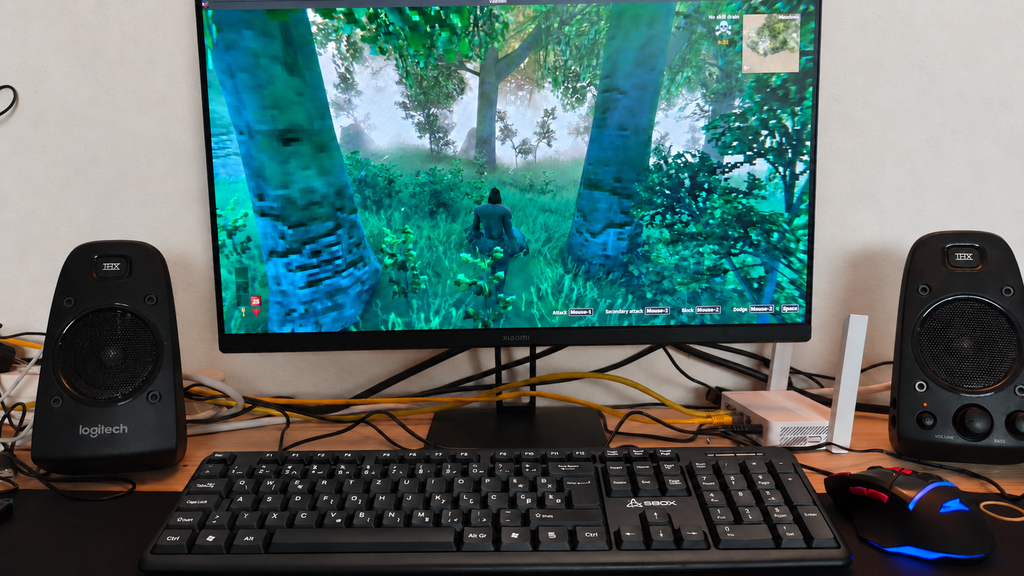
    I mainly play single-player games rather than competitive multiplayer titles, and for that kind of gaming, the SBOX K-14 is good enough.

    Basic movement and normal controls work without any major problems. However, when moving and pressing several keys very quickly, the keyboard can occasionally fail to register an input. This is unlikely to be a serious issue in slower single-player games, but it could become frustrating in fast or competitive titles where every keypress matters.

    The lack of rubber feet is also more noticeable while gaming. Because the keyboard is extremely light, it can slide across the desk during more intense moments.

    This is clearly not a gaming keyboard, and anyone who needs reliable multi-key input should look for something better. However, if the SBOX K-14 is the only new keyboard you can afford, it is still sufficient for casual gaming and everyday computer use.

    I am also writing this post on the K-14, which proves that it is usable beyond a short test. And if a particularly frustrating game ever causes it to meet an unfortunate end, at least replacing a €6.70 keyboard will not be too painful.


    So, can a €6.70 keyboard actually be any good? The answer depends entirely on what you expect from it.

    The SBOX K-14 feels extremely cheap. Its plastic is unpleasant, the chassis flexes considerably, the cable is thin, and the lack of rubber feet allows it to slide around the desk. The keys are also very mushy, and fast combinations are not always registered correctly.

    Despite those weaknesses, the keyboard is still functional. It is comfortable enough for writing, extremely quiet, compatible with both Arch Linux and Windows 11 Pro, and usable for basic tasks and casual single-player gaming. I even wrote this post using it.

    I would not choose the K-14 if I had enough money for a better keyboard. However, for someone who needs the cheapest possible new keyboard, a temporary replacement, or a spare for troubleshooting computers, it does the job.

    For €6.70, I cannot call it impressive—but I also cannot call it useless. It is exactly what it promises to be: an extremely cheap keyboard that works.

    Would you use a keyboard this inexpensive as your main keyboard, or would you keep it only as a spare?