GUIDE 01 // ARCH LINUX // DOSBOX // RETRO GAMING
SEPTEMBER 2026
A quick guide to running the classic Deluxe Ski Jump 2 on Arch Linux using DOSBox.

01 // INTRODUCTION
Deluxe Ski Jump 2 is much more than just an old game to me. Returning to it was a real nostalgia trip because I originally played it on our family’s first computer, which was running Windows 95. Despite its simple graphics and tiny size, I remember spending hours trying to improve my jumps and beat my previous records.
Years later, I wanted to find out whether I could bring this childhood favourite back to life on my modern Arch Linux system. Because Deluxe Ski Jump 2 was developed for DOS, it cannot be launched directly like a modern Linux game. Fortunately, DOSBox provides a simple way to run it.
In this guide, I will show you how I installed DOSBox, downloaded the official demo version of Deluxe Ski Jump 2 and launched it on Arch Linux. I will also cover the slow gameplay I encountered in Practice mode and the simple adjustment that fixed it.
02 // WHAT YOU NEED
To follow this guide, you will need:
- A computer running Linux
- An internet connection
- DOSBox
- The official Deluxe Ski Jump 2.1 demo
- A keyboard and mouse
I tested the game on Arch Linux with the XFCE desktop environment. However, the same game can also be run through DOSBox on Debian-based distributions such as Debian, Ubuntu and Linux Mint. The DOSBox installation command will be different depending on your distribution, but the remaining setup process should be very similar.
The official demo/shareware version of Deluxe Ski Jump 2.1 can be downloaded from the Mediamond website. The ZIP archive is only around 300 kB.
Download the archive and extract it somewhere convenient. The demo is enough to test the game and follow this guide, although it contains less content than the registered version.
03 // INSTALL DOSBOX
On Arch Linux, DOSBox is available directly from the official repositories. Open a terminal and install it with Pacman:
sudo pacman -S dosboxConfirm the installation when prompted. On Debian, Ubuntu, Linux Mint and other Debian-based distributions, use:
sudo apt update
sudo apt install dosbox
Once the installation is complete, open your applications or Start menu, search for DOSBox and select it. You can also launch it directly from a terminal with:
dosboxA new window should open with a classic DOS-style command prompt. DOSBox is now installed and ready, but it still needs access to the folder containing Deluxe Ski Jump 2.

04 // PREPARE THE GAME FOLDER
After downloading Deluxe Ski Jump 2.1 from the official Mediamond website, locate the ZIP archive and extract it.
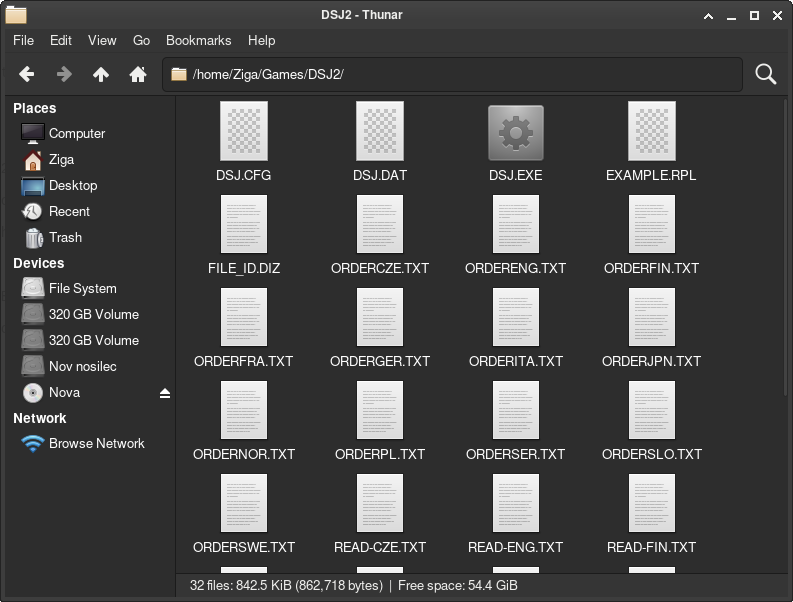
To keep my games organised, I created a folder named Games inside my home directory and placed the extracted DSJ2 folder inside it. My folder structure looked like this:
/home/YOUR_USERNAME/Games/DSJ2Replace YOUR_USERNAME with your Linux username. You can also create the required folders from the terminal:
mkdir -p ~/Games/DSJ2Then copy the extracted Deluxe Ski Jump 2 files into the DSJ2 folder. Open the folder and confirm that it contains dsj.exe, as this is the executable we will use to launch the game.
You can store the game somewhere else if you prefer. Just remember the complete folder path because you will need it when mounting the directory inside DOSBox.
05 // MOUNT THE GAME DIRECTORY IN DOSBOX
DOSBox cannot automatically access folders from your Linux system. Before launching the game, you need to mount the Games folder as a virtual DOS drive.
Open DOSBox and enter:
mount c /home/YOUR_USERNAME/GamesReplace YOUR_USERNAME with your actual Linux username.
Do not use ~ in the path. Although it represents your home directory inside a normal Linux terminal, DOSBox may not expand it correctly. Using the complete /home/... path is more reliable.
DOSBox should confirm that the directory has been mounted as drive C:. Switch to that drive by entering:
c:Next, open the Deluxe Ski Jump 2 directory:
cd DSJ2You can confirm that you are in the correct folder and view its contents with:
dirLook for dsj.exe in the displayed file list. Once you see it, the game is ready to be launched.

06 // START DELUXE SKI JUMP 2
Once you are inside the DSJ2 directory, launch the game by entering:
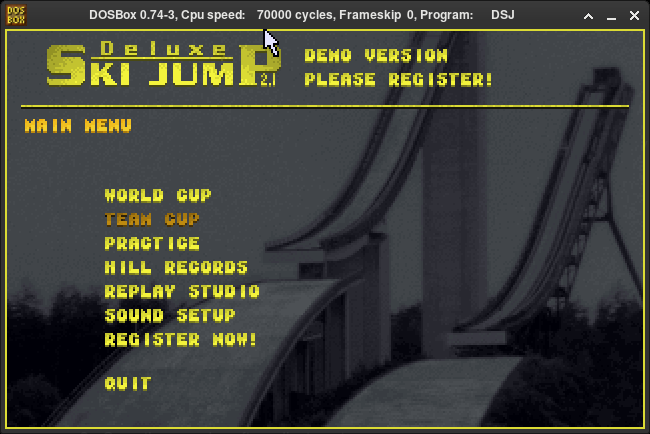
dsj.exeThe familiar Deluxe Ski Jump 2 menu should now appear.
For me, seeing this menu again immediately brought back memories of playing the game on our first family computer running Windows 95. Modern games may be far more advanced, but returning to such a simple childhood favourite still felt special.
The game launched successfully on my Arch Linux system. However, when I entered Practice mode, the gameplay was noticeably too slow. Fortunately, this was not a problem with the game itself and could be corrected by adjusting the emulated CPU speed in DOSBox.
07 // FIX SLOW GAMEPLAY
Although the game opened normally, Practice mode initially ran much too slowly on my system. This happened because DOSBox was using too few emulated CPU cycles.
Normally, the number of cycles can be increased while the game is running by pressing:
Ctrl + F12However, this keyboard shortcut did not work on my system. Instead, I exited the game and entered the following command directly into DOSBox:
cycles 70000I then launched the game again.
At around 7,000 cycles, Practice mode became playable on my system. This may not be the perfect setting for every computer, so it is worth experimenting with slightly higher or lower values until the speed and sound feel correct.
The ideal value depends on your hardware and DOSBox configuration. If the game runs too slowly, increase the number. If it becomes too fast or the audio starts breaking up, reduce it.
08 // FULLSCREEN AND MOUSE CONTROL
DOSBox can run Deluxe Ski Jump 2 in either windowed or fullscreen mode. To switch between them, press:
Alt + EnterThe game is controlled primarily with the mouse. When you click inside the DOSBox window, DOSBox may capture the mouse pointer so it remains inside the game.
To release the mouse and return control to your Linux desktop, press:
Ctrl + F10These shortcuts allow you to move easily between the game and your desktop without closing DOSBox.
GAMEPLAY VIDEO
Here is a short gameplay test showing Deluxe Ski Jump 2 running on Arch Linux through DOSBox:
09 // FINAL THOUGHTS
Running Deluxe Ski Jump 2 on Arch Linux turned out to be a simple and enjoyable experiment. After installing DOSBox, mounting the game folder and adjusting the CPU cycles, the official demo worked well and was completely playable.
More importantly, it was a real nostalgia trip. Seeing the familiar menu and jumping hills again immediately reminded me of playing the game on our first family computer running Windows 95.
The demo version is enough to test the game and revisit those memories, although it naturally contains less content than the registered version. If you want to experience this classic DOS game on a modern Linux system, DOSBox remains an easy way to bring it back to life.
Have you played Deluxe Ski Jump 2 before? Let me know which computer or operating system you originally played it on.